Monthly Status Assessment Report
The Monthly Status Assessment report Provides specific information about statuses and details, notifications, forms, templates, snapshots, and roles/rights in EMResource. displays the number of resources reporting selected statuses in each hour of a month.
To generate a Monthly Status Assessment report
EMResource allows you to select the current month for this report; however, if you do this, the report results will be zero (0). To generate meaningful data, you must select a month in the past.
- In the main menu, click Report, then click Monthly Status Assessment. The Monthly Status Assessment page opens.
-
In the Year field, select the year.
-
In the Month field, select the month.
-
For Report Format, select either:
-
Web Browser (HTML)
-
Excel
Be aware that for Excel, EMResource generates .xlsx files and does not support the older .xls format.
-
-
Click Select Resources, then select the checkboxes for the resources you want to include. When finished, click Apply in the upper right corner.
-
In the Status Type field, select the type.
-
Click Select Status, then select the checkboxes for the Statuses you want to include.
-
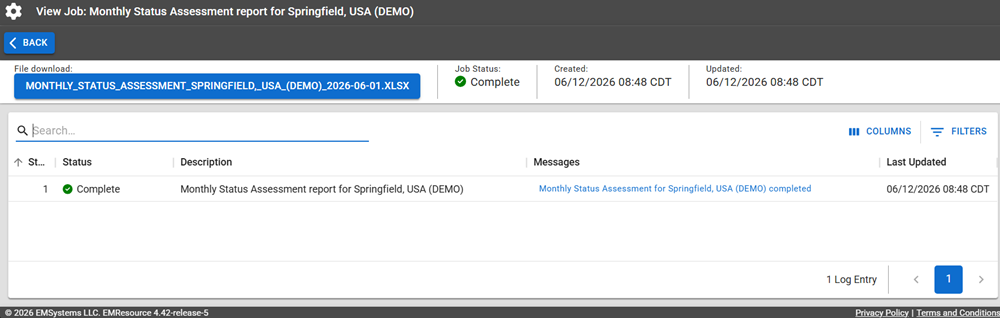
Click Execute near the top of the page. The Jobs page opens.
The report is available for seven days on the Jobs List.
-
Click the report name in the blue box to download it.
Report Fields
The report fields vary depending on the resources, status types, and statuses you select, but generally show the number of resources in each hour of a month, with the hours being represented by rows and the days of the month being represented by columns.