Status Detail Report
The Status Detail report Provides specific information about statuses and details, notifications, forms, templates, snapshots, and roles/rights in EMResource. displays specific information on status changes during the indicated time period.
To generate a Status Detail report
-
In the main menu, click Report, then click Status Detail. The Status Detail Report page opens.
-
In Start Date and End Date, enter the date range for the report.
-
For Report Format, select either:
-
Adobe Acrobat (PDF)
-
Excel Report (XLSX)
Be aware that for Excel, EMResource generates .xlsx files and does not support the older .xls format.
-
-
In the Status Type list, select the type.
When a report requires you to select resources and the list contains more than 15 options, search fields appear at the top of the page. You can filter the list by resource group
Comprised of resources that share one or more characteristics., resource status A resource's current operation level or limitations. Sometimes also referred to as a facility status. (active or inactive), resource type Categories used to divide and distinguish resources., and/or resource name.
-
Click Next. The second page opens.
-
Select the checkboxes for the resources you want to include.
-
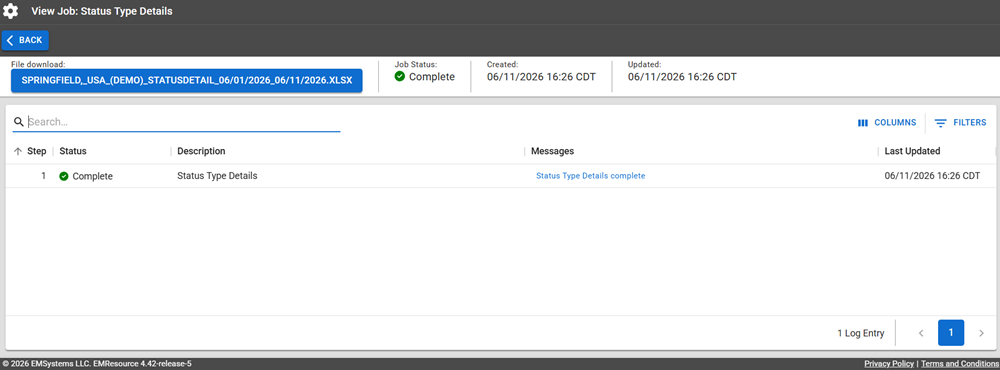
Click Generate Report. The Jobs page opens.
The report is available for seven days on the Jobs List.
-
Click the report name in the blue box to download it.
Report Fields
The report will generate the following fields in the output file.
The report fields vary depending on the resources, status types, and statuses you select but those common to all reports are shown below.
| Report Field | Description |
|---|---|
| Status Detail | |
| Resource | The name of the resource, for example, Bravo Hospital. |
| Status Type | The name of the status type, for example, Hospital. |
| Start Date | The start date and time for the report. |
| End Date | The end date and time for the report. |
| Duration (Hours) | The duration (in hours) between the start and end dates. |
| User | The user who amended the status for this entry. |
| IP | The IP address associated with the user for this entry. |
| Value | The value that the status was changed to. |
| Comments | Displays the comments associated with the status change. |
| Status Summary | |
| Resource | The name of the resource, for example, Bravo Hospital. |
| Status Type | The name of the status type, for example, Hospital. |
| Status | The value of the status; this could be status text (Fully Operational) or it could be a numeric value. |
| Total Hours | The total number of hours for that status. |
| % of Total |
The percentage of the total hours for the report that the hours of that status represents. Example For example, if the total hours for a status was 75 and the report duration was for 100 hours, the percent of the total time was 75%. |