Status Reason Detail Report
The Status Reason Detail report Provides specific information about statuses and details, notifications, forms, templates, snapshots, and roles/rights in EMResource. displays specific information on those status changes where a reason was associated with the selected status.
To generate a Status Reason Detail report
- In the main menu, click Report, then click Status Reason Detail. The Status Reason Detail Report page opens.
-
In Start Date and End Date, enter the date range for the report.
- For Report Format, select either:
-
Adobe Acrobat (PDF)
-
Excel Report (XLSX)
-
Click Next. The second page opens.
- Select the checkboxes for the resources you want to include.
-
Click Next. The third page opens.
-
In the Status Type list, select the type.
-
Click Next. The fourth page opens.
-
In the Status Reasons list, select the reason.
-
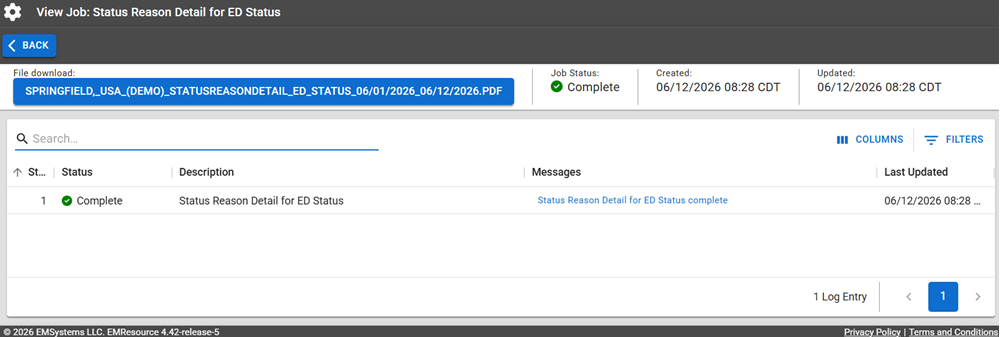
Click Generate Report. The Jobs page opens.
The report is available for seven days on the Jobs List.
-
Click the report in the blue box to download it.
Be aware that for Excel, EMResource generates .xlsx files and does not support the older .xls format.
Report Fields
The report will generate the following fields in the output file.
| Report Field | Description |
|---|---|
| Status Reason Detail | |
| Resource | The name of the resource, for example, Bravo Hospital. |
| Status | The name of the status, for example, Alert. |
| Status Reason | The reason for the current status, for example Drill. |
| Start Date | The start date and time for the report. |
| End Date | The end date and time for the report. |
| Duration (Hours) | The duration (in hours) between the start and end dates. |
| User | The user who made the status change. |
| IP | The IP address of the user. |
| Comments | Comments associated with the status change. |