Status Reason Summary Report
The Status Reason Summary report Provides specific information about statuses and details, notifications, forms, templates, snapshots, and roles/rights in EMResource. displays the total amount of time reported for a status type Custom fields that track information about resources. This is region-specific and are unique fields. where a reason was associated with the selected status.
To generate a Status Reason Summary report
-
In the main menu, click Report, then click Status Reason Summary. The Status Reason Summary Report page opens.
-
In Start Date and End Date, enter the date range for the report.
-
For Report Format, select either:
-
Adobe Acrobat (PDF)
-
Excel Report (XLSX)
Be aware that for Excel, EMResource generates .xlsx files and does not support the older .xls format.
-
-
Click Next. The second page opens.
-
Select the checkboxes for the resources you want to include.
-
Click Next. The third page opens.
-
In the Status Type list, select the type.
-
Click Next. The fourth page opens.
-
Select the Status Reasons.
-
If you want to include regional information, select the Regional Aggregate Information checkbox.
-
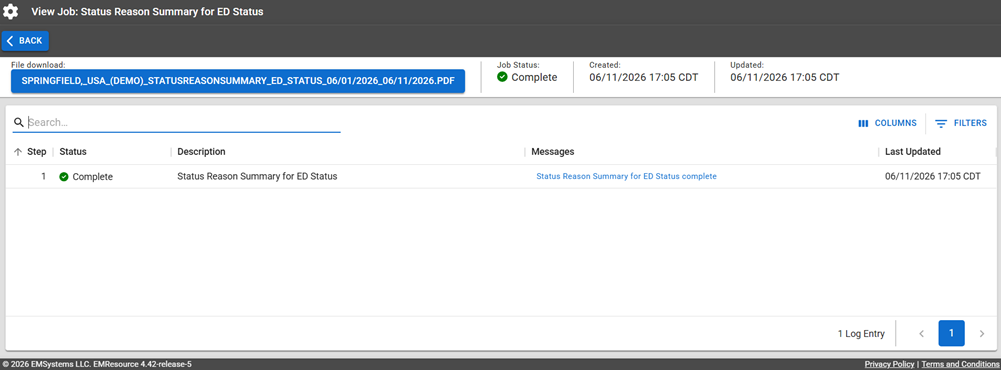
Click Generate Report. The Jobs page opens.
The report is available for seven days on the Jobs List.
-
Click the report in the blue box to download it.
Report Fields
The report will generate the following fields in the output file.
| Report Field | Description |
|---|---|
| Status Reason Summary | |
| Resource | The name of the resource, for example, Bravo Hospital. |
| Status | The name of the status, for example, Alert. |
| Status Reason | The status reason, for example Drill. |
| Total Hours | The total number of hours for that status. |
| % of Total |
The percentage of the total hours for the report that the hours of that status represents. Example For example, if the total hours for a status was 75 and the report duration was for 100 hours, the percent of the total time was 75%. |