User Audit Report
The User Audit report Provides specific information about statuses and details, notifications, forms, templates, snapshots, and roles/rights in EMResource. displays information related to all users in your instance of EMResource. You only can view and run this report if you have the appropriate permissions to view user information.
To generate a User Audit report
-
In the main menu, click Report, then click User Audit. The User Audit Report page opens.
-
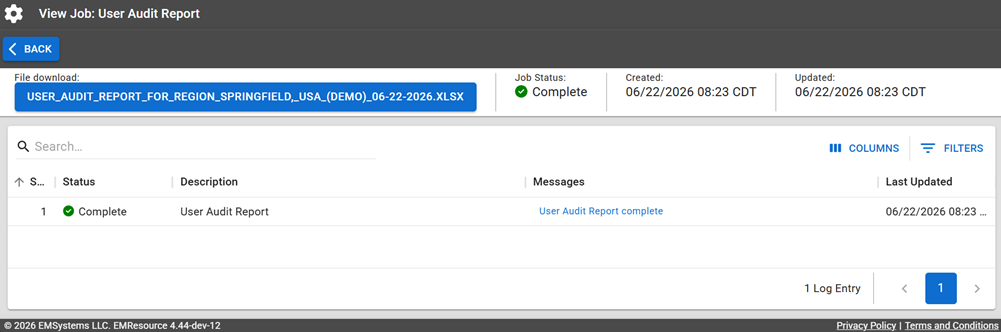
Click Run Report. The Jobs page opens.
The report is available for seven days on the Jobs List as an XSLX file.
Be aware that for Excel, EMResource generates .xlsx files and does not support the older .xls format.
-
Click the report name in the blue box to download it.
Report Fields
The report will generate the following fields in the output file.
| Report Field | Description |
|---|---|
| User Audit | |
| Username | The user's username. |
| Full Name | The user's full name. |
| Login Email | The user's login email address. |
| Active | Whether the user is active (Y) or not (N). |
| Organization | The organization to which the user belongs. |
| Last Login | The date and time of the user's last login. |
| Created by Username | The username of the user who created the user. |
| Created by Full Name | The full name of the user who created the user. |
| Created At | The date and time when the user was created. |
| Last Updated by Username | The username of the user who last updated the user. |
| Last Updated by Full Name | The full name of the user who last updated the user. |
| Last Updated At | The date when the last update was made. |
| Last Update Type | What was last updated for the user, for example, a resource was added or removed, their role changed, and so on. |