Manage Resource Groups
Resource groups Comprised of resources that share one or more characteristics. can be viewed or managed depending on your access rights and whether or not the group was shared. Resource groups with Global access can be viewed but not copied, edited, or deleted. Most users within a region have access to view Shared groups, but rights to edit or delete the group may be restricted. Private groups generally belong to the current user, and as a result, can be viewed, copied, edited, or deleted.
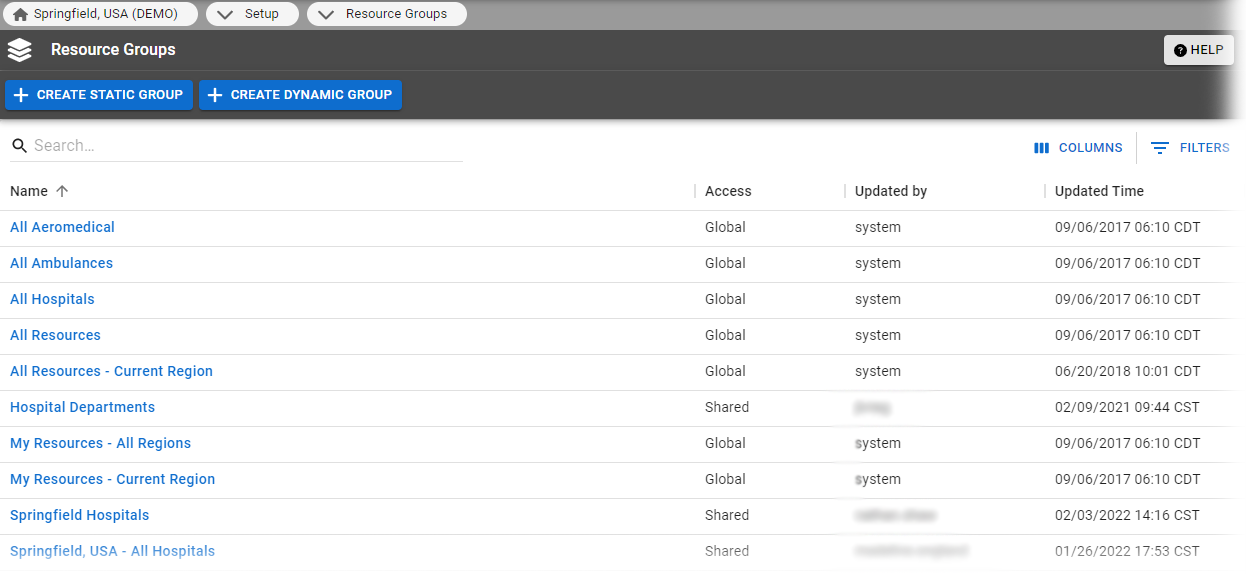
Viewing a group opens a list of selected resources, and as appropriate, may or may not include the Edit Group option.
To manage resource groups
-
In the main menu, click Setup then click Resource Groups. The Resource Groups page opens.
- Click the name of the resource group you want to manage. The View Resource Group page opens displaying information about that resource group.
-
According to your available options and permissions, do any of the following actions.
Resource Group management actions Action
Description
Preview
Opens the list of resources in a dynamic resource group. This option is not available for static resource groups because the resources in those groups are displayed directly on the View Resource Group page.
Edit
Opens the resource group in the Edit Resource Group page.
Copy
Generates a copy of the resource group. The copy opens on the Create Resource Group page. You can edit the settings as needed before saving the copy.
Delete
Removes the resource group from EMResource. Deleted resource groups cannot be restored.
Related Concepts