Create or Edit a Resource Type
Depending on your role Assigned to determine which features and functions are available to users., you may be able to create and edit resource types Categories used to divide and distinguish resources.. Resource types are groups of resources that share a common characteristic and report Provides specific information about statuses and details, notifications, forms, templates, snapshots, and roles/rights in EMResource. a status. Resource types are used to categorize resources on views and in reports.
To create or edit a resource type
-
In the main menu, click Setup then click Resource Types. The Resource Types page opens.
-
Take one of these actions:
Create a resource type
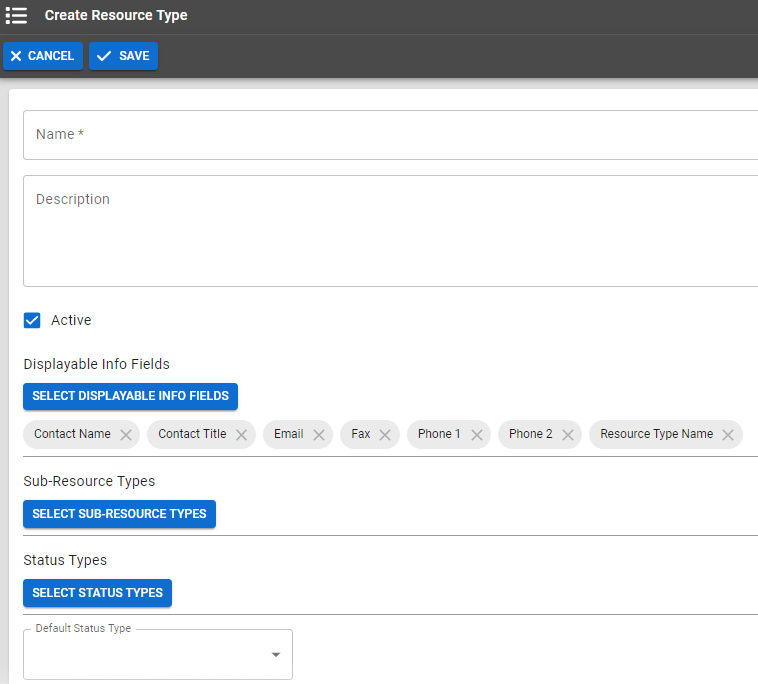
Click Create Resource Type. The Create Resource Type page opens.
Edit a resource type
-
Locate the resource type and, on that row, click the (resource type) name. The View Resource Type: (resource type) page opens.
-
Click Edit. The Edit Resource Type: (resource type) page opens.
-
-
Enter or edit this information.
Resource Type fields and descriptions Field
Description
Name
Label or title of this resource type.
Description
Information that describes the resource type and appears in the Resource Type Definition window.
When creating or editing a resource or sub-resource type
Categories used to divide and distinguish sub-resources. Sub-resource types belong to resource types., it is important to include a description because this is the information that appears when users click on a resource type name on a view.Active
When selected, indicates the resource type is available for use.
Select the displayable info fields for this resource type
When selected, indicates the specified information will appear in the top section of each resource's details page.
Sub-Resource Types
When selected, indicates which, if any, sub-resource
Secondary resources that are considered attributes of resources. These are often objects, services, or functions that belong to resources. types are associated with the resource type.Status Types
Searchable list of status types
Custom fields that track information about resources. This is region-specific and are unique fields. that, when selected, indicate the type of status the resources with this resource type inherit and report.Default Status Types Default status type for this resource. This is the status that appears by default on your custom and map views
A region's default map view, which shows the location of resources set by the regional administrator, and their resource status.. The default status type determines the color used when displaying associated resources on the map view.Example If ED Status is being selected as the default status type, the system uses the ED Status color set when displaying the icons representing these resources on the map (unless the user chooses a different status type in the map view).
-
Click Save.
Related Concepts