Create a Custom View
You can create a customized view A personal view that displays information about specific resources. at any time. This view is solely for your own use. If you make your custom view your default, this will be the page that opens first when you log in to EMResource. You can include in your custom view any combination of resources and status types Custom fields that track information about resources. This is region-specific and are unique fields. from any region to which you have access. You can specify the order in which elements appear in the view.
Region access is based on either of the following:
-
Your user has been granted rights in the region.
-
You have Other Region viewing rights (that is, the right to view one or more regions other than your own).
To create a custom view
-
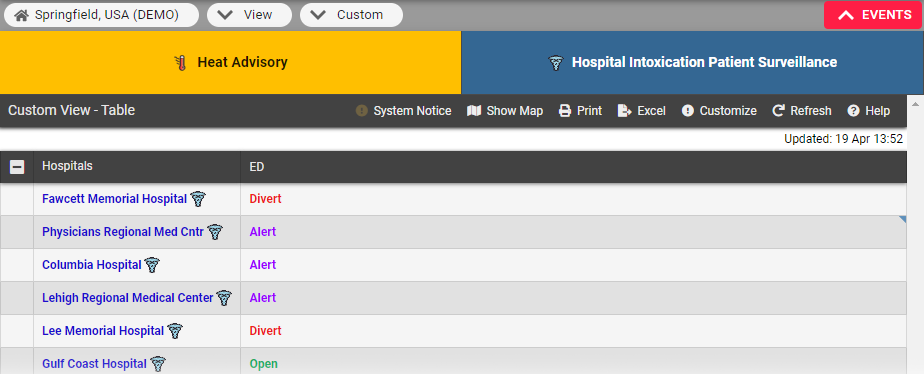
Open the View menu in the main menu then select Custom. Your Custom View opens.
-
Click the buttons in the upper right to:
-
Show map: Replaces the table with a map showing the resources in your view. Click show table to return to the table view. Refer also to Map View for details on map features.
-
Print: to print the view.
-
Customize: to edit your view. This takes you to the Edit Custom View page where you can make changes to your view. For more information about editing your custom view, refer to Edit a Custom View.
-
Refresh: to update the information in the view.
-
The pages and features you use to manage your custom view are under Preferences.
Related Concepts