Edit a Patient Record
Patient, client, or relative records can be edited when you want to add supplemental information about the person. Since the forms used to collect this information are completely configurable, the order and options to edit the record will vary. Existing patient records Patient, client, or relative record containing information entered during intake. are accessed through the quick search, Dashboard, or Filters tab. You can view, add, and edit patient information according to your role and rights. For more information about form fields, go to the article Form Elements and Fields.
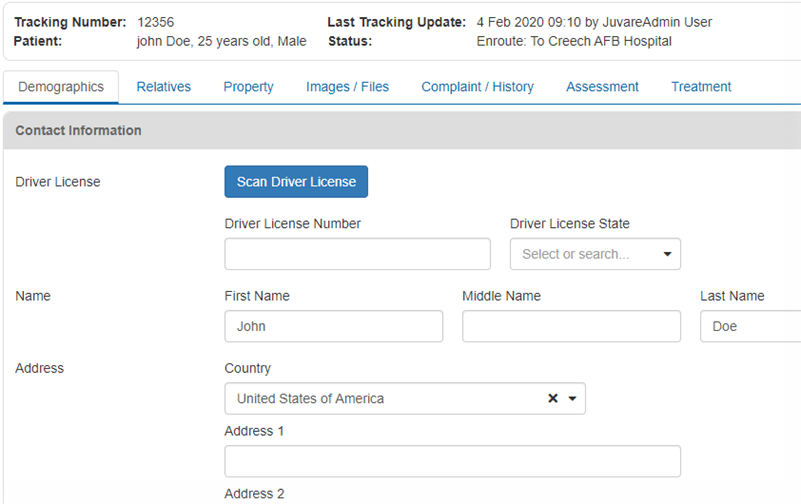
If you want to update the initial intake information you created when adding a patient, perhaps due to a sudden change in the person's condition prior to transport, a minor error, or to convert staged participants into patients, go to the procedure Update a Patient Record.
To edit a patient record
-
Locate the patient through a dashboard
Comprised of groupings of data, called gadgets. gadget Groupings of data. There are 5 gadget types: Incidents - Region, Incidents - Division, Client List, Client Summary, Regional Client Summary., quick search, or filter Search criteria that allow you to pinpoint the clients and details you need.. -
On the patient's row, click the view icon. The Detailed Patient Information window opens.
-
On the upper left, click Edit. The record opens.
-
Enter the requested information, making sure to complete required fields that are marked with a red asterisk. Within the form, you may need to navigate between tabs to access all fields on the form. For more information about form fields, go to the article Form Elements and Fields.
-
If you don't want to edit any details of the patient but you want to add a note, click Add Note in the upper left, or Notes, if there is already a note present.
-
Enter the note text, up to 5,000 characters.
You must have the Edit Patient Demographics permission to add notes to the patient, otherwise you can only view the note.
-
When finished with the patient record, click Save.
Related Concepts