Deactivate Users
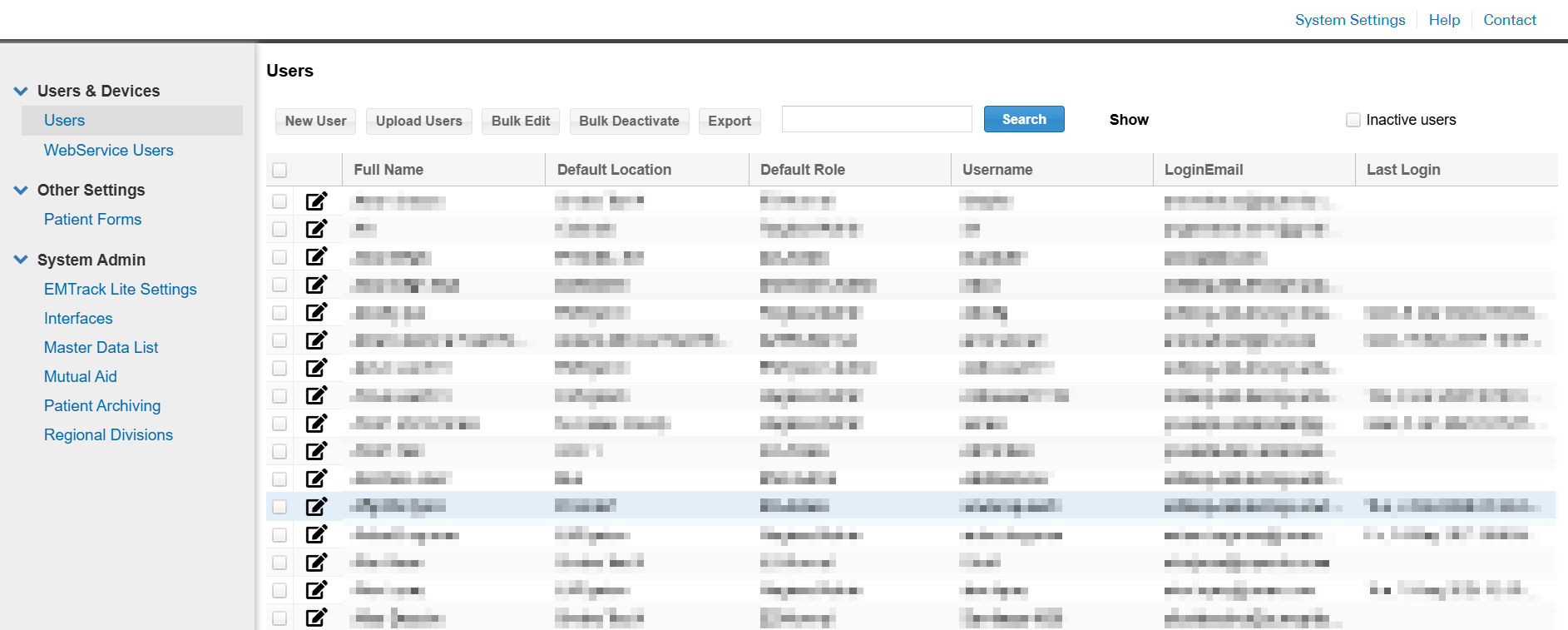
On the Users page of the system settings, authorized administrators can deactivate user accounts in their region or division. Deactivated users no longer have access to EMTrack. The Users page filters out deactivated users by default and displays a strikethrough on their name.
If the user has a role at another location for which you are not an administrator, you cannot deactivate that user's account. You can only remove their access to your locations.
To deactivate one user account
-
On the upper right, click System Settings. The system settings open to the Users page.
-
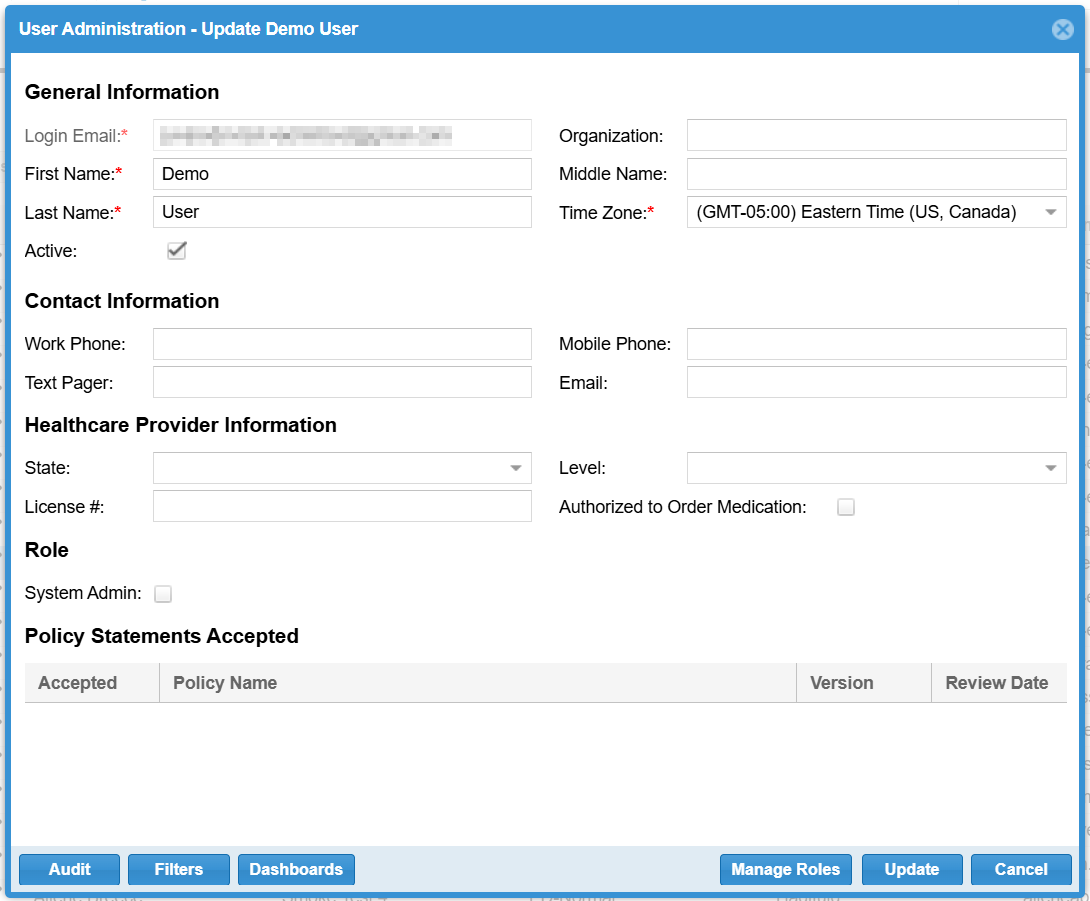
Locate the user. On that row, click the edit icon. The User Administration - Update window opens.
-
Clear the Active checkbox.
-
Click Update.
To deactivate multiple users accounts
-
On the upper right, click System Settings. The system settings open to the Users page.
-
Select each user you want to deactivate by selecting the checkbox next to their name.
-
Above the table of users, click Bulk Deactivate. A confirmation dialog opens.
-
Click Yes.
Related Concepts