Users
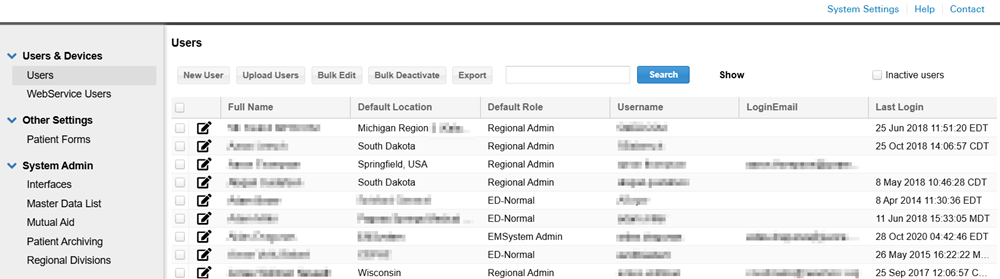
On the Users page of the system settings, authorized administrators can create, edit, and manage users. The user list includes each user's full name, default location Generally refers to the region or to a division, such as a provider facility or mobile provider. Every user is granted access to at least one location., and contact information, as well as the date and time that user last logged in to EMTrack. The list displays only those users you are authorized to manage at your current location.
Features
The following table describes features on the Users page.
|
Feature |
Description |
|---|---|
|
Sort |
Click a column header once to sort, twice to reverse the order, and thrice to reset the sorting. |
|
Move through pages |
Use the > (next) and < (previous) arrows or enter a specific page number. |
|
Search |
To quickly locate a user, enter all or part of the user's name, default role, username, login email, or last login in the text box just above the user list and click Search. The table shows only those user accounts that match your search string. You can clear your search filter by entering a blank search. |
| Filters | Use the checkboxes on the upper right to filter for password users, PIN-only users, or inactive users. The Users page filters out inactive users by default and displays a strikethrough on their name. |
Location and Role
Locations and roles govern a user's access to patients and EMTrack features.
A user:
-
Must have at least one location/role.
-
Can have only one role per location.
-
Can be assigned multiple locations and have a different role at each one.
Location
The location affects the user's access to provider facilities, the patients associated with those facilities, and EMTrack features. In addition, it determines the roles that are available to be assigned to the user.
Sam needs access to patients associated with GHI Hospital, so the administrator assigns the GHI Hospital location to Sam.
Blake needs access to GHI Hospital patients and patients routed to MNO Hospital, so the administrator adds both these locations to Blake's account.
Role
The role defines the user's access to the patients at the specified provider location or, in the case of the Public Health roles, defines their access to only incident and summary information. The assigned role also governs the user's access to EMTrack features. For more information, see Roles and Access.
Sam needs administrator access to GHI Hospital, so the administrator assigns the ED Administrator role to Sam for the GHI Hospital location.
Blake needs regular user access to GHI Hospital and administrator access to MNO Hospital, so the administrator assigns the ED Normal role for the GHI Hospital location and the ED Administrator role for the MNO Hospital location.
Administration
A Regional Administrator can:
-
Add a location for a user and specify the role for that location.
-
Edit a user's locations/roles, including the user's default location.
-
Delete a location from a user's account, as long as it is not the user's only location. The administrator cannot delete the user's current default location; they must first change the default.
A Divisional Administrator:
-
Can view users associated with their division.
-
Must have administrator rights at a location to manage its users.
-
Can view the role a user has in another division, as long as the administrator has the right to manage this user at this location. This administrator cannot edit or delete the user's other locations/roles. Each row in the following example is a location. This administrator has access to only the third one.
When an administrator attempts to update the account for a user with multiple locations/roles, a warning window opens asking the administrator to confirm that they want to proceed.
If the administrator has an administrative role at more than one location, they must first change their location to the user's location to manage that portion of the user's account. Based on the illustration above, the administrator's current location is Medical Center. The administrator also has rights at Marsh County Hospital. The administrator must move to the Marsh in order to manage this user at that location.
An administrator can delete a location or change the user's role for the location. The administrator cannot delete the location if it is the user's only location or when it is the user's default location.
The location an administrator assigns to the user defines the roles that are available to be assigned to that user.
For more information, see Change Locations.
Administrator Access
The administrator's current location governs their access to user locations and roles.
The administrator can view this summary of a user's locations. The administrator may also be able to edit the user's roles and locations, delete the user's account from a location, and set the user's default location.
The following table summarizes administrator access to users' locations and roles.
|
Task / Feature |
Regional Admin Current Location: Region |
Regional Admin Current Location: Division |
Division Admin Public Health Admin Current Location: Their Division |
|---|---|---|---|
|
View all users in the Region |
Yes |
No |
No |
|
View all users in a Division |
Yes |
Yes |
Yes |
|
View user's other locations |
Yes |
Yes* |
Yes* |
|
Add a location (and role) to a user's account |
Yes |
No |
No |
|
Edit a user's location and/or role at the current location |
Yes (both) |
Yes (both) |
Yes (role) |
|
Edit a user's location and/or role at other locations |
Yes |
No |
No |
|
Change a user's default location |
Yes |
Yes** |
Yes** |
|
Delete a user's location (that is not the user's default location) |
Yes |
Yes |
No |
|
Delete a user's other locations (that are not the user's default location) |
Yes |
No |
No |
|
*A warning window opens indicating this user has a role at more than one location or has no role at this location. |
|||
|
**The administrator can change the user's default to their (the administrator's) current location. |
|||
Related Concepts
Related Tasks