Edit Users
On the Users page of the system settings, authorized administrators can edit locations, roles, and information for user accounts. You can bulk edit the locations and roles for multiple users at once. Editing a single user lets you edit more information about that user, such as their organization and phone number.
 To edit one user account
-
On the upper right, click System Settings.
-
On the left, under Users & Devices, click Users. The Users page opens.
-
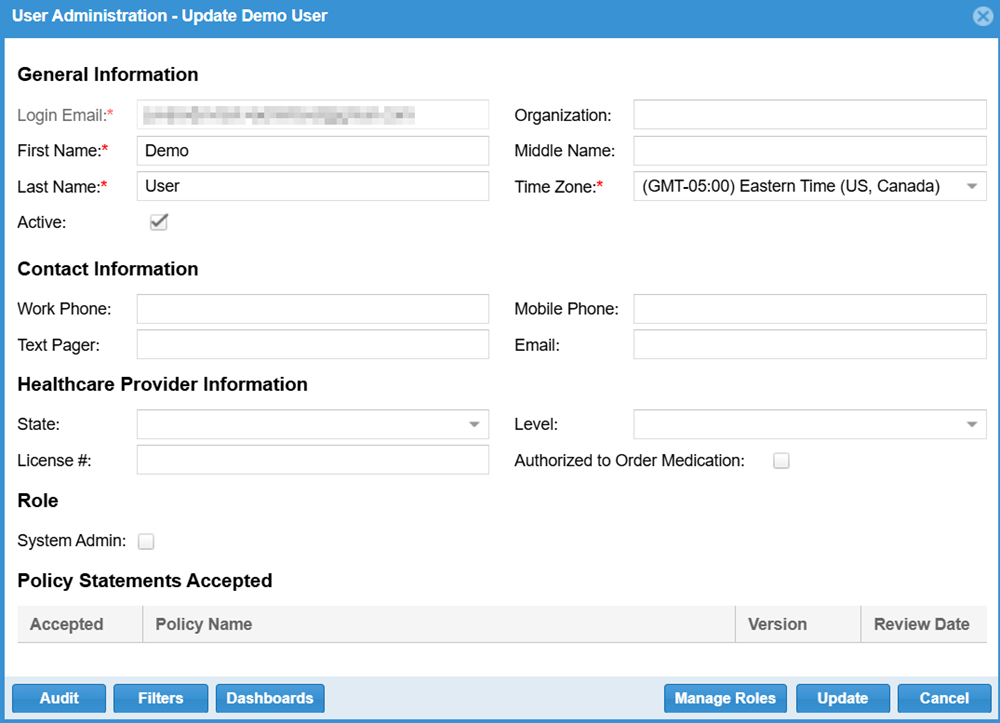
Locate the user you want to edit. On that row, click the edit icon. The User Administration - Update window opens.
-
Edit the fields, which vary depending on whether you are editing a password user or a PIN-only user.
User account fields Field
Description
Login Email Used by password users to fully access EMTrack.
You cannot directly change a user's login email. Instead, you can create a new account with the new login email and deactivate or delete the account with the old login email.
First Name, Middle Name, Last Name User's name. Middle name is optional.
Organization User's organization affiliation.
Time Zone User's time zone.
Active Determines if the user is active. Clear this checkbox to deactivate the user.
Work Phone, Mobile Phone, Text Pager, Email User's contact information. Not required to access EMTrack.
State, Level, License # User's healthcare provider information, including their state, level (doctor, nurse, EMT), license number, and whether they are authorized to order medication.
PIN Access Indicates whether the account has PIN access enabled and sets the PIN. Password users can use a PIN to log in to EMTrack with limited access.
A PIN must contain exactly four numbers, and it cannot consist of four identical numbers or an ascending / descending series of four numbers (for example, 5555 or 5678).
System Admin Identifies the user as a system admin.
Policy Statements Accepted Policy statements that the user accepted to access EMTrack. If your region is not using this feature, the table is blank.
PIN-only user fields Field
Description
Username User's username. Cannot be edited.
PIN Indicates whether the account has PIN access enabled and sets the PIN, which is required for PIN-only users to access EMTrack.
A PIN must contain exactly four numbers, and it cannot consist of four identical numbers or an ascending / descending series of four numbers (for example, 5555 or 5678).
Organization User's organization affiliation.
Time Zone User's time zone.
First Name, Last Name User's name.
Email, Phone User's contact information. Not used to access EMTrack.
Authorized To Order Medication Indicates whether the user is authorized to order medication.
-
For password users, at the bottom of the window, you can click Filters or Dashboards to view lists of filters or dashboards created by the user.
-
At the bottom of the window, you can click Manage Roles to edit this user's roles. For more information, see Manage a User's Role.
-
Click Update.
To edit multiple user accounts
-
On the upper right, click System Settings. The system settings open to the Users page.
-
Select each user you want to edit by selecting the checkbox next to their name.
-
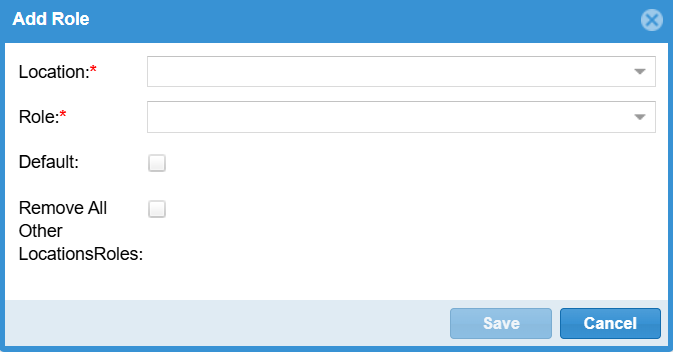
Above the table of users, click Bulk Edit. The Add Role window opens.
-
Select a new location and role for the selected users.
-
If you want to set the new location and role as the defaults for these users, select Default.
-
If you want to remove all other locations and roles from these users, select Remove All Other Locations Roles.
-
Click Save.
Related Concepts