Each board created by Juvare (standard, premium, add-on, and industry boards as described in the Boards List) has a version number. Version numbers, along with their associated updates and resolutions, are described in each board’s release notes accessible from the Documentation column on the Boards List page.
There are no version numbers for custom boards.
If you follow the steps below and the board does not have a (Version) view, the board is not one of the official versions in the categories described above, or was created prior to the current versioning standard which started in 2021.
Juvare sends release announcements when new boards, enhancements, and resolutions are available. Contact your Client Success Manager (CSM) if you would like to receive these emails.
You can view the version number of a board by following the steps below to determine if you need to update to a newer version to take advantage of the latest updates and fixes. These steps use the After Action Review board as an example.
To view the version number of a board
-
In the main menu, click the workflows icon
 . The Workflows page opens.
 -
On the Boards tab, click the name of the board you want to know the version of. The Board: Edit Board page opens.
-
In the Edit section, click Board Editor. The Board Editor: [Board Name] page opens.
-
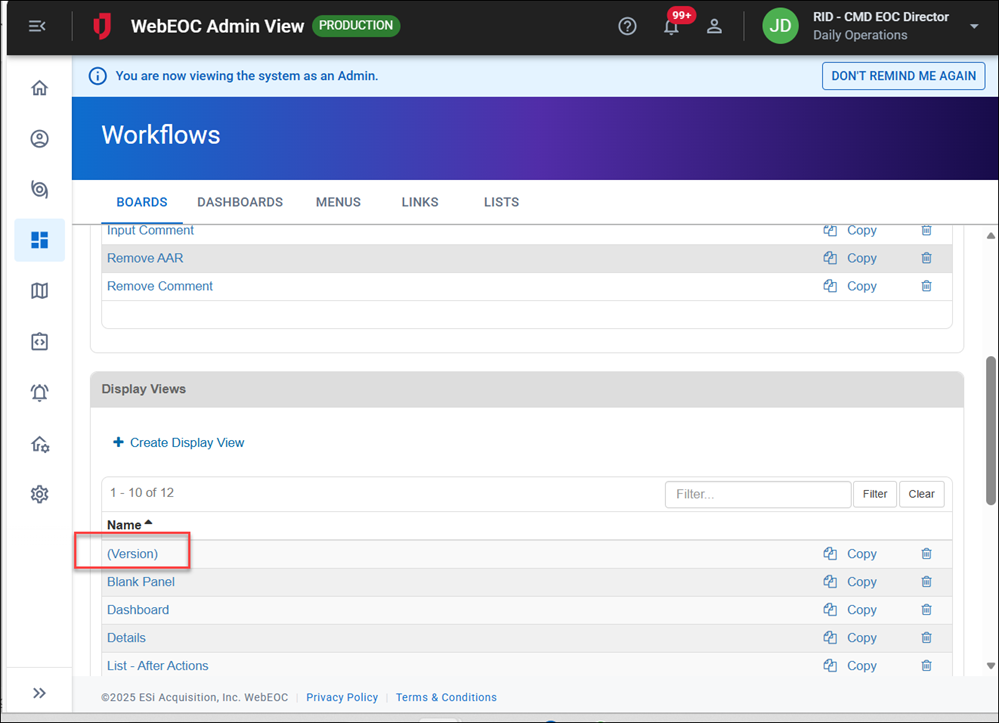
Scroll down to the Display Views section.
-
Click the (Version) view.
-
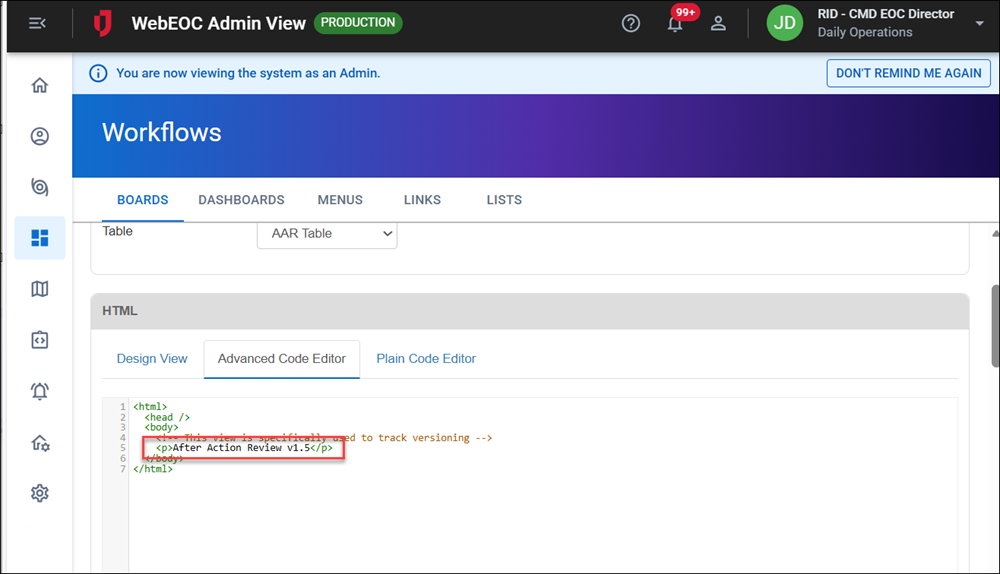
Scroll down to view the version in the Advanced Code Editor.