Board Comments
The board comments feature lets users collaborate directly on a board through a panel where they can start and follow threaded conversations tied to a specific board view.
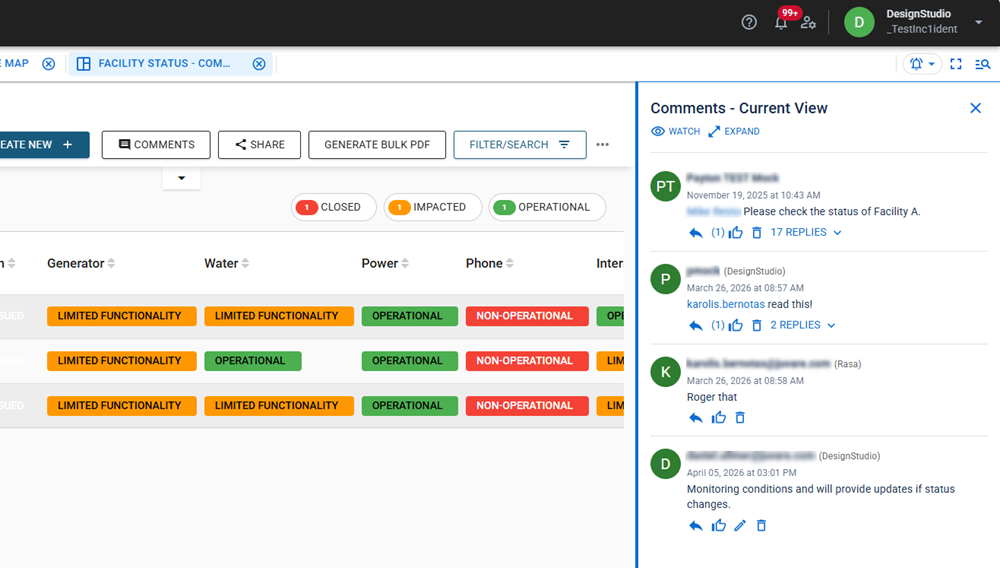
To enable the comments feature on a board:
-
Add the <commentsbutton> tag to its HTML. For more information, see <commentsbutton>.
-
Use Boardscript to add visual elements, like icons or unread indicators. See Boards Comments Functions.
Comments allow you to:
-
Add a clarifying question on a record without leaving the board.
-
@mention a user or position to loop them into a discussion with automatic notifications.
-
Document decisions and context directly on a record so the next shift has the full picture.
-
Subscribe to a thread to stay informed as updates come in-no need to keep the board open.
Specifically, with board comments, you can:
-
Mention individual users or positions by typing @. This sends a notification to the person’s inbox and/or email with a direct link to the board and the comment context; mentioning a position notifies everyone assigned to that position.
External contacts are notified by email only.
-
Watch a thread to get notified about new replies without keeping the board open.
-
React to comments with a reply comment or a 'Like'.
Users aren’t notified when their comments receive likes, but they can see the like count on each comment and hover over the icon to view who liked it.
-
Edit or delete your comments.
Administrators can delete comments from any user.
For more information, see View, Create, and Manage Board Comments.
For more information about adding comments to boards, see Add Comments and Share Buttons to Boards.
Reference Materials
Related Tasks