View, Create, and Manage Board Comments
Use board comments to collaborate directly within a board. The comments panel lets you view, create, export, and reply to discussions tied to the current view or record, keeping communication relevant and easy to follow.
-
Open a board with comments enabled and navigate to the view or record where you want to view, create, or manage comments, and click the Comments button.
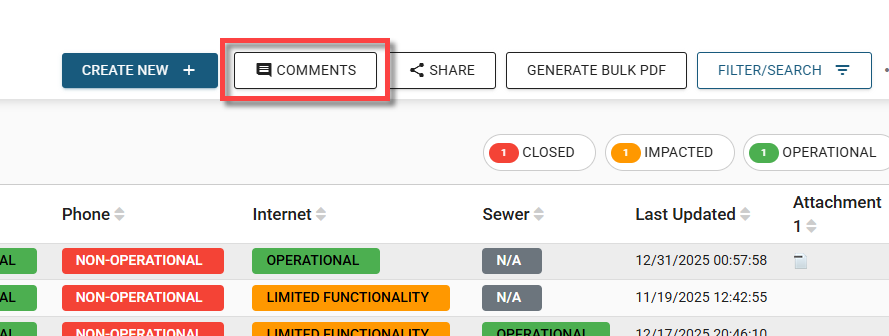
The comments panel opens on the right, displaying all previously created comments.
-
Do any of the following:
-
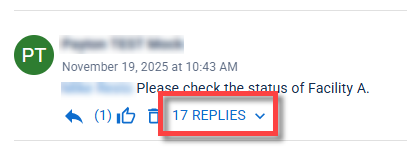
View comment replies: If a comment has replies, the number of replies is displayed beneath it; to view them, click [x] Replies.
-
Create a comment:
-
(Optional) To reply to an existing comment thread, click the reply icon
 beneath the top comment. If you're starting a new comment, skip this step.
 -
At the bottom of the comments panel, click in the Add a Comment text box.
-
(Optional) To notify an individual or everyone assigned to a specific position, type @, then begin entering the person’s name or position. A typeahead search appears as you type, showing matching users and positions you can select.
-
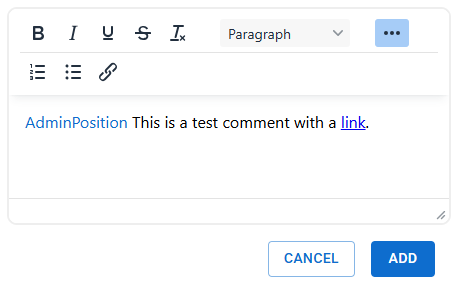
Enter your comment, using the rich text editor to format text and add links as needed.
-
When finished, click Add. Your comment appears in the panel, and anyone you mentioned is notified.
-
-
React to comments: You can react to a comment by clicking its like icon
 . Clicking the like icon lets others know you approve of the comment or have read and acknowledged it.
If a comment has been liked, a number appears to the left of the icon indicating how many users have liked it. Hover over the number to see who liked it.
-
Watch board comments: The watch feature allows you to follow a board's comment activity and stay informed about new comments. To start following a board's comments, click WATCH at the top of the panel.
When you choose to watch a panel, you will automatically receive notifications whenever a new comment is added. These notifications can include both inbox alerts and email updates, depending on your system configuration.
To stop following the board’s comment activity, click Stop Watching.
If you are not watching a panel, you will only receive notifications when you are directly mentioned in a comment (either individually or through your assigned role).
-
Edit comments: To edit a comment you created, click its edit icon
 . The Edit Comment dialog opens, where you can update your comment as needed. When finished, click Update.
 -
Delete comments: To delete a comment you created, click its delete icon
 .
.In addition to deleting their own board comments, administrators can also delete comments made by other users.
-
Expand/Collapse comment view: To view comments in full screen, click Expand at the top of the panel. To return to the panel view, click Collapse.
-
Export comments: To export a CSV file with the current view, board, record, and incident comment information, click the Export button.
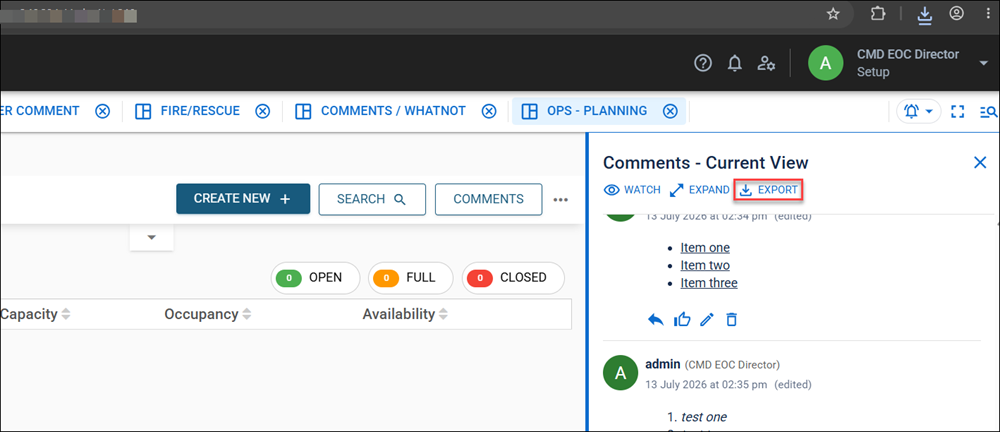
The following information is included in the export:
-
comment_id: Used so users viewing the export can see the relationship between replies and their parent.
-
parent_comment_id
-
author
-
position
-
created_at (ISO 8601)
-
edited_at (ISO 8601 or empty): Empty if the comment has not been edited
-
text: Text of the comment.
-
likes: The number of likes per comment. If there are no likes, 0 is used, not an empty field.
If a comment has been deleted, the exported comment remains redacted. The export also includes edits and replies.
-
-