Add and Manage Hints
Hints link specific keywords or phrases to extra instructions or context, enabling JAI Juvare's AI Assistant An intelligent, natural-language interface designed to streamline information retrieval within WebEOC Nexus, providing concise, data-driven responses sourced directly from board views, while enforcing existing administrative controls and data permissions. to respond more accurately when those terms are used. When JAI detects a keyword, it automatically incorporates the associated hint into its prompt. This helps JAI better understand user search patterns and deliver more relevant, precise results.
To add and manage hints
-
Click the Sources tab (if it is not already open) to view the list of boards being used as data sources.
-
Find the source that you want to modify and click its settings icon
 on the right.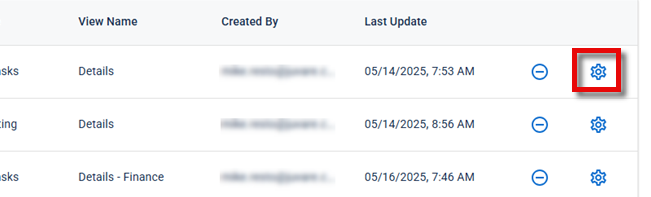
The Set Configuration page opens.
-
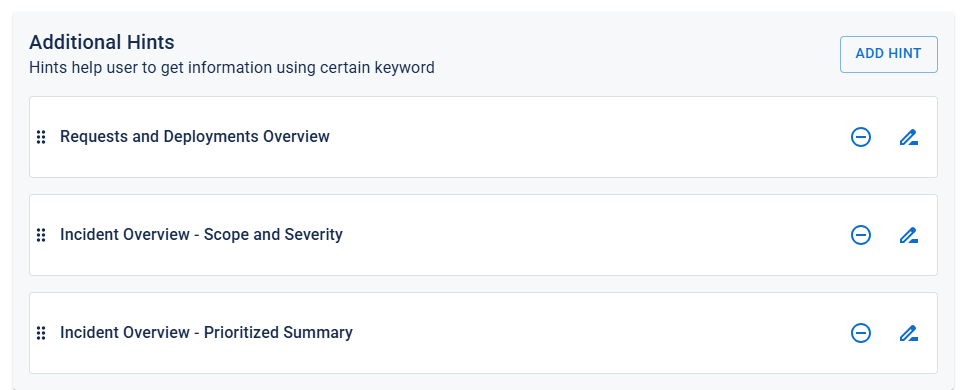
Click the Additional Hints tab. The currently configured Additional Hints are displayed.
-
Do any of the following:
-
To add a hint:
-
Click Add Hint. The Add Hint dialog opens.
-
In the Hint field, enter a hint.
Your hint is essentially a keyword or phrase that you map to a detailed prompt, helping JAI understand what to look for and return relevant results.
-
In the Prompt field, enter a prompt.
Your prompt is the detailed instruction behind the hint, guiding JAI on what to search for and how to present the results.
Example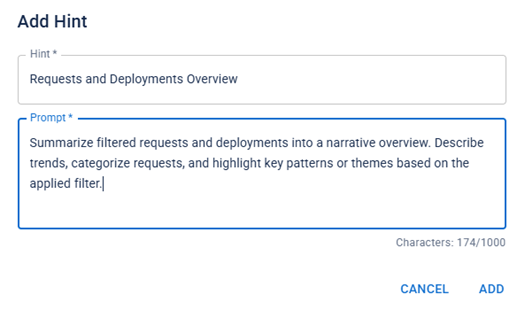
-
When you are done, click Add.
-
-
To remove a hint, click
 icon.
icon. -
To edit a hint:
-
Click the
 icon. The Edit Hint dialog displays.
 -
Edit the Hint and/or Prompt fields as needed.
-
Your hint is essentially a keyword that you map to a detailed prompt, helping JAI understand what to look for and return relevant results.
-
Your prompt is the detailed instruction behind the hint, guiding JAI on what to search for and how to present the results.
-
-
When finished click Save to apply your changes.
-
-
-
When you are done configuring hints, click Save in the bottom-right corner of the page to apply your changes. You are redirected to the Sources tab on the JAI Manager page.