Add Data Sources
In JAI Juvare's AI Assistant An intelligent, natural-language interface designed to streamline information retrieval within WebEOC Nexus, providing concise, data-driven responses sourced directly from board views, while enforcing existing administrative controls and data permissions., board views serve as the sources of data. Any view from any board within your deployment can function as a data source.
To use JAI, you must add at least one data source.
To add a data source to JAI
-
Click the Sources tab, and then click the Add Board button.
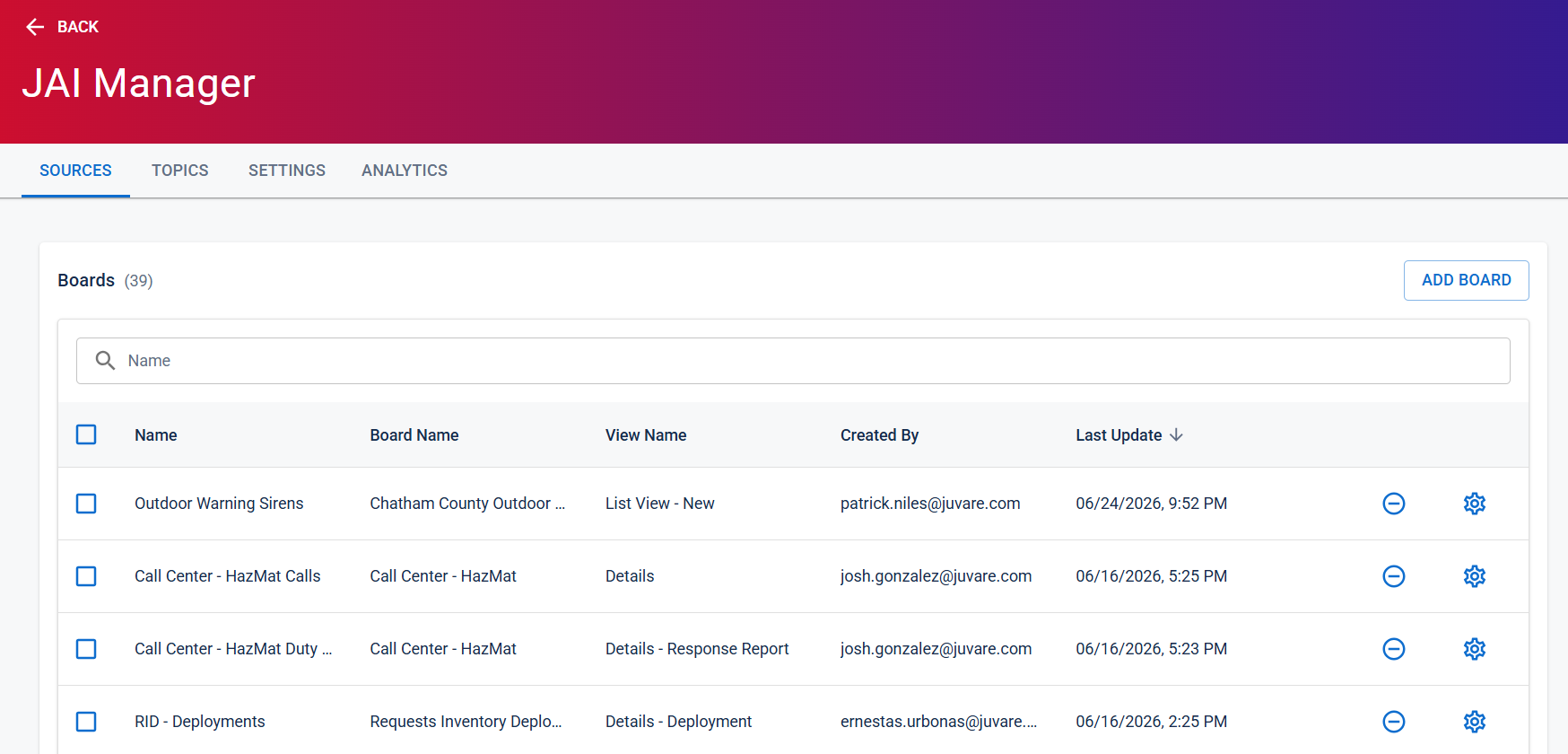
-
In the Add Board dialog, do the following:
-
Enter a Name for the data source.
-
From the Board dropdown menu, select a board.
-
From the Board View dropdown menu, select a view.
The view you select controls how JAI retrieves and delivers data in these key ways:
-
Links: When JAI references specific records, it can provide direct links to them. The selected view determines which view JAI uses when opening those links.
-
Fields: All fields included in the selected view are available for JAI to query. You can remove fields in the Available Columns tab, but you cannot add fields that are not already part of that view.
-
Filters: JAI honors any filters applied to the selected view. Because filters control which records JAI can see, make sure the view excludes any unwanted records (such as deleted records).
JAI does not support the following views:
-
Global Views: Views configured as 'Global'.
-
Process Permission
A setting that grants an organizational group access to a process flow's views. Filters: Views with filters that use process permissions.
If you encounter issues with an existing view in JAI, create a dedicated view for JAI. This approach ensures you maintain full control over the fields and filters it uses.
-
-
Click Add.
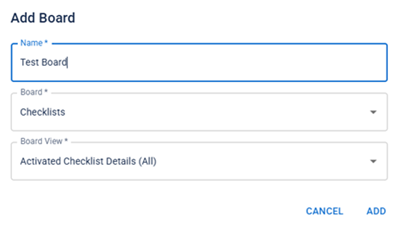
The board view is added to your list of available data sources.
-