Configure Available Columns
By default, when you create a data source, all columns from the associated board are accessible to JAI Juvare's AI Assistant An intelligent, natural-language interface designed to streamline information retrieval within WebEOC Nexus, providing concise, data-driven responses sourced directly from board views, while enforcing existing administrative controls and data permissions. chat users. However, you can customize access by removing and re-adding columns as needed. You can also edit the column labels and example values to better suit your needs.
To configure available columns
-
Click the Sources tab (if it is not already open). The list of boards currently being used as data sources is displayed.
-
Find the source that you want to modify and click its settings icon
 on the right.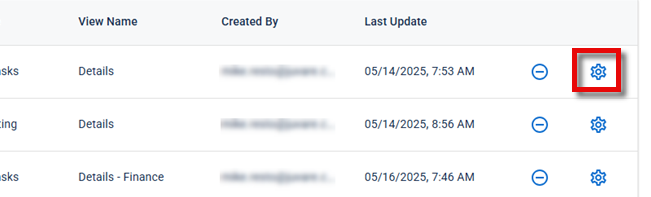
The Set Configuration page opens.
-
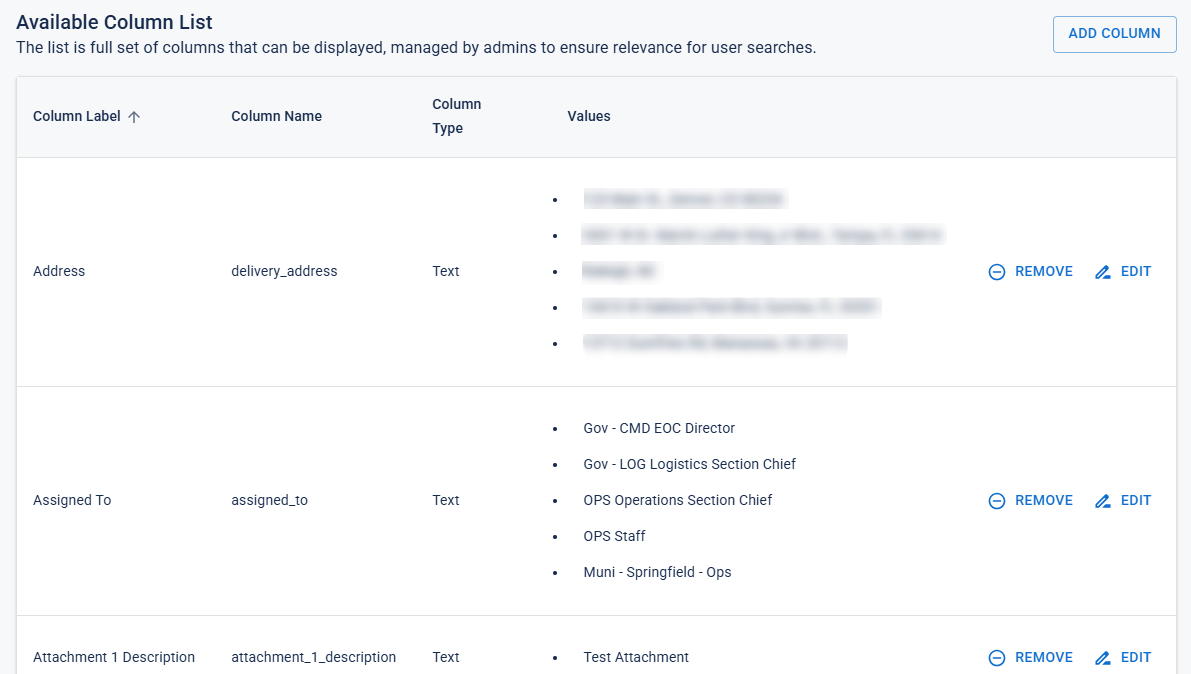
Click the Available Columns tab. The Available Column list is displayed. These columns appear as rows in the table. For example, in the image below, the Address, Assigned To, and Attachment 1 Description columns are displayed in ascending order by Column Label.
-
(Optional) To sort the table by Column Label, Column Name, Column Type, or Values, click the corresponding column header. Click the header again to toggle between ascending and descending order.
-
To configure the available columns, do any of the following:
-
To remove a column, click Remove.
-
To add a column:
-
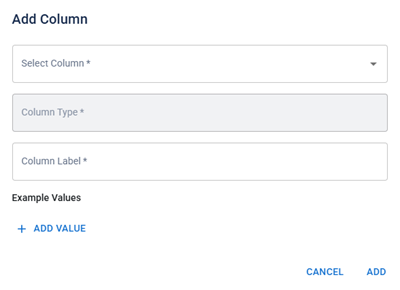
Click Add Column. The Add Column dialog opens.
-
From the Select Column dropdown, select one of the available columns.
If no columns are listed, all available columns have already been added.
-
(Optional) Edit the Column Label.
By default, the Column Name value is the same as the Column Label.
-
(Optional) Edit, add, or remove Example Values.
Editing the default example values is not recommended.
-
To enter or edit a value, click in the Value field and update as needed.
-
To remove a Value field, click the
 icon on the right.
 -
To add a Value field, click Add Value.
-
-
When you are finished, click Add to save.
-
-
To edit a column:
-
Click Edit. The Edit Column dialog opens
-
Do any of the following:
-
Edit the Column Label.
-
Edit, add, or remove Example Values.
Editing the default example values is not recommended.
-
To enter or edit a value, click in the Value field and update as needed.
-
To remove a Value field, click the
icon on the right. -
To add a Value field, click Add Value.
-
-
-
When you are finished, click Edit to save.
-
-
-
When you are done configuring the columns, click Save in the bottom-right corner of the page to apply your changes. You are redirected to the Sources tab on the JAI Manager page.