View JAI Analytics and Conversation Logs
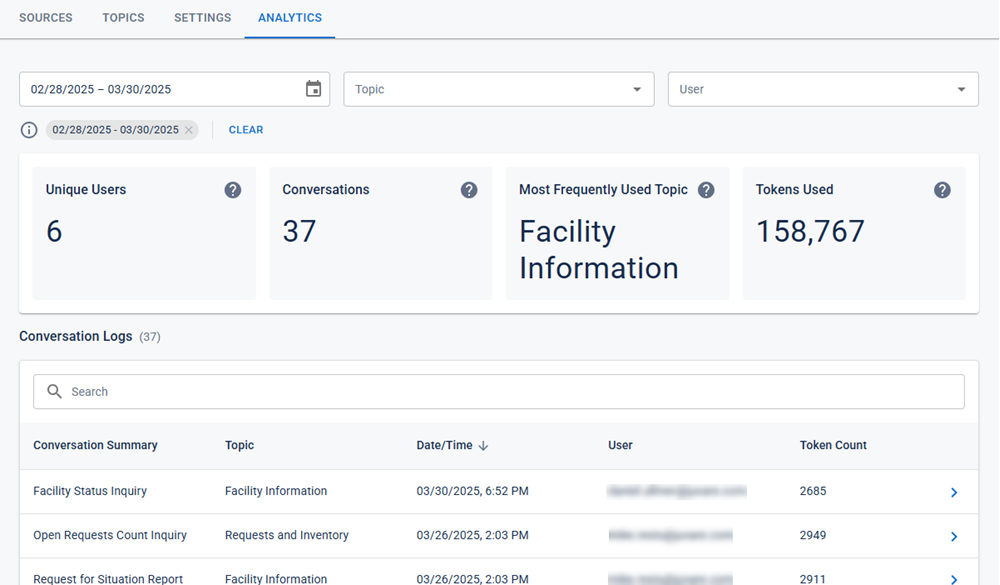
The JAI Juvare's AI Assistant An intelligent, natural-language interface designed to streamline information retrieval within WebEOC Nexus, providing concise, data-driven responses sourced directly from board views, while enforcing existing administrative controls and data permissions. Analytics tab provides insights into user engagement and behavior. Within a selected date range, it displays the number of unique users, the number of unique conversations they initiated, the most frequently chosen conversation topic, and the total number of tokens used (units of text processed by the JAI model). These metrics help evaluate usage patterns and content relevance. To help you find the data you need, the page includes filters for topics and users, along with a keyword search for conversation summaries.
From the Analytics tab, you can also access the Conversation Logs feature, which lets you view historical JAI chat sessions—both your own and those of other users—directly in the chat slideout. You can open any previous conversation to view the full transcript. If the conversation is yours, you can continue chatting in the same thread. If it belongs to someone else, it opens in read-only mode as a historical preview and cannot be continued.
To view Analytics and Conversation Logs
-
Click the Analytics tab. JAI analytics are displayed. By default, the page displays data from the last 30 days.
-
(Optional) Adjust the date range or apply additional filters as needed by using any of the following options:
-
To change the date range:
-
Click the calendar icon
 . The calendar picker opens.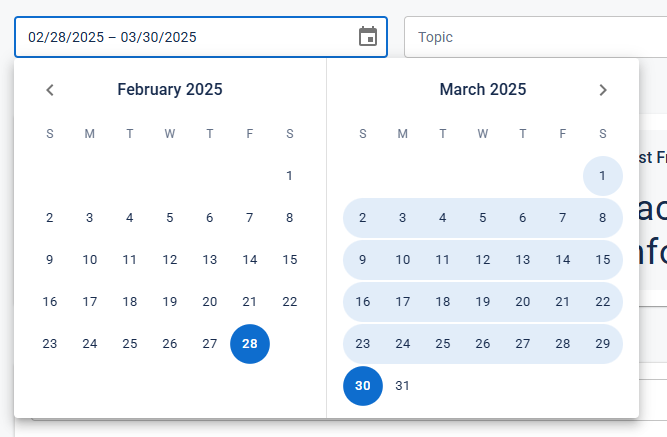
-
Do one of the following:
-
To manually enter the dates, click in the date field at the top of the calendar and type the start and end dates using the same format as the existing selection.
-
To select the dates from the calendar, click to select both the start and end dates. Click the arrow icons
 to navigate between the months.
-
-
-
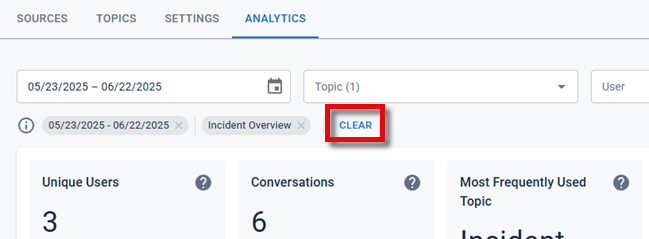
To apply a topic filter, click the Topic dropdown menu and select one or more topics.
-
To apply a user filter, click the User dropdown menu and select one or more users.
-
To remove all filters and reset the date range to the past 30 days, click Clear.
-
-
To open a conversation log:
The conversation logs shown in the table are filtered based on any criteria you previously set.
-
(Optional) To search the listed conversation logs by keyword or phrase in the conversation summaries, click in the Search field, enter a term, and the logs automatically filter based on your input. The term you entered appears as a search tag below the Search field.
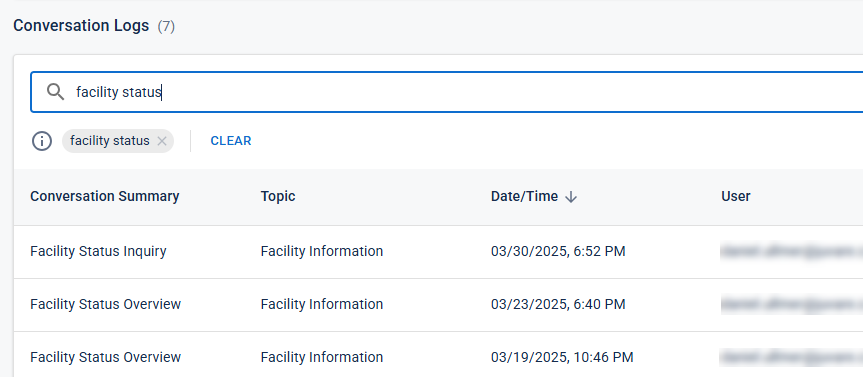
To remove the search filter, click the X on the search tag or click Clear.
-
When you find the conversation log that you want to view, click the corresponding
 icon. The conversation opens in the chat slideout. Use the scrollbar on the right to navigate the conversation.
If it is your conversation, you can continue chatting in the same thread. Conversations from other users open in read-only mode as historical previews and cannot be continued.
-