Create an Import Profile
To create an import profile
-
In the main menu, click the workflows icon
 . The Workflows page opens.
 -
On the Boards tab, locate the board you want to work with and click its name.
-
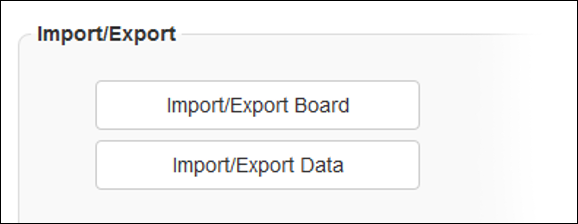
In the Import/Export section, click Import/Export Data.
-
In the Import/Export Data page, open the Actions menu and click Manage Import Profiles.
-
Click Create Import Profile.
-
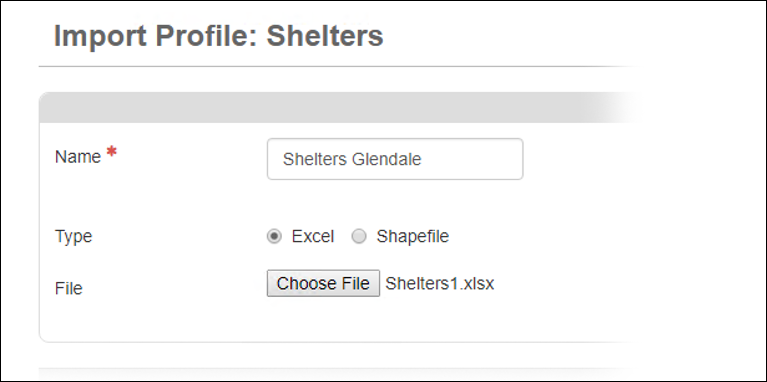
In Name, specify a name for the profile.
-
In Type, select Excel or Shapefile.
-
Click Browse or Choose File.
-
Locate, select, and open the file you want to specify as an import profile.
-
Click Next.
-
If appropriate, select the Automatically Create Missing List Items checkbox.
-
From Table Name, select the appropriate table.
-
If appropriate, select a field from the Unique Field list.
-
Map the fields, as appropriate.
-
If you are importing from multiple worksheets to multiple tables, repeat steps 13 – 15 for each table (tab).
-
Click Save.
-
Click Cancel to return to the Import/Export Data page.