WebEOC Nexus Public Data API
This feature is available with WebEOC Nexus 10.24 and later. It is not available in WebEOC 9.x.
Only Full Administrators An account type with access to all features and functions in the Admin View. can perform tasks related to the Public Data API. There are no sub-administrator An account type that manages a subset of users, positions, and groups within an organization. options available.
A Public Data API key lets you expose a specific set of your WebEOC Nexus data to an outside system, your own integration, a partner, or a public dashboard, without giving that system a WebEOC Nexus login. Each key is an isolated, revocable channel with a name, a scope (what data it covers), and a secret tracking key that acts as the password for reading that data from outside WebEOC Nexus.
Keys are managed on the Public Data APIs page in WebEOC Nexus.
Board Configuration
Prepare the WebEOC Nexus Board View for Data Sharing
Before sharing a Display view, you must:
-
Set the Display view as Public.
-
Create filters as needed.
To set the Display view to be accessible via the public data API:
-
Access the Admin View.
-
In the main menu, click the workflows icon
 . The Workflows page opens.
 -
On the Boards tab, click the name of the board you want to add the Input view to. The Board: Edit Board page opens.
-
In the Edit section, click Board Editor. The Board Editor: [Board Name] page opens.
-
Scroll to the bottom of the page.
-
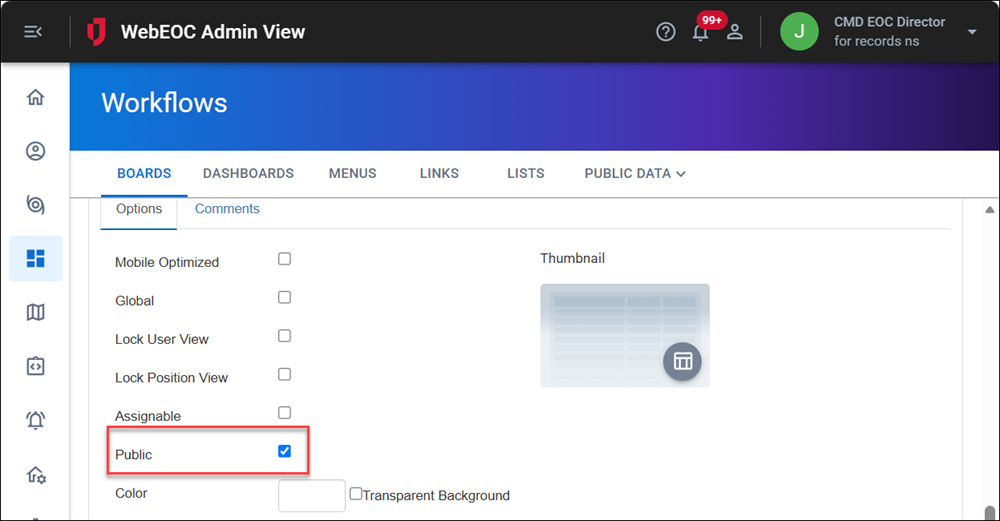
Click the Public checkbox to select it.
-
Scroll to the bottom and click Save.
If you want to restrict the data in the view, set filters before publishing. See Board Filters for details.
Manage Your API keys
Create a Key
To create a key
-
Access the Admin View.
-
In the main menu, click the workflows icon
. The Workflows page opens. -
Click the Public Data tab.
-
Click New.
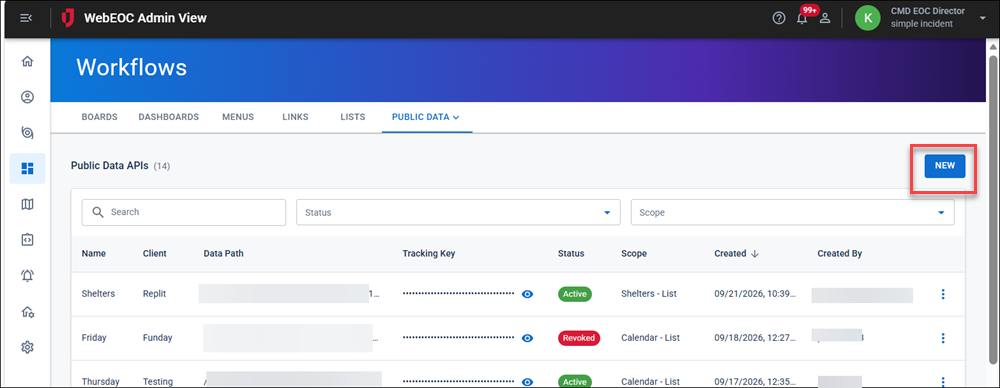
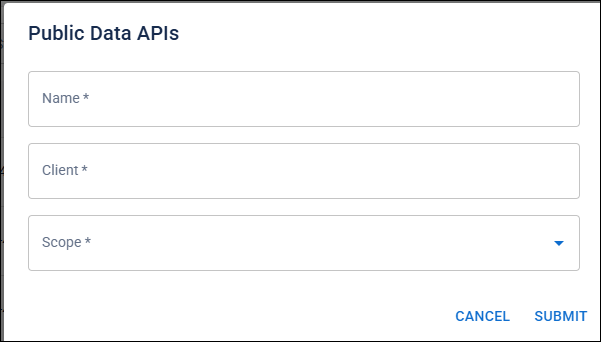
The Public Data APIs dialog opens.
-
For Name, enter a name for the key to identify the type of data associated with this key, for example, Facilities.
-
For Client, enter your organization’s name.
-
In the Scope drop-down, select the view that supplies the public data associated with this API key.
-
Click Submit.
WebEOC Nexus automatically generates the secret tracking key and data path.
-
Your subscription has a maximum number of active keys allowed at once; revoked keys don't count against that limit.
-
The tracking key is masked in the table; use the reveal toggle when you need to copy it for whoever's consuming the data.
-
Edit a Key
To edit a key
-
Access the Admin View.
-
In the main menu, click the workflows icon
. The Workflows page opens. -
Click the Public Data tab.
-
Locate the key to edit.
-
Click the more icon
 and select Edit.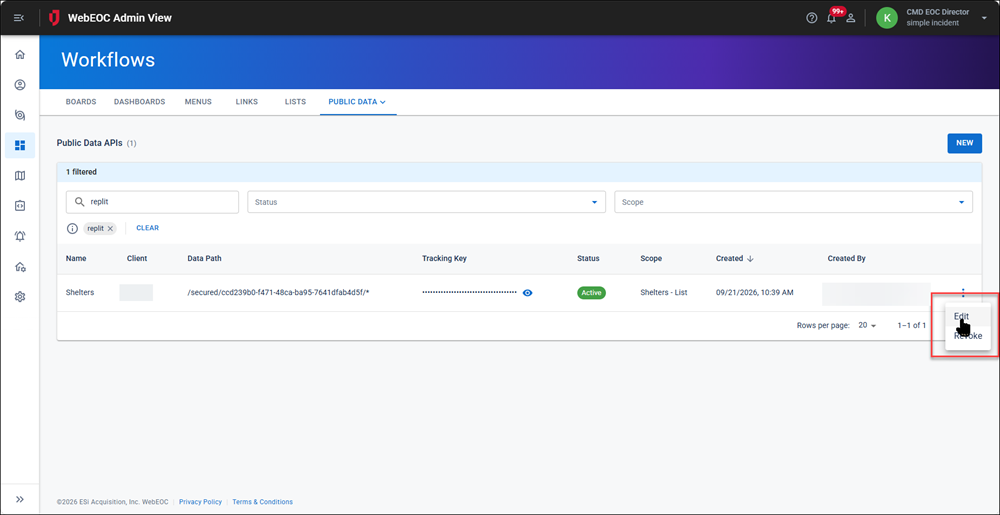
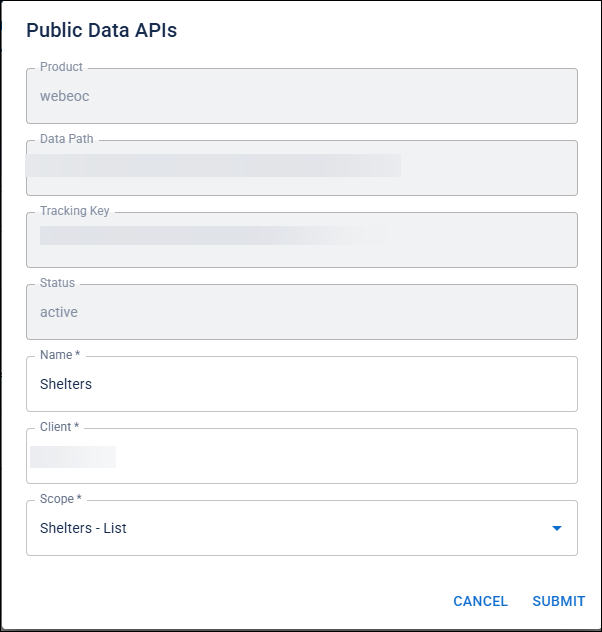
The Public Data APIs dialog opens.
-
For Name, edit the name for the key to identify the type of data associated with this key, for example, Facilities.
-
For Client, edit your organization’s name.
-
In the Scope drop-down, select the view that supplies the public data associated with this API key.
-
Click Submit.
Content in the Tracking Key, Data Path, and Status fields can never be edited. If you must expose different data, create a new key.
The tracking key is masked in the table; use the reveal toggle when you need to copy it for whoever is consuming the data.
Revoke a Key
API keys cannot be deleted, but they can be revoked if, for example, the key is leaked.
Revoking takes effect immediately. The tracking key stops working for external reads right away. Revoking cuts off a consumer's access on short notice.
A revoked key's row becomes read-only. You cannot delete a revoked key. Revoked keys stay visible for audit history.
Your subscription has a maximum number of active keys allowed at once; revoked keys don't count against that limit.
To revoke a key
-
Access the Admin View.
-
In the main menu, click the workflows icon
. The Workflows page opens. -
Click the Public Data tab.
-
For the API key to revoke, click the more icon
and select Revoke. The Revoke Public Data API dialog opens. -
Enter the Reason.
-
Click Submit.
After the API key has been revoked, you cannot reactivate it. Create a new API key instead.
Filter API Keys Data
On the Public Data APIs page, you can filter on:
-
Full-text search
-
Status (active or revoked)
-
Scope
Hand a Key to your Integration Team or Partner
The consuming system needs the API URL and the tracking key. You build the URL from two values you already have:
-
Your WebEOC Nexus sign-in address
-
The key's data path
Step 1: Gather the values
| What you need | Where to find it | Example |
|---|---|---|
| Your WebEOC Nexus sign-in address | Your browser's address bar when signed in to WebEOC Nexus | https://example.webeocasp.com/example |
| The key's data path | The Data Path column on the Public Data tab | /secured/26a99015-25d0-4b50-bac0-dadfde347f71/* |
| The tracking key | The Tracking Key column on the Public Data tab. Click the reveal toggle to show it. | k3P9... |
Step 2: Build the URL
Every request goes to a URL with this pattern:
https://[server address]/platform/public-data/[instance name]/secured/[UUID]/[endpoint]
1. Split your sign-in address into the server address and the instance name.
The server address is everything up to the first single slash. The instance name is the part after it.
| Sign-in address | Server address | Instance name |
|---|---|---|
| https://example.webeocasp.com/example | https://example.webeocasp.com | example |
Use the instance name. Do not use the Product value shown in the Public Data APIs dialog when editing a key. A URL with the Product value (webeoc) in this spot returns a 401 error.
2. Add /platform to the server address.
This is your platform base URL.
https://example.webeocasp.com/platform
3. Add /public-data/ and the instance name.
https://example.webeocasp.com/platform/public-data/example
4. Add the data path without the /* at the end.
https://example.webeocasp.com/platform/public-data/example/secured/26a99015-25d0-4b50-bac0-dadfde347f71
This is the key's base URL. Every endpoint starts with it.
5. Add the endpoint name.
| Endpoint | Full URL |
|---|---|
| Records | https://example.webeocasp.com/platform/public-data/example/secured/26a99015-25d0-4b50-bac0-dadfde347f71/data |
| Sync metadata | https://example.webeocasp.com/platform/public-data/example/secured/26a99015-25d0-4b50-bac0-dadfde347f71/metadata |
| Schema | https://example.webeocasp.com/platform/public-data/example/secured/26a99015-25d0-4b50-bac0-dadfde347f71/open-api-json |
The tracking key is not part of the URL. It goes in the request header:
Authorization: Bearer k3P9...
The Finished URL, Part by Part
https://example.webeocasp.com/platform/public-data/example/secured/26a99015-25d0-4b50-bac0-dadfde347f71/data
| Part | Text | Where it comes from |
|---|---|---|
| Server address | https://example.webeocasp.com | Your sign-in address, up to the first single slash |
| Fixed | /platform | Always the same |
| Fixed | /public-data | Always the same |
| Instance name | /example | Your sign-in address, the part after the server address |
| Data path | /secured/26a99015-25d0-4b50-bac0-dadfde347f71 | The Data Path column, without the /* |
| Endpoint | /data | /data, /metadata or /open-api-json |
Common Mistakes
| Mistake | Wrong | Right |
|---|---|---|
| Used the Product value instead of the instance name | .../public-data/webeoc/secured/... | .../public-data/example/secured/... |
| Kept the instance name before /platform | https://example.webeocasp.com/example/platform/... | https://example.webeocasp.com/platform/... |
| Left out /platform | https://example.webeocasp.com/public-data/... | https://example.webeocasp.com/platform/public-data/... |
| Kept the /* from the data path | .../secured/26a99015-.../*/data | .../secured/26a99015-.../data |
| Added /secured twice | .../example/secured/secured/26a99015-... | .../example/secured/26a99015-... |
| Used the server address as the instance name | .../public-data/example.webeocasp.com/secured/... | .../public-data/example/secured/... |
| Put the tracking key in the URL | .../secured/k3P9.../data | Data path in the URL; tracking key in the Authorization header |
| Doubled slash or trailing slash | .../platform//public-data/... or .../data/ | Single slashes, nothing after the endpoint name |
Step 3: Test the URL
Request the metadata endpoint with your own URL and tracking key:
curl -i -H "Authorization: Bearer YOUR_TRACKING_KEY" \
"https://example.webeocasp.com/platform/public-data/example/secured/26a99015-25d0-4b50-bac0-dadfde347f71/metadata"
-
200 with a body like {"name": "...", "totalCount": 0, "updatedAt": "..."} means the URL and key are correct. A totalCount of 0 means nothing has been published yet.
-
401 with an empty body means something is wrong. The API returns the same response for every cause, so check each of these:
-
The URL matches the one created in Step 2. Compare it against the Common Mistakes table.
-
The data path matches the key's Data Path column.
-
The header reads Authorization: Bearer followed by the tracking key, including the word Bearer and the space after it.
-
The key's status is Active, not Revoked.
-
Step 4: Send the values
Give the integration team the following:
-
The server address
-
The instance name
-
The data path
-
The tracking key
The simplest way is to send the base URL from Step 2, sub-step 4, which already contains the first three, plus the tracking key. Send the tracking key separately, through a secure channel such as a secure note. Don't send it in plain email or chat. Tell the integration team the key must stay on a server (see below).
Consume the API
Call the API from a server, not a browser
The API does not send CORS headers, so browsers block requests made from a web page. The tracking key would also be visible to anyone who opened the page. Make requests from your own backend, keep the key in server-side configuration, and pass only the data you need on to your front end.
Authentication
Send the tracking key as a bearer token on every request:
Authorization: Bearer {trackingKey}
The Bearer prefix is required. A request with a missing, wrong, or revoked key gets a 401 and never returns data.
In the examples below, $BASE_URL is the key's base URL, everything through the UUID.
Get the schema
curl -H "Authorization: Bearer $TRACKING_KEY" "$BASE_URL/open-api-json"
Returns an OpenAPI 3.1.0 document for the data and metadata endpoints. It exists from the moment the key is created. Its servers entry shows the correct base URL for your instance, including the instance name.
How detailed it is depends on whether the data owner has attached a schema:
-
No schema attached: Records are described only as {"type": "array", "items": {"type": "object"}}, with no field names or types. Look at a sample response from /data to see the record shape.
-
Schema attached: The record fields and types are listed, and you can generate a client from the document.
This page does not describe error responses, and it does not list the open-api-json endpoint itself.
Get the records
curl -H "Authorization: Bearer $TRACKING_KEY" "$BASE_URL/data"
Returns a JSON array of record objects, most recently updated first:
[
                                {
                                "dataid": 38,
                                "entrydate": "2026-10-13T19:19:09.453Z",
                                "incidentid": 0,
                                "organization_name": "Example Relief Org",
                                "organization_address": "100 Main Street, Example City, GA 30303, United States",
                                "location": "POINT (-84.345474262071107 33.924078688582505)",
                                "diff_in_hours": 44,
                                "diff_in_minutes": 2683
                                }
] -
Empty array: A new key returns [] until the first record is published. That is not an error.
-
No pagination: Each request returns the whole current window (see Freshness). The API ignores parameters such as limit, offset, or cursor and still returns the full array.
Record Fields
Column names come from the field names in the published view, in lowercase with underscores. For example, "Organization Name" becomes organization_name. If a field is renamed in WebEOC Nexus, its column name changes, and clients that use the old name will receive an error.
Every record also includes these system fields:
| Field | Type | Meaning |
|---|---|---|
| dataid | integer | Record ID. A number, not a string. |
| entrydate | string (ISO 8601, UTC) | When the record was entered. |
| incidentid | integer | WebEOC incident ID. 0 when the record isn't tied to an incident. |
| diff_in_hours | integer | [confirm: time since what, and whether it's calculated at request time or at publish time] |
| diff_in_minutes | integer | Same as above, in minutes. |
Some field types need parsing:
-
Map and location fields are WKT text: POINT (longitude latitude). Longitude comes first.
-
Form submission URL fields (for example _dst_form_submission_url) contain an HTML snippet, not a plain URL: <p><a href="https://...">Form Submission</a></p>. Read the href value and decode HTML entities such as &.
Get sync metadata
curl -H "Authorization: Bearer $TRACKING_KEY" "$BASE_URL/metadata"
{
    "name": "Public Donations",
    "totalCount": 2,
    "updatedAt": "2026-10-15T16:02:47.432Z"
}| Field | Type | Meaning |
|---|---|---|
| name | string | Dataset name. |
| totalCount | integer | Number of records in /data as of the last sync. |
| updatedAt | string (ISO 8601, UTC, with milliseconds) | When the last sync finished. |
Freshness
Treat the data as recent, not live. Records publish asynchronously after they're written in WebEOC Nexus, usually within a few seconds, and longer under heavy load.
The data is a rolling window, not a full export. It contains only the most recently updated records, up to the key's record limit (typically 1,000). Older records still exist in WebEOC Nexus but don't appear here.
Records are also subject to a retention period, 60 days by default. A record drops out of the published data once it is past both the record limit and the retention period.
Polling for changes
Because records take a few seconds to publish, polling more often than every few seconds won't return newer data.
Responses include ETag and Last-Modified headers and are marked Cache-Control: no-cache, no-store, must-revalidate, so ordinary HTTP caches won't store them. To check for changes without downloading the full response each time, send the value from your last response:
curl -H "Authorization: Bearer $TRACKING_KEY" \
-H 'If-None-Match: "85c36ac7a44ba715ab8bab575e88cdbe"' \
"$BASE_URL/data"
If nothing has changed, the API returns 304 Not Modified with an empty body. If-Modified-Since works the same way, using the Last-Modified value. A HEAD request returns the same headers without a body.
Rate limits
The default limit is 1,000 requests per minute per key. Each key is tracked separately, so heavy use of one key never slows another.
Going over the limit returns 429 Too Many Requests with a Retry-After header. Wait as long as that header says before retrying, rather than using a fixed retry interval.
If you regularly hit the limit, ask your WebEOC Nexus administrator to request a higher tier from Juvare. Available tiers are 10, 50, 100, 500, 1,000, 2,000, and 5,000 requests per minute.
Error reference
Error responses have no body. Handle them by status code.
| Status | Meaning | What to do |
|---|---|---|
| 401 Unauthorized |
Any of
|
Check the URL against Hand a Key to your Integration Team or Partner, then the header format. If both are correct, ask your WebEOC Nexus administrator whether the key was revoked. |
| 404 Not Found | Not returned for a wrong or unknown data path; those return 401. [confirm: whether a 404 occurs in any case, such as a published view with no data] | |
| 429 Too Many Requests | Rate limit exceeded. | Wait for the time in the Retry-After header, then retry. |