Profile
Your profile A collection of information that identifies and defines you in the solution. Your profile differs from your account, which is how you log in. is a collection of information that identifies and defines you in the solution. Appearing near the top, in addition to your image and name is your account status Works with roles and permissions to determine the features you can access. indicator, your email address, the percentage of profile completion, and possibly, a note about items that need your attention.
Access the Profile page
To open your profile:
-
In the upper right corner of the application, click your profile picture.
-
In the menu that opens, click your name.
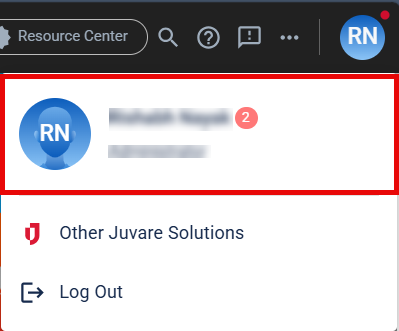
Your Profile page opens, where you can view and update your account Used to track and manage users. Accounts differ from your profile, which is used to modify personal settings for using the solution. information.
To open the Profile page, you must click your name from the Profile menu. The other menu options do not open the Profile page.
Account profiles have the following tabs by default: Personal Info, Occupations, Deployments, Qualifications, Medical History, Background Check, Organizations, Groups, Consent, Badges, and History that you or an administrator should complete.
Groups and History tabs are only available to system admins.
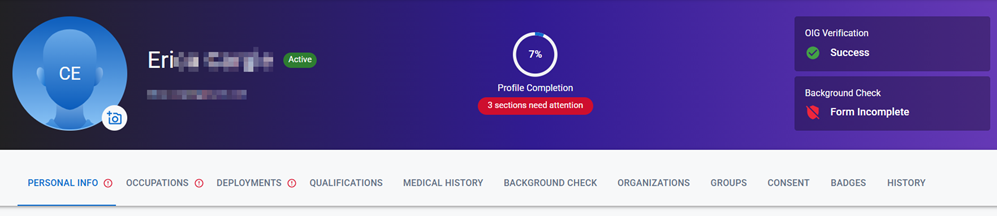
However, these sections and the questions contained within them can be configured to more accurately and effectively collect the information that your organization Official entities, such as public health authorities, healthcare agencies, and corporations. requires.
Your Account Information
Your profile includes tabs that contain information about your account. At the top of the page, you can see your profile's image, name, and completion percentage. Additionally, you can see the statuses of your Office of the Inspector General (OIG) Verification and background check. If you see a red exclamation point next to areas in your profile, provide the missing information in those areas to complete your profile.
For more information, see Edit Account Information.
Depending on the configuration of your solution, certain tabs may not be available or may look different than what's described here.
These are the default profile tabs:
-
Personal Info: Contains additional information that may be required by your organization to activate your account or assign you to positions.
-
Occupations: Contains information about your occupations, including occupation credentials.
-
Deployments: Contains information about your availability to respond to missions, prior commitments, responder activities, and emergency contacts
The internal and external people that participate in, might be affected by, or need to be notified about an incident.. -
Qualifications: Contains information about your completed training
An external learning system used to manage training records and course completions. courses, skills and certifications, and language proficiencies. -
Medical History: Contains information about your medical preparedness, any special needs or allergies you might have, as well as vaccinations and testing record.
-
Background Check: Contains information about your background check results and data, including consent, history, and status.
-
Organizations: Contains information about organizations to which you belong.
-
Groups: Contains information about the groups
Comprised of accounts with certain shared characteristics, such as role or location, but not necesarily employer. to which you belong. -
Consent: Contains agreements required for participation.
-
Badges: Contains a list of the badges assigned
Associates a badge template with an account for printing or identification. to your account and allows you to preview the badge A printable ID that displays user information, such as name, occupation, and credentials. information. -
History: Contains information regarding changes to the account made within the system.