Manage Documents
Add New Document
-
Click Add in the top left.
-
Select the type of document that you would like to add.
-
Fill in any relevant fields.
-
Click Save.
View/Edit a Document
-
Click View in the row of the document that you would like to view.
-
Change any fields as necessary.
-
Click Save to overwrite the existing version of the document.
View document version history
-
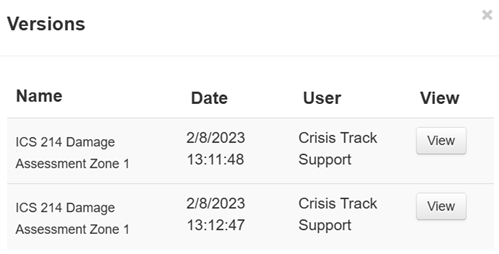
Click Versions in the row of the document for which you would like to view the history. The Versions window appears.
-
Click View next to any of the versions to view that version of the document.
Export a Document
-
Click View in the row of the document that you would like to export.
-
Click Export in the top left.
Alternatively, all saved documents can be downloaded by clicking the Export button on the Documents modules screen.
Delete a Document
-
Click Delete in the row of the document that you would like to delete.
-
Confirm this document should be deleted.
-
Deleted documents can be viewed by checking the Show Deleted box.