Manage Equipment Resources
To view an equipment resource
In the table view, view the list of equipment. You can also filter equipment by status or team, or search for equipment by name, asset number, or make/model.

Click View next to the resource to view additional details about it.
The history of a piece of equipment can also be seen by clicking on the History button in the equipment row.
In both the table and status views, the page footer displays information about how many resources are listed, and how many are currently assigned to which statuses.
To view equipment charts
-
In the Chart view, click the Year, Month, Week, or Day buttons to filter the equipment data by the selected time period. Alternatively, you can select a date range by clicking on the calendar
 icon and choosing a date or date range from the date picker.
 -
If there are too many pieces of equipment to easily see the information you want, you can filter the chart by status or team, or search for equipment by name or asset ID number.
-
The chart is color coded to show the status of the equipment during the selected time period:
-
Red - Demobilized
-
Blue - Requested
-
Gray - Staged-Not Available
-
Green - Staged-Available
-
Yellow - Assigned-Standby
-
Teal - Assigned-Working
-
To change the status of an equipment resource
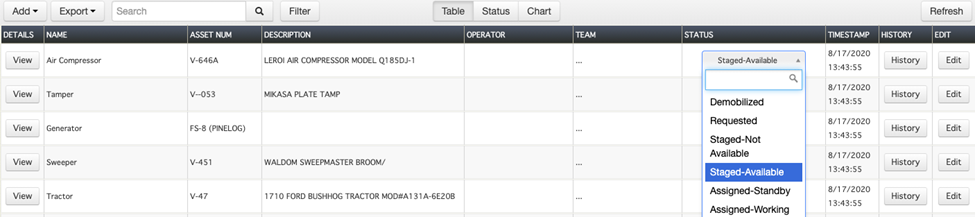
The status of Equipment Resources can be changed in the table view or in the status view. To change the status of an equipment item when in the table view, go to the status column, select the status button in the row of the equipment item you would like to change, and select a new status from the drop-down list.
To change the status of an equipment when in the status view, switch to the Status tab, click on an equipment item’s card, drag the card to another status column, and confirm that you would like to change the equipment’s status.
To edit equipment resources
-
In the table view click Edit in the row of the equipment item that you would like to edit.
-
Much like creating a new equipment resource, edit the equipment's details.
-
Click Save.
To export equipment resources
Equipment Resource status information can be exported to Excel.
-
Click the Export button near the top left.
-
Click Excel.
To delete equipment
-
Locate the piece of equipment you want to edit. On that row, click Delete. A confirmation dialog opens.
-
Confirm this piece of equipment should be deleted.
Note: This operation cannot be reversed.