Resources Module
The Resources module is used to manage or view the history of a given resource (people and equipment). Crisis Track allows All Hazards Emergency Management (EM) and Disaster Management (DM) tier customers to manage the employee and equipment resources for your incident Crisis Track allows you to track damage for several events through the Incidents feature. You can create a new incident, edit incidents, and deactivate or delete old incidents. Each incident keeps the data separate. Information such as equipment, employees, and structures are listed across all incidents.. Employee information (such as name, pay rates, and status) and equipment information (such as name, asset ID number, and status) can be viewed and managed here.
To access the Resources module
-
Log in to the Crisis Track Console.
-
In the Existing Incident list, select an incident and click Select.
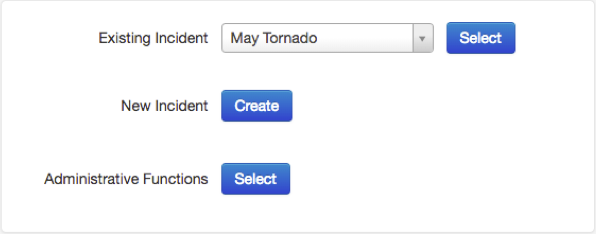
-
Click the Resources icon, then select a type of resource from the list.
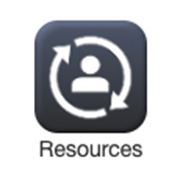
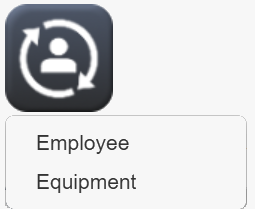
The resource page opens for that resource type.
From here you can see a table of the employee/equipment resources that currently exist. Using the Table/Status/Chart buttons, you can switch between the table view, the status chart view (where you can move employees/equipment to different status columns in the chart), and the time chart view. You can search for employees/equipment using the search box, or by filtering employees by status or by team. Each resource can be edited. You can also create new employee/equipment resources. You can use the Refresh button at the top right to reload this table to see any changes made since the page was opened.
Related Concepts
Related Tasks