Assign a Preconfigured Task to an Incident
-
Go to the Crisis Track Console, open the Incident
 Crisis Track allows you to track damage for several events through the Incidents feature. You can create a new incident, edit incidents, and deactivate or delete old incidents. Each incident keeps the data separate. Information such as equipment, employees, and structures are listed across all incidents., and select the Tasks module.
 -
Click Add near the top left of the screen, then click Preconfigured Tasks.
-
To add all of the preconfigured tasks
A reusable task prepared in Administrative Functions that can later be added and assigned during an incident. that were set up in the Administrative Functions, click Select All under "Preconfigured Tasks".-
Or to add specific preconfigured tasks, select the checkbox next to a task and select a preconfigured team
A reusable team containing employees and equipment that can be quickly added to an incident and assigned tasks. from the drop down menu to assign to the preconfigured task. The selected preconfigured task area will turn red on the map. Repeat for any additional preconfigured tasks you would like to add.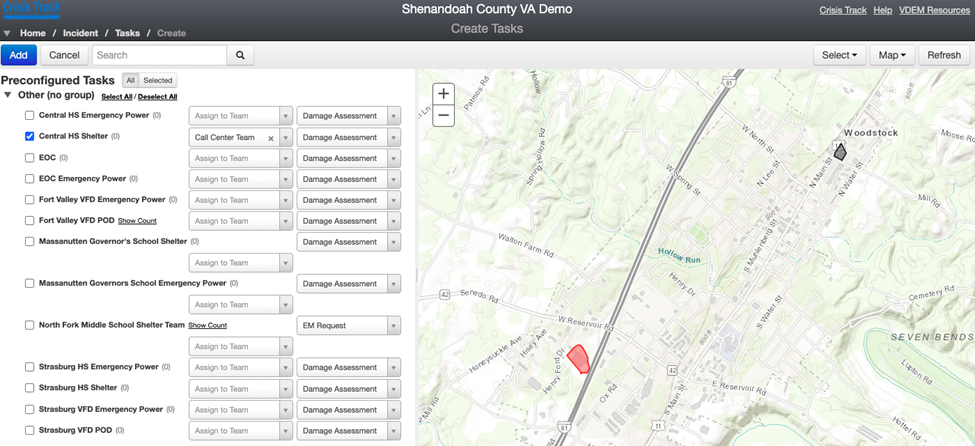
-
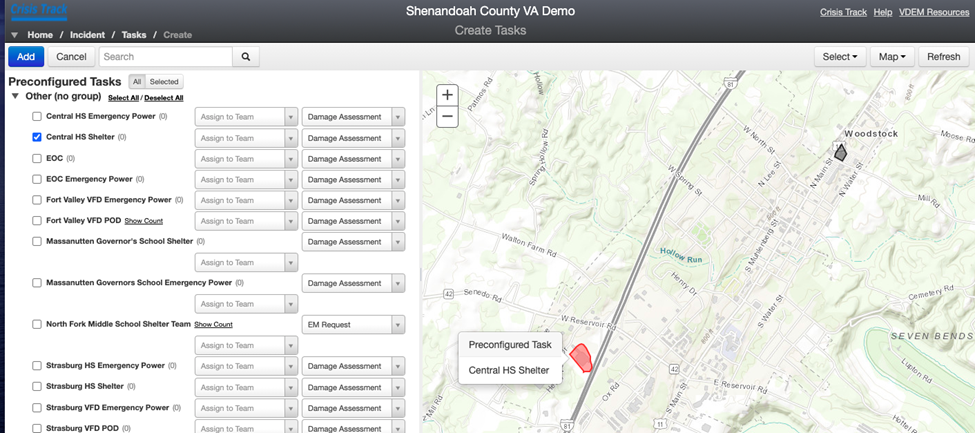
You can also use the map to select the preconfigured task areas that you would like to add to the incident.
-
Press Select near the top right of the screen and choose a selection tool. Then draw an area around the preconfigured tasks you would like to add. The selected tasks will change red and their corresponding checkbox listed in the left panel will become checked.
-
Repeat for any additional preconfigured tasks you would like to add.
-
-
If you have created a relevant Area of Concern, you can assign all the preconfigured tasks within that Area of Concern.
-
Expand your list of Areas of Concern, then click Select to the right of the Area of Concern for this incident. This selects all the preconfigured tasks that intersect with the Area of Concern.
-
For the selected preconfigured tasks, assign the tasks to a team. If necessary, change the form to use for the task.
-
-
-
Click Add in the top left corner to save these selections.
Assign Structures Based on Preconfigured Tasks
-
Back in the list of Tasks, click Add then Preconfigured Tasks in the top left.
-
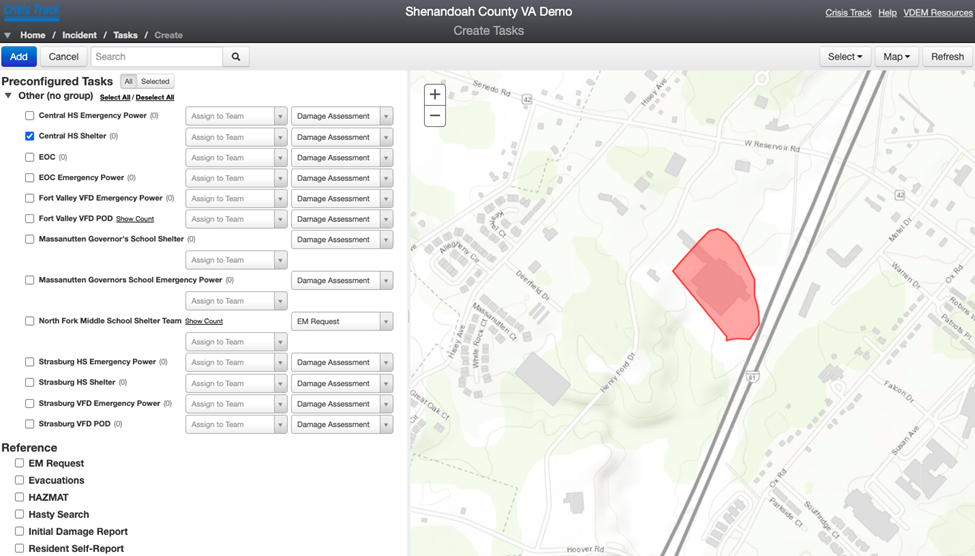
Select the Preconfigured Tasks that you would like to add to the incident, using either the checkboxes or the map. Click Add.
-
You will be taken back to the Tasks list table.
-
Click View next to the Preconfigured Task.
-
Click the Map button and turn on structures by selecting the Structures checkbox in the map legend.
-
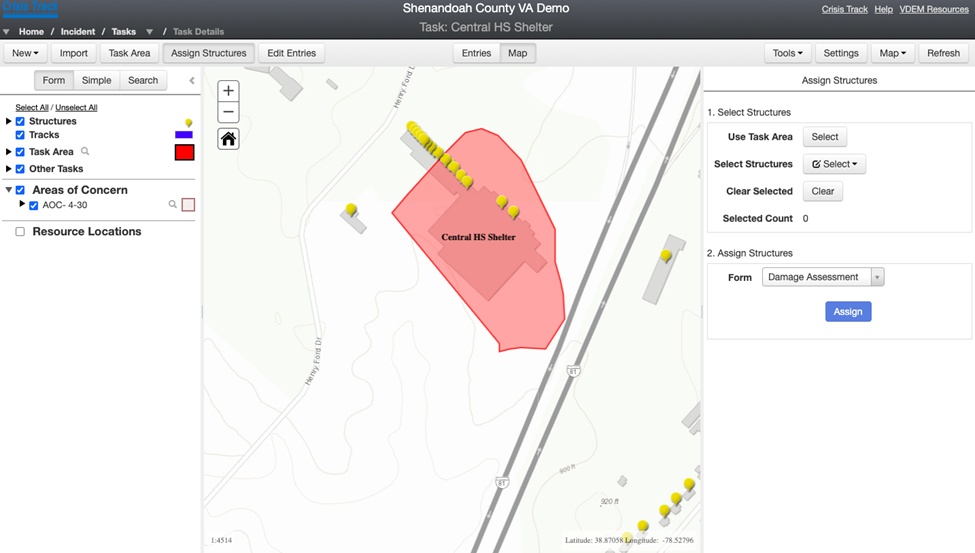
Click Assign Structures. Select Use Task Area if you would like to assign all of the structures within the Preconfigured Task Area. Or click Select Structures → Freehand Polygon to circle structures of your choice, if you would like to select specific structures within the Preconfigured Task Area.
-
Your selected structures will flash blue. Select the assessment form type you would like to assign to the structures. Press Assign. Structures have now been assigned based on your Preconfigured Task Area.
-
Repeat steps 3a-d to assign structures for any additional Preconfigured Task Areas.
-
Related Concepts