Manage Teams
Once you've created a new team, you now have the ability to:
-
Edit the team.
-
Change the team's status.
-
Delete the team.
To edit a team
-
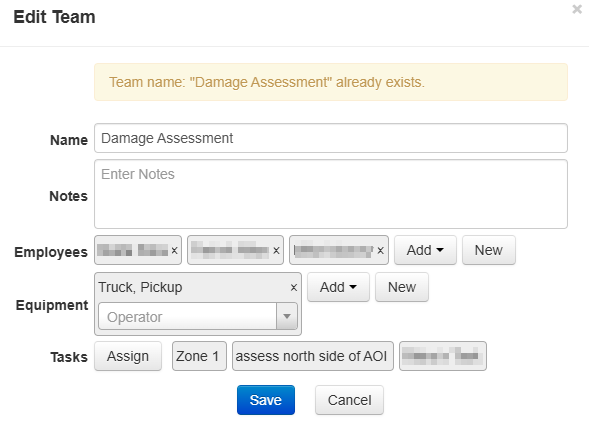
In the Teams module, click Edit for the team you want to edit. The Edit Team window opens.
-
Edit the details using the definitions below.
-
Name: Name of the team.
-
Notes: Notes about the team or their responsibilities.
-
Employees: The employees assigned to the team. Remove or add employees or click New to create a new employee to add to this team.
-
Equipment: The equipment assigned to this team and the operator, if assigned. Remove or add equipment or click New to create a new piece of equipment to add to this team.
-
Tasks: The tasks assigned to this team. Click Assign to assign more tasks from the task list to this team. For more information about assigning tasks to team, see Assign Tasks to Teams in an Incident.
-
-
Click Save.
To change a team's status
-
In the Teams module, click the status menu in the Status column.
-
Select a status from the list.
The status is automatically updated and doesn't require confirmation.
To delete a team
-
In the Teams module, click Delete for the team you want to delete. The Delete Task window appears.
-
Confirm if you want to delete the team.