Task Map
In the Crisis Track mobile app, there are three task tabs that allow you to view different aspects of the task. This page focuses on what you can do in the Map tab, which displays the entries assigned to this task on a map.
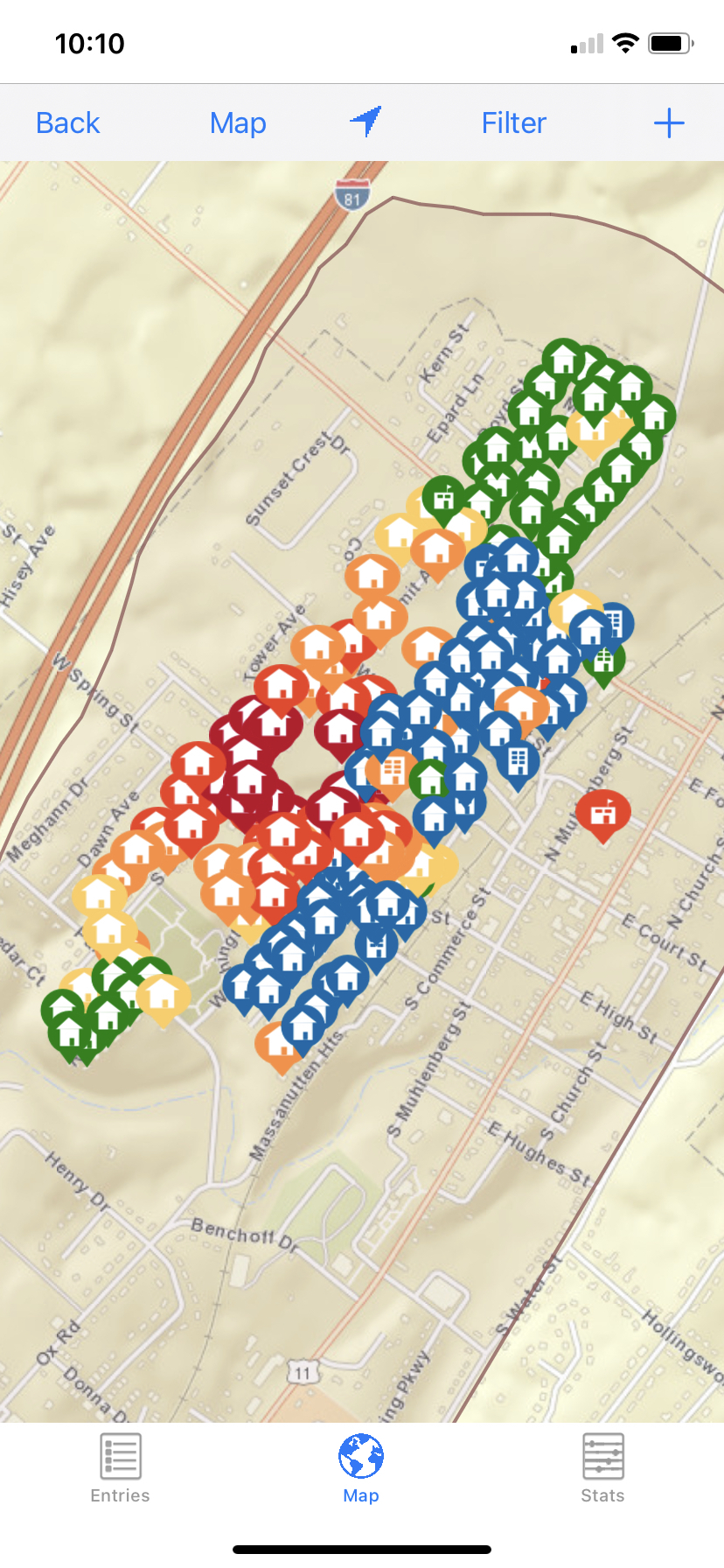
To view tasks on the map
-
Drag the map and zoom in/out using standard "pinch" actions. You can also tap the current location
 button to center the map on your current location.
 -
Tap a map dot to display a pop-up with the name and address for that entry. Tap the encircled icon to view that entry's details.
-
Tap the more options
 button in the upper right then tap Refresh to update the map.
To change map view settings
-
Tap the more options
button in the upper right then tap Choose Map Type to change the base map type. Your map type options are: Street, Satellite, Topo (topography), or USGS Topo (United States Geological Survey topography). -
Filter the entries shown on the map, using the entry filters described on the Task Entries page.
To add new form information
This creates a new entry at your current map location.
-
Tap the + button to open the form selection menu.
-
Select the appropriate form from the list.
-
Enter the Form tab details for the entry.
Refer to the Collecting Data page for more information on how to proceed with uploading new form information.