Add a Comments Button to Views Classic Styling
You can add a fully featured comments panel to your board on the List View. Details, and Dashboard views.
See Board Comments in the WebEOC Nexus Admin Help Center for a description of this feature, which is available in WebEOC Nexus 10.18 and later.
The is supported is supported in the List, Details, and Dashboard views.
To add a comments button to a View using Classic Styling
-
Click the gear icon on the App Bar.

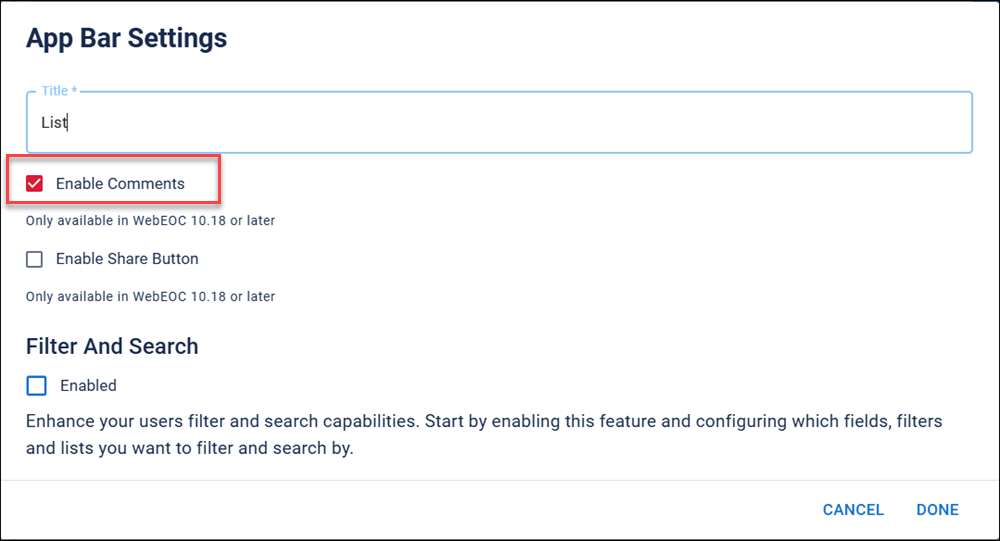
The App Bar Settings dialog opens.
-
Click the Enable Comments checkbox.
-
Click Done.
The Comments button displays in the App Bar.
Add Comments buttons in other views and versions
In the Nexus Component Styling version, you can:
-
Add a Comments button to Details views using the App Bar.
-
Add a Comments button to List views using the List View Settings component.