
Using Auto Insert Fields is the same as using the <insertfields> tag in WebEOC. You can also manually code this behavior using the <value-of> tag in WebEOC to extract the required value from the board XML.
The Auto Insert Fields component is used to automatically populate an existing field with an associated value when a record is created.
The Auto Insert Fields component is supported in the Input view and is found in the Toolbox section of the Components tray.
For example, you may want to automatically populate the record with the current date when it is submitted.
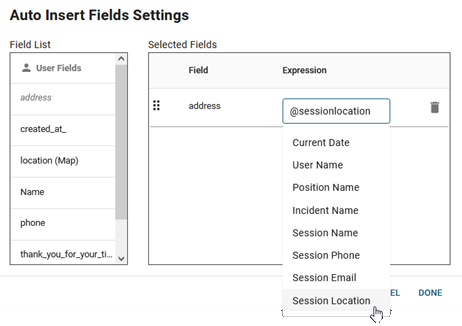
DesignStudio provides a suggested list of Auto Insert information that you can insert in a record. The following suggestions are available:
-
Current Date
-
User Name
-
Position Name
-
Incident Name
-
Session Name
-
Session Phone
-
Session Email
-
Session Location
You can also enter valid SQL expressions.
To add the Auto Insert Fields feature
-
In your board, in Design mode, select an Input view.
-
Drag and drop the component you want to have automatically populated when the record is created.
-
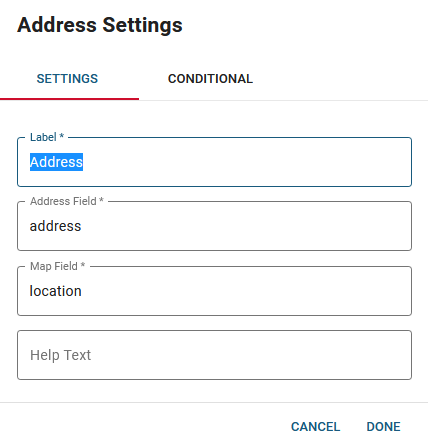
If you are using the WebEOC Nexus Styling version, update the component configuration on the Properties tab.
-
Click Save
 to save the record.
You must save the record before you insert the Auto Insert Fields component. The Save button is located above the canvas.
-
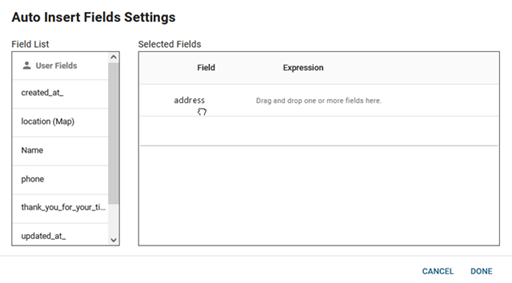
On the right, under Toolbox, click the Auto Insert Fields component. The Auto Insert Fields Settings window opens.
-
From the Field List, drag the field or fields that you inserted to the Selected Fields list. In this example, the field name is Created at:.
-
For each field that you dropped in the Selected Fields list, in the field line, click the Expression field and select the appropriate SQL expression from the list. A suggested list of expressions is displayed.
-
The Field label must match what you entered as the Label when you dropped the component on the canvas (steps 2 and 3).
-
The Expression must be related to the component type. For example, you cannot drop a Phone component and select a Date expression.
-
You can alternately enter a valid SQL expression within single quotes.
-
-
Click Done.
-
Above the canvas, click Save
. -
On the upper right, open the List view that you are using for this board instance, and add the new field(s) to the List view. See Create a List View.
-
Click Save.
-
Publish the board to the WebEOC instance. See Publish a Board.