
The image component inserts an image that you have added as a resource to the board.
This component is supported in the Input and Display views and is found in the Formatting section of the Components tray.
See Add Board Components for details about adding components to a view.
Settings
If you use the Classic Styling, these settings are set in a dialog that opens after you drop the component on the canvas. If you are using the Nexus Component Styling, these settings are set on the Properties tab after you drop the component on the canvas.
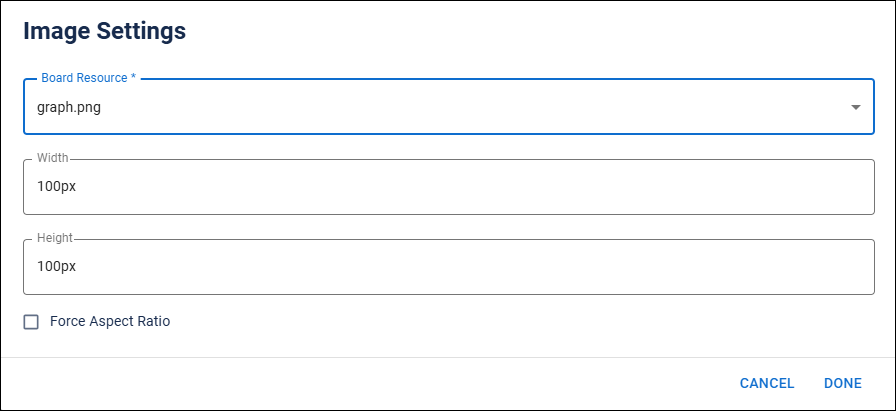
The following settings are available.
| Field | Description | Procedure |
|---|---|---|
|
Board Resource |
Name of the image file that has already been added to the board. |
Select the image file. See Add a Resource to a Board for details. |
|
Width |
Width of the image on the board. |
Enter a width for the image. |
| Height | Height of the image on the board. | Enter a height for the image |
| Force Aspect Ratio | Setting to control the dimensions of an image, ensuring that it maintains a specific width-to-height ratio regardless of the size changes. | Select the checkbox to enable the option. |
Actions Toolbar
The following actions are available when you select any component on the canvas in the Board Workspace when working with Classic Styling.
| Icon | Name | Description | Procedure |
|---|---|---|---|

|
Settings |
Opens the Settings dialog. You can modify the component’s settings, such as label, database field name, help text, style, and conditional settings. |
|

|
Move |
|
This icon is not used. To move the component, click and drag it to its new location. |

|
Clone |
Copies the current component and its settings, then pastes it after the current component. |
|

|
Delete |
Deletes the selected component. |
|
Actions Toolbar
The following actions are available when you select any component on the canvas in the Board Workspace when working with Nexus Component Styling.
| Icon | Name | Description | Procedure |
|---|---|---|---|
|
|
Settings |
Opens the Properties tab next to the Components Tray. You can modify the component’s settings, such as label, database field name, help text, style, and conditional settings. |
|
|
|
Move |
|
This icon is not used. To move the component, click and drag it to its new location. |
|
|
Clone |
Copies the current component and its settings, then pastes it after the current component. |
|
|
|
Delete |
Deletes the selected component. |
|