Add a Resource to a Board
You can also add other file types to the board as attachments.
For more information about resources, with tags and examples, see Boardresource Attribute in the WebEOC Nexus Administrator Help Center.
To add a resource to a board in the Board Workspace
-
In the Board Gallery, locate the board for which you want to add a resource, and then click Design.
-
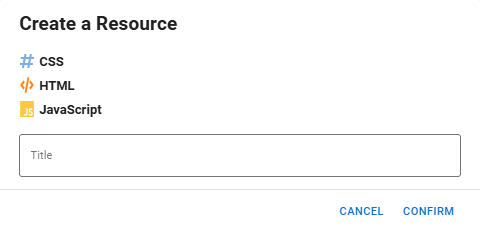
On the upper right, click Create > Board Resource. The Create a Resource window opens.
-
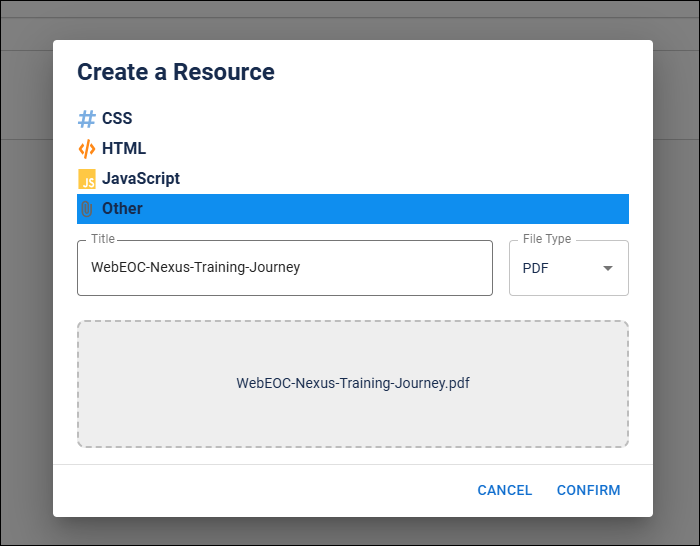
Select the scripting language or select Other to add one of these file types to the board:
- PNG
- GIF
- JPG
- JPEG
- DOCX
- DOC
- XLSX
- XLS
- CSV
- PPT
- PPTX
If you add an image to a board as a resource, use the Image component, available under the Formatting section in the Components tray, to add it to the board.
-
Enter a name for the resource in the Title field.
-
If you selected Other, click the File Type dropdown and select the file type.
-
Drag the file or browse for it to add it to the window.
-
Click Confirm.
The newly created resource displays under Resources on the left.
Clicking the more icon  to the right of the resource name allows you to:
-
Rename the resource
-
Delete the resource
-
Copy the board resource link. The link is copied to your clipboard. You can embed the link in Code Mode to reuse the resource in other boards.
If you click the more icon
next to a resource of type Other, you can download it.
Related Concepts
Scripts & Styles Component Nexus Component Styling
Related Tasks
Create a Board Using the Board Wizard
Preview Boards on Multiple Devices
Preview Boards in Light and Dark Modes
View History and Restore Versions
Reference Materials