Objectives are tasks or duties associated with incident response guides A predefined guide containing objectives, tasks, files, and resources for a specific incident. (IRGs) to direct participants’ actions and help resolve the situation. In addition to naming and describing objectives, it is necessary to assign objectives to an ICS Chart position or the incident as a whole.
-
eICS allows you to create multiple objectives with the same name; however, you should check your local policies to find out if it is required to identify objectives with unique names.
-
In Planning, objectives assigned to the incident, rather than an ICS Chart position, appear on the General (in the Incident Objectives section) and Objectives drawers of the IRG.
To add an objectives
-
Navigate to Planning and select Plan Summary.
-
In the Summary for list, select the domain or facility.
-
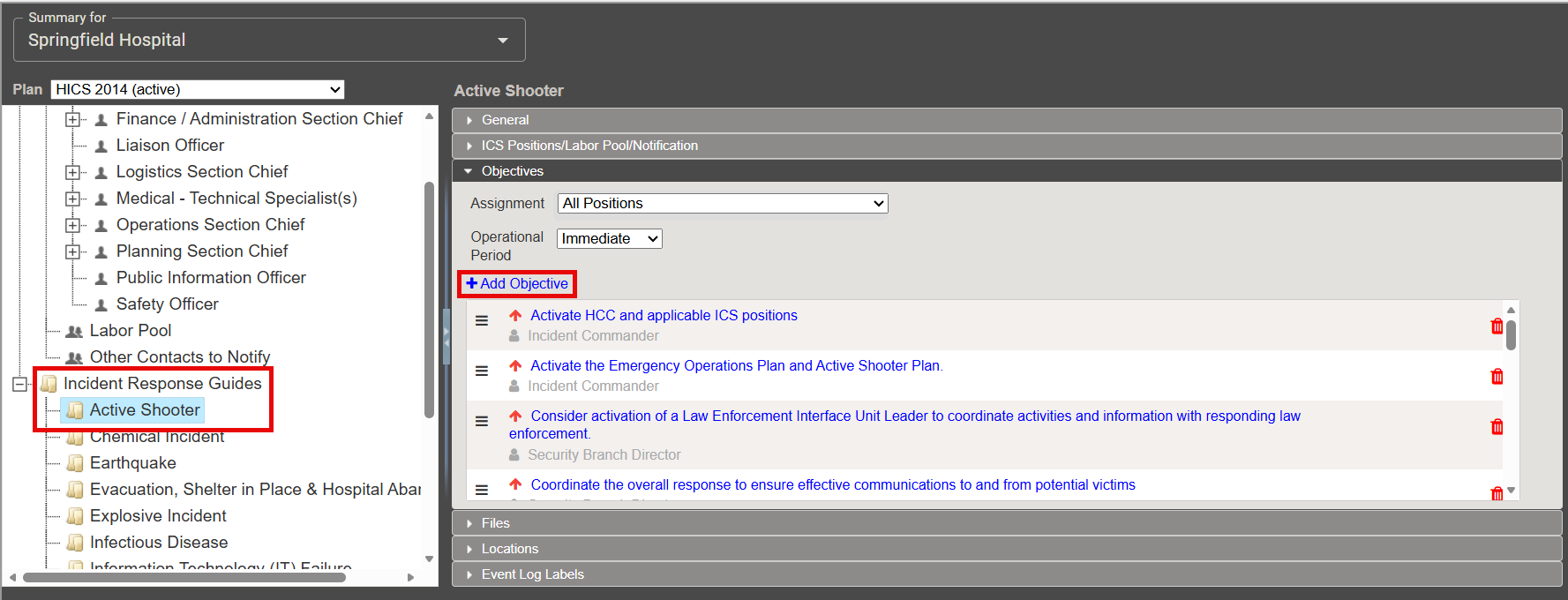
In the left, select the appropriate Incident Response Guide (IRG).
-
Expand the Objectives section.
-
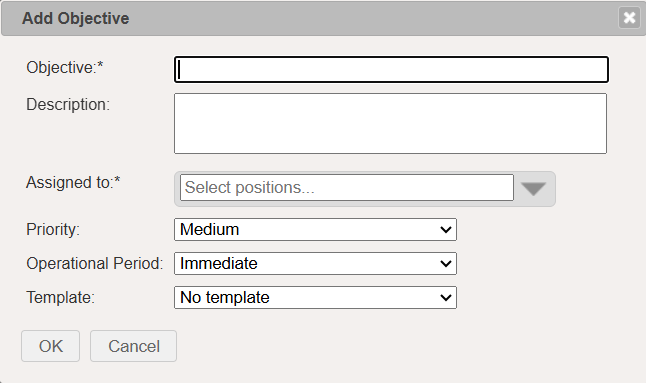
Select Add Objective. The Add Objective window opens.
-
Enter the Objective name.
-
Optional: Enter a description for the objective.
-
Under Assigned to, select one or more ICS Chart positions.
If you select multiple positions, eICS creates a separate objective for each selected position.
-
Select the Priority for the objective.
-
Select the Operational Period
A defined time frame for executing incident objectives and assignments. in which the objective should first appear.The menu only displays default operational periods. If you use Custom Operational Periods, review the mapping between your custom operational periods and the default operational periods.
-
Optional: Select an objective Template.
-
Click OK.
Related Concepts