Resource Details Report
The Resource Details report Provides specific information about statuses and details, notifications, forms, templates, snapshots, and roles/rights in EMResource. displays currently reported details for a defined set of resources, for example Website or County.
To access the Resource Details report, you must have the Setup Region Information right enabled.
All resources for which you have the Run Reports rights are available and you can choose which ones to include in the report. After selecting resources, the status types Custom fields that track information about resources. This is region-specific and are unique fields. associated with those resources that you are authorized to view become available.
To generate a Resource Details report
-
In the main menu, click Report, then click Resource Details. The Resource Detail Report page opens with the Resources tab active.
-
Select the checkboxes for every resource you want to include, then click Next. The Status Types tab opens.
-
Select the checkboxes for the status types you want to include.
When a report requires you to select resources, and the list contains more than 15 options, search fields appear at the top of the page. You can filter the list by resource group
Comprised of resources that share one or more characteristics., resource status A resource's current operation level or limitations. Sometimes also referred to as a facility status. (active or inactive), resource type Categories used to divide and distinguish resources., and/or resource name.
-
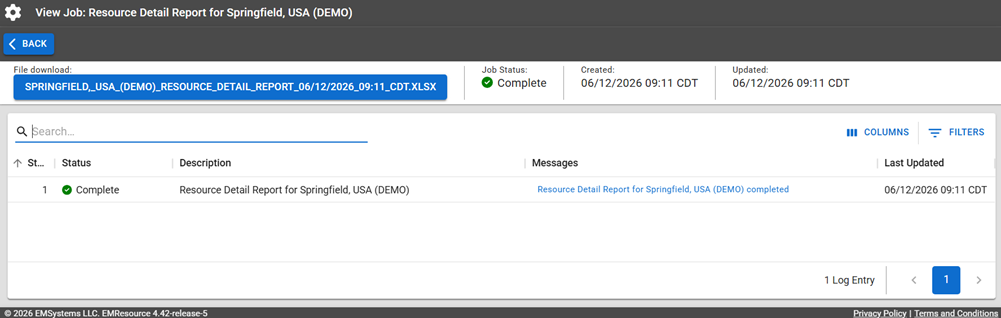
Click Generate Report. The Jobs page opens.
The report is available for seven days on the Jobs List.
-
Click the report name in the blue box to download it.
The report fields vary depending on the resources, status types, and statuses you select.
Related Concepts