Reorder Statuses
You can reorder statuses for:
-
views (if you are authorized to configure views), or
Reordering statuses for views allows you to specify that resources within a resource type Categories used to divide and distinguish resources. are to be sorted by status. For a status type with multiple options, the default order will be alphabetical. However, from status administration, you can specify a different order for the statuses in the view.
Example Your Emergency Dept. status type contains three statuses: Closed, Open, Resource Limitations. You can specify an order so that, when that status is used for sorting resources in a view, resources reporting Provides specific information about statuses and details, notifications, forms, templates, snapshots, and roles/rights in EMResource. the Closed status appear first, those with Resource Limitations appear second, and those with the status Open appear last.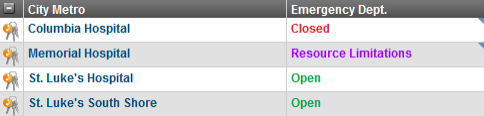
Reordering statuses for status types is useful for a status type with multiple status options. You can quickly and easily set the order in which statuses appear to the user in the Update Status page, status definitions, notification preference Options you choose in EMResource to determine what kind of information you receive and how you receive it. pages, and so on.
To reorder statuses for views
Set the sort order in a view:
-
In the main menu, click Setup then click Views. The Region Views List opens.
-
Locate the view and, on that row, click Edit. The Edit View page opens.
-
Select the Sort Status Types tab.
-
In the Sort Status Types tab, specify the order in which the status types should be displayed in the view.
You can also specify alphabetic order by clicking the Sort alphabetically option at the bottom of the tab.
-
Click Save.
To reorder statuses for a status type
-
In the main menu, click Setup then click Status Types. The Status Types page opens.
-
Locate the status type and, on that row, click statuses. The Statuses for (status type) page opens.
-
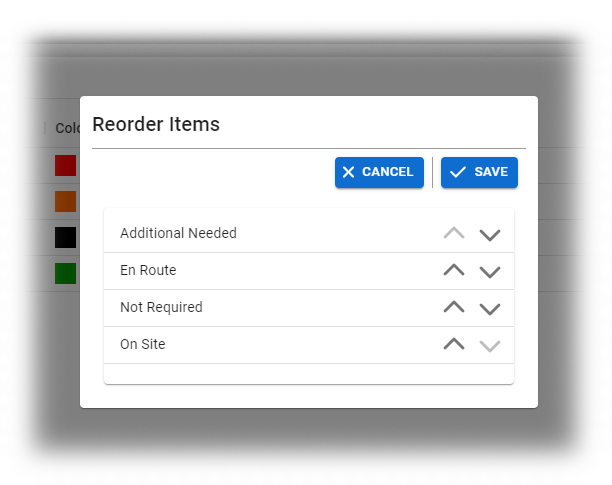
Click Reorder. The Reorder Items page opens.
-
Click statuses to change their order.
-
Click Save.
Related Concepts