Create a View
As an administrator, you may be able to create a view for your region or for multiple regions. The workflow for creating any view is essentially the same, whether creating a view for only your region or setting up a multi-region view.
A multi-region view is created when you select multiple regions and include resources and status types Custom fields that track information about resources. This is region-specific and are unique fields. from each. This option is available only to users who have access to more than one region.
You decide the region or regions to include, specify the sub-resource types Categories used to divide and distinguish sub-resources. Sub-resource types belong to resource types. to be included in the view, and specify the status types, resource types Categories used to divide and distinguish resources., and individual resources that appear in the view. You can specify the order in which resources appear within their resource type, the order of status types, and so on.
The region you are logged in to when you create a multi-region view is considered the active region for the view. This is important to note for certain settings.
The view creation process is set up to guide you through the various steps. This "wizard-like" approach helps ensure you review all necessary elements. Using the Next button guides you through the entire process of setting up or editing a view.
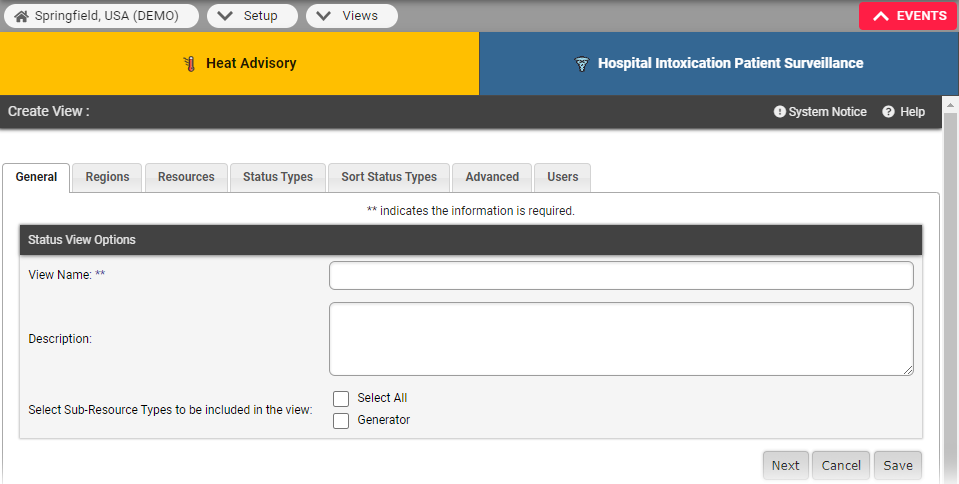
You can elect to make the view automatically visible to all users in the included regions. If you do not, each user must be granted specific access to the view.
Authorized administrators can also maintain existing region views Views other than your Region Default, Map, and Custom Views. These are set by the Regional Administrator. and configure views in the EMResource mobile app to display a view-specific status color for each resource. In addition, any user who has the Setup Review Views right assigned to them, individually or via their role Assigned to determine which features and functions are available to users., can edit the Region Default view.
To create a view
-
In the main menu, click Setup then click Views. The Region Views List opens.
-
Click Create New View. The Create New View page opens to the General tab.
-
In each tab, select or enter the appropriate information, then click Next.
Refer to the View Field Reference for more information on each of the fields in each tab.
-
Click Save.
To edit a view
-
In the main menu, click Setup then click Views. The Region Views List opens.
-
Locate the view and, on that row, click Edit. The Edit View page opens to the General tab.
Refer to the View Field Reference for more information on each of the fields in each tab.
-
Click Save.
To configure a mobile view
-
In the main menu, click Setup and then click Views. The Region Views List opens.
-
Locate the view and, on that row, click Edit. The Edit View: (Region Name) page opens to the General tab.
-
Click the Advanced tab.
-
In the Override Mobile Default Status Type column, select the appropriate information.
-
Click Save.