Views Administration
Views are customized configurations of your region's resources and statuses. If you have the appropriate permissions, you can configure any number of views to support your region's needs, and make them available to any or all regional users.
You can construct views using resource types Categories used to divide and distinguish resources., resources, and status types Custom fields that track information about resources. This is region-specific and are unique fields.. You can display these elements in any order, though resources must stay grouped within their corresponding resource type.
Each user can also set up their own custom view and make it their default view. You can also set up views that span regions. For more information refer to Create a View.
List of Views
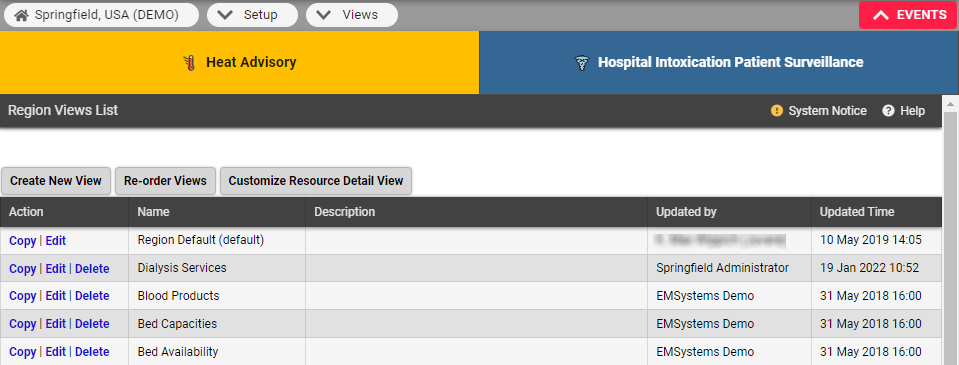
The Region Views List shows the views established for your region. From here you can edit or create a view, specify a different order of views in the View menu, or customize the layout of your resource Detail View.
Every user has access to the Region Default view. They can choose any existing view as their default and can also configure their own custom view, in which they can regroup resources in a way that is meaningful to them.
|
Column |
Description |
|---|---|
|
Action |
Actions you can perform, including copying a view to start a new one, editing a view, or deleting a view. Any user who has been assigned the Setup Region Views right, individually or via their role, can edit the Region Default view. This view cannot be deleted. |
|
Name |
Name provided for the view; this is the name that appears in the View menu. |
|
Description |
Description of the view; this is for administrative purposes only. |
|
Update by |
User who last updated the view. |
|
Updated Time |
Date and time the view was last updated. |
Multi-region Views
If you have access to more than one region and have been granted the Setup Region Views right, you can create views that include multiple regions. The workflow is the same as for any other view.
As with any other view, you have the option to generate a "snapshot" of the multi-region view.
If the user can view a resource, but does not have view rights for any status types included in the multi-region view, the resource appears in the view without any status types. In addition, the resource appears in the Map view without being color-coded, since the status type defines its color.
Creating and Editing Views
Region administrators can create and edit views. When you create a view, you decide the region or regions to include, specify the sub-resource types to be included in the view, and specify the status types, resource types, and individual resources that appear in the view.
When creating a new view, the options you specify in the Advanced tab define the view's type.
For more information, refer to Create a View.
Searching and Filtering
Creating and editing views is performed through a series of tabs. On the Resources, Status Types, and Users tabs you can search and filter elements to help you find the items you want to include in the view.
-
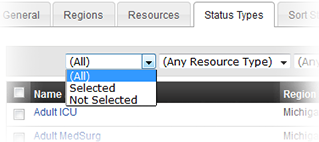
In Resources and Status Types, you can filter by selections, resource types, sections, sub-resource types, standard resource types, and status types to view only those items.
-
In the Resources and Status Types tabs you can also sort by column, which can help you locate the options you want.
-
In the Users tab, you have the option of filtering by Role.
-
In each of these tabs, after using search and filter options, you can click Show All (top right) and/or Clear Selections (bottom left) to remove filters and selections.
Related Tasks
Reference Materials