View and Edit Resource Details
Your resources are entities (facilities, organizations, and agencies) that report Provides specific information about statuses and details, notifications, forms, templates, snapshots, and roles/rights in EMResource. specific information, such as medical capabilities, capacities, services, and/or supplies, such as ICU, ED, evacuation, dialysis, bed availability, hazardous materials, and pharmaceuticals. You can view or edit resource details from the View pages.
View and edit resource details
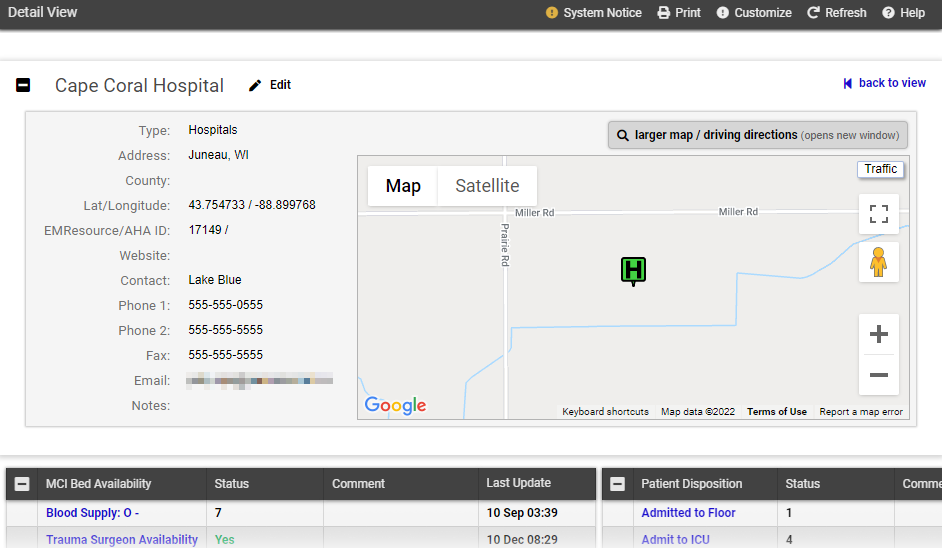
You may be authorized to edit a resource's details, including its location and contact information. You can access a resource's details through the appropriate view.
-
In the main menu, click View then click the appropriate view.
-
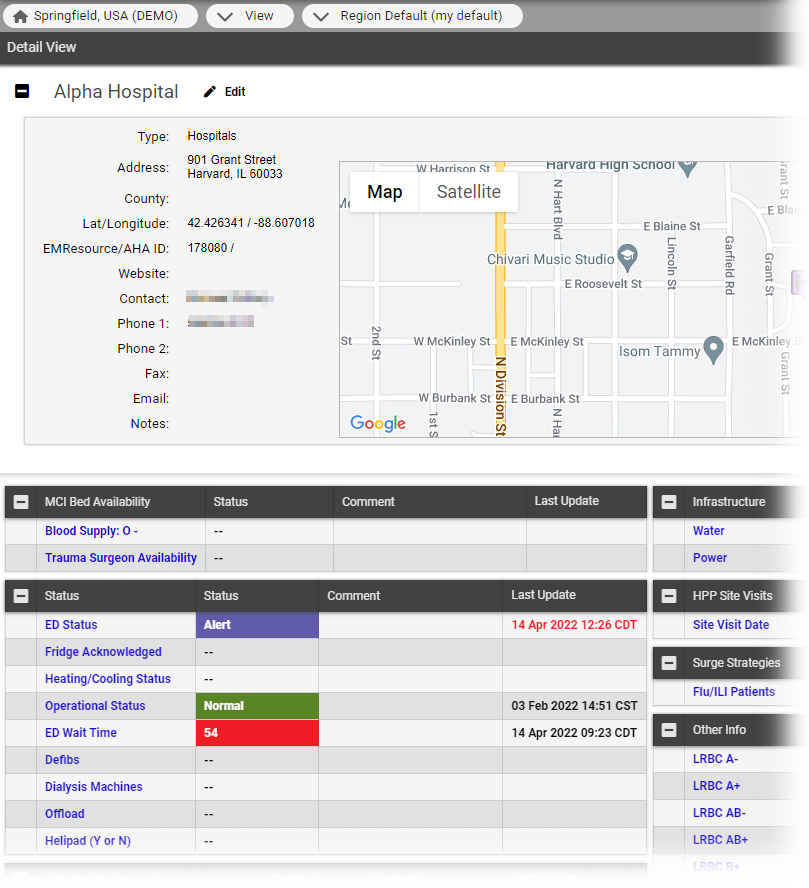
Locate the resource and, on that row, click its name. The Detail View opens.
The top portion of the Detail View displays the resource's detail and a map of its location. The tables directly below this area show this resource's reported statuses, organized by sections your region set up. Below this, the page shows all associated sub-resources and the resource's contact information. Refer to View and edit sub-resource details for more information.
EMResource uses Google Maps™. Use the standard map tools to zoom in and out, move the map to change focus, and view traffic and/or satellite information.
-
To the right of a resource's name, click
 Edit. The Edit Resource page opens.
You can also refresh the information in the view, print it, or go back to the previous View page.
-
Add or update this information.
Resource editing fields and descriptions Field
Description
Name
Name of the resource.
Abbreviation
Abbreviation for the resource.
Abbreviations may be used in text notifications and report.
Resource Type
Grouping of resources, such as by type or proximity; select from your region-defined list of types; on your region views, the resource's type defines how it is grouped with other resources, as well as its inherited status types. (read only)
Standard Resource Type
Predefined list of resource types or categories; this determines the resource's icon for display on the map view; you can also use it as a search term on a number of search pages.
Reports HAvBED data
Select the checkbox to include this resource when reporting HAvBED data to HHS; to exclude the resource, clear the checkbox.
Share with Other Regions
Select this checkbox to share this resource's information with regions with which you have established and activated a mutual data sharing agreement; clear the checkbox to remove sharing of this resource.
AHA ID
American Hospital Association identification number; required when a resource sends detailed HAvBED information to Health and Human Services (that is, resource-specific rather than a State summary.
External ID
Unique identifier (primary key) for use with an external interface/program; this identifier is established outside of EMResource.
Address
Enter the resource's street address, city, State, ZIP code, and county; if the Reports HAvBED data option is selected, State is required.
Latitude / Longitude
After entering the resource's address, click Lookup Address to obtain the latitude and longitude for the resource; the system automatically populates the information in these fields and shows a map of the resource's location.
Click View Map to open a map showing the location of the resource; drag and drop the icon to refine the location and latitude and longitude
If you are unsure of the address, enter the resource's city and State and click View Map. Click and drag the red icon to any location in the map; the system automatically provides the correct latitude and longitude. It may be helpful to switch to the satellite view to display the buildings in the area.
Website
Enter the resource's website address (URL).
Contact Information
Enter the resource's contact information, such as the contact's name, address, phone and fax numbers, and email address. First and last name are required.
Notes
Enter notes or comments about this resource, as appropriate.
Active
Clear the checkbox to de-activate the resource. This removes the resource from views. It is still available in reports.
- Click Save.
View and edit sub-resource details
A resource can own sub-resources, which can range from equipment to contact information. Sub-resources are also designed to report statuses. This two-level hierarchy allows both the facility and an item it owns or service it provides to report statuses appropriate to its level. The primary sub-resource of any resource type can be included in views. When it is, you see the sub-resource and its status types.
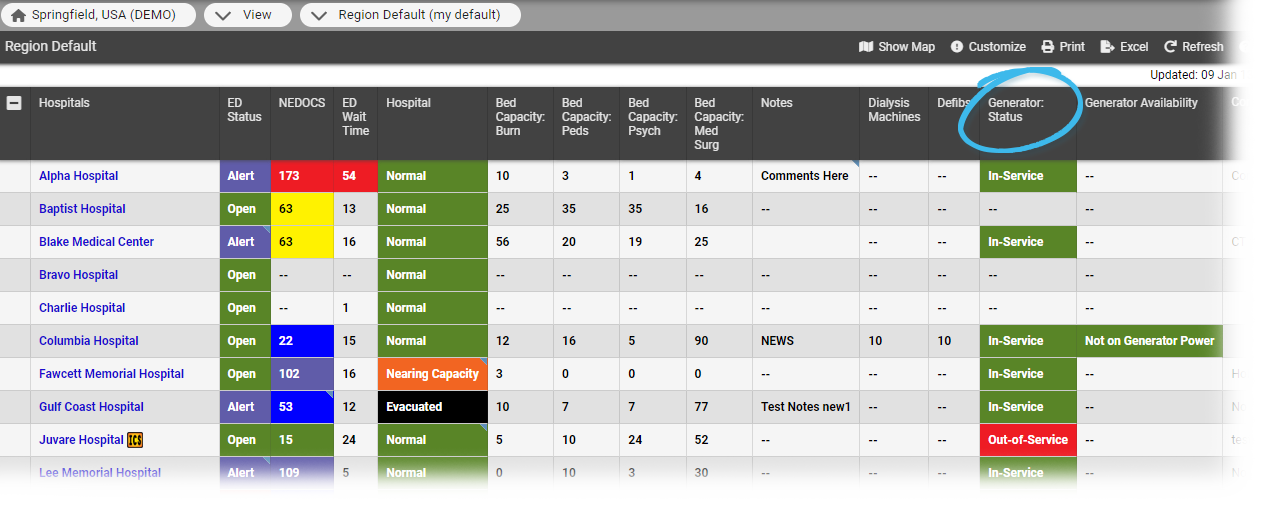
If you are authorized to update the parent resource's statuses, you can also update its sub-resources' statuses from the view.
In addition, sub-resources can appear in a resource's Detail View. When included, they appear after the resource's status types. There is a section for each sub-resource type associated with the resource. Each section provides the names of sub-resources of that type, and also shows which sub-resource is the primary one of that type by displaying a flag icon next to its name. If you have the appropriate rights, you can add sub-resources from these sections by clicking the appropriate Add button.
-
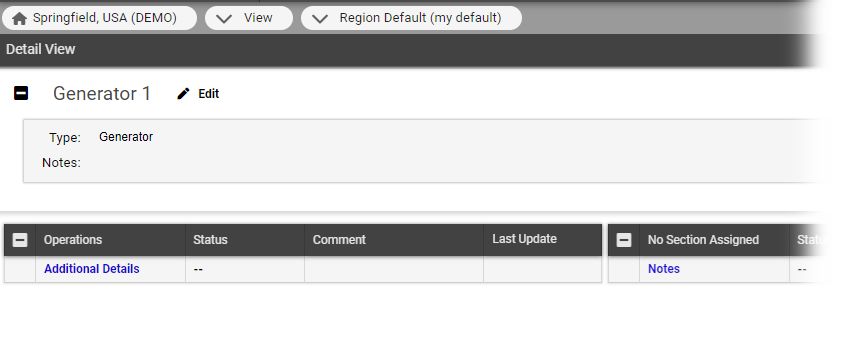
Click a sub-resource's name to view the details. The sub-resource's Detail View page opens.
-
If you have the appropriate rights, you can edit the sub-resource by clicking the
Edit button.