Set Up a Secondary Contact
If your application has this feature enabled, review this page for information. If this feature has not been enabled and you would like it to be, contact The internal and external people that participate in, might be affected by, or need to be notified about an incident. your Client Success Manager (CSM).
Single Sign-On (SSO Single Sign On. An authentication system that allows users to log in using one set of credentials.) clients concerned about accessing their Identity Providers (IdP) or email if their users cannot log in, in the event of a cyber incident, can allow for SSO to be disabled by Juvare. This allows users to receive a reset password notification An alert, update, advisory, information, drill, or test message that can be sent & received through delivery methods such as email, voice, text, fax, or inbox. through a secondary email or SMS. To prepare for such a circumstance, follow the steps below:
Pre-event
These steps should be performed by the user during new user setup or anytime after account activation for existing users.
-
Navigate to login.juvare.com.
-
Click your profile in the upper right then select Settings in the menu.
-
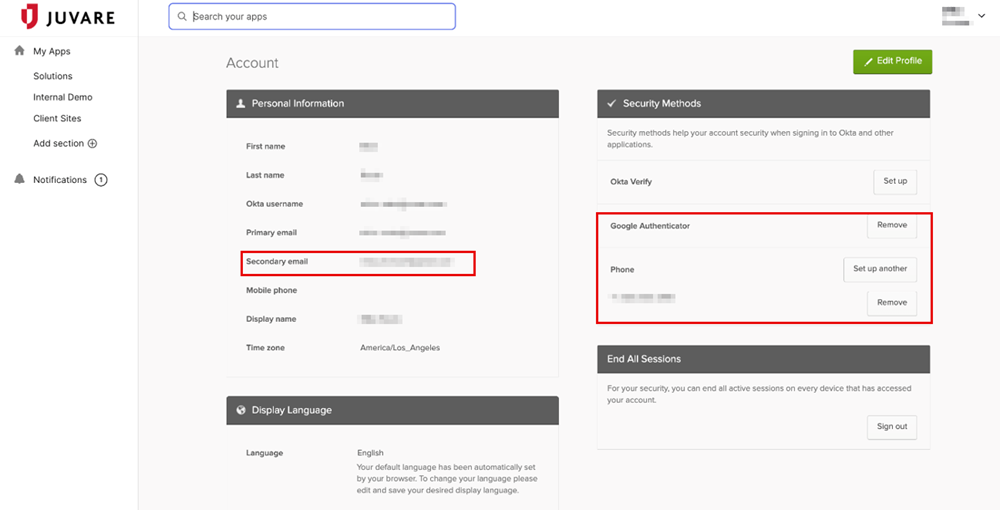
Click Edit Profile and under Personal Information, enter a Secondary email address.
-
Optionally, under Security Methods add a mobile Phone number for two-factor authentication.
Post-event
These actions should be performed in the event that a cyber incident occurs.
-
Reach out to the Juvare Support Center, informing them of the need to disable SSO because of the incident.
Disabling SSO could take a few hours due to the disconnection process.
-
Users must reset their password using the link in their Juvare product instance or from login.juvare.com.
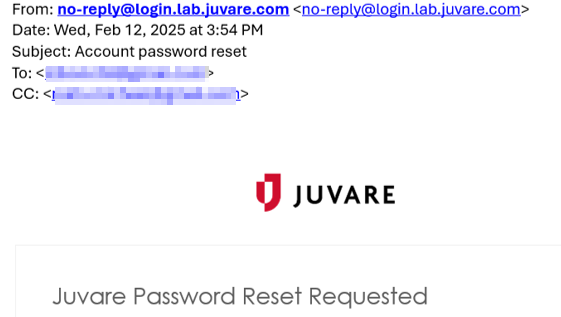
The reset password email or SMS is sent to either the secondary email or phone number users provided.
-
For the secondary email option, the reset password link is sent to both their primary and secondary email addresses.
-
For the SMS option, the user receives a verification code, allowing them to reset their password in Juvare Login Services.

-
The user must set the new password, then log in to the Juvare application.
-