Configure Default Columns
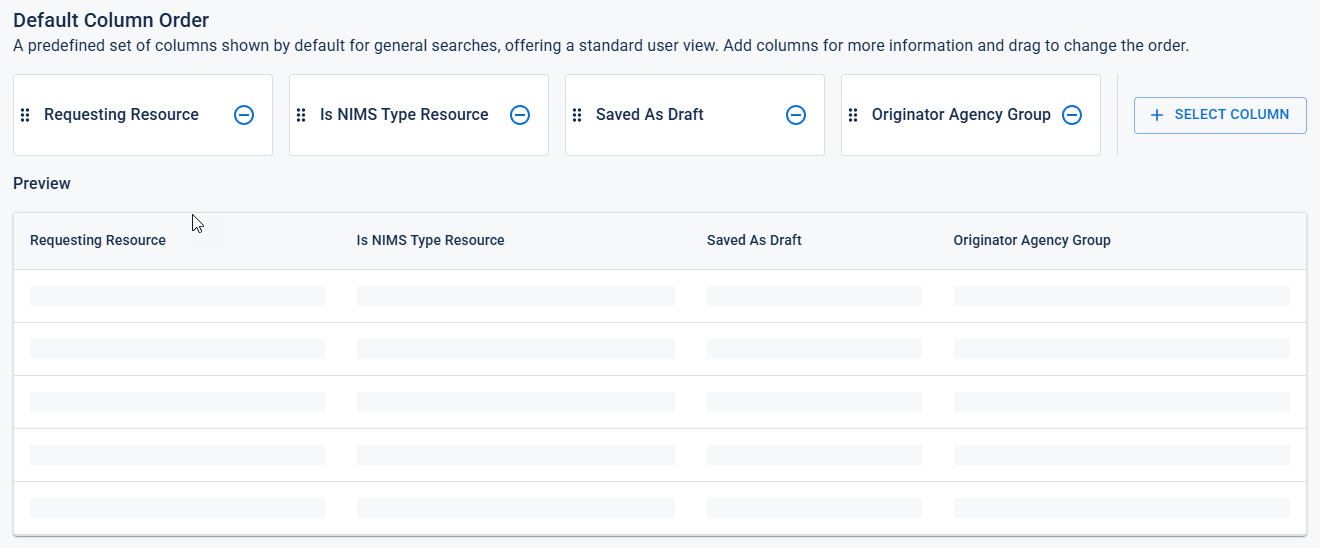
By default, query result tables display a standard set of columns based on the data source. You can customize the view by adding, removing, or reordering columns.
The available columns depend on your configured settings. For more information, see Configure Available Columns.
To configure default columns
-
Click the Sources tab (if it is not already open). The list of boards currently being used as data sources is displayed.
-
Find the source that you want to modify and click its settings icon
 on the right.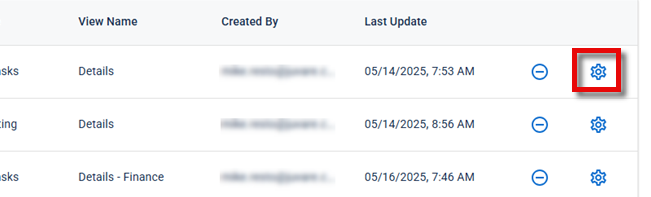
The Set Configuration page opens.
-
Click the Default Columns tab. The Default Column Order is displayed.
-
Perform any of the following actions as needed:
-
To show additional columns:
-
Click Select Column. The Select Columns to Show dialog displays.
-
Select the columns that you want to show, and then click Select.
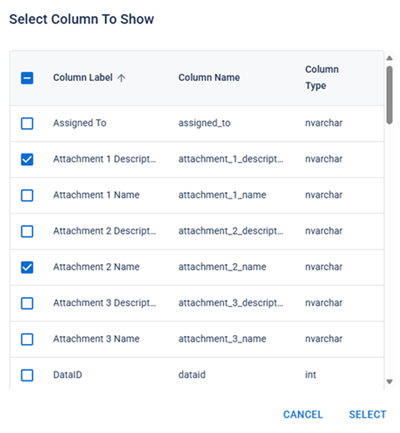
The selected columns are added to the preview table.
The columns available to you are based on the configured settings. For more information, see Configure Available Columns.
-
-
To remove a column, click the
 icon.
icon. -
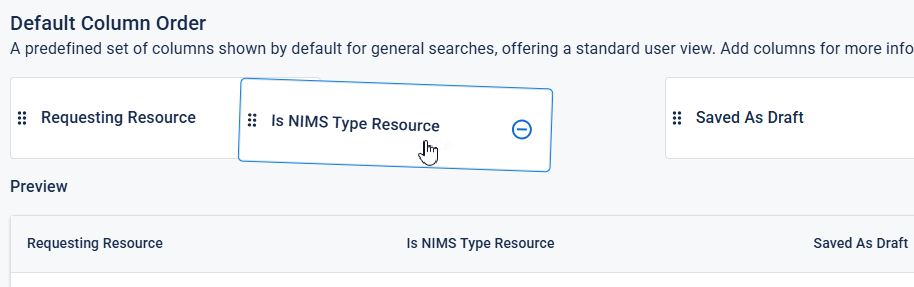
To reorder the columns, click and drag their header boxes into the positions that you want them.
-
-
When you are done, click Save in the bottom-right corner of the page to apply your changes. You are redirected to the Sources tab on the JAI Manager page.