Manage Topics
From the Topics tab on the JAI Manager page, you can edit, delete, and activate or deactivate topics, and download the user conversations associated with them.
To manage topics
-
Click the Topics tab. The Topics Lists displays.
-
Perform any of the following actions as needed:
-
To download the conversation history associated with a topic in a CSV file, click the
 icon.
icon. -
To delete a topic, click the
 . A message displays asking you to confirm that you want to delete the topic. To complete the action, click Delete.
 -
To edit a topic or change its activation status:
-
Click anywhere inside the row of the topic that you want to modify.
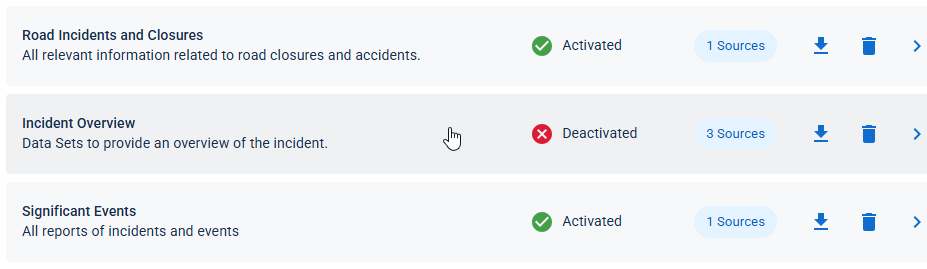
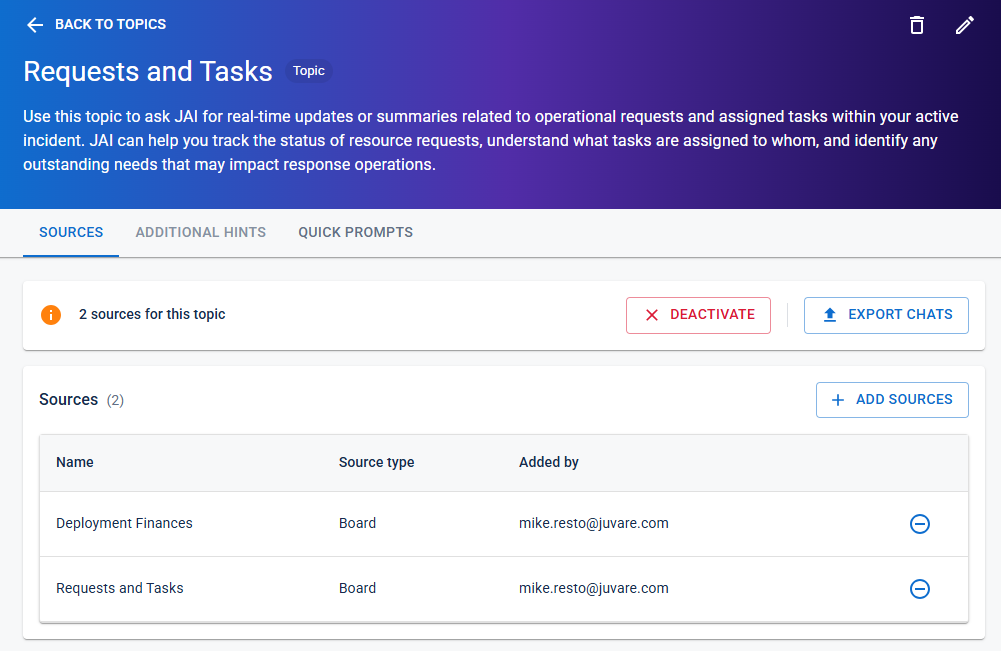
The Topic page opens.
-
From the Sources tab, you can do any of the following:
-
To add sources:
-
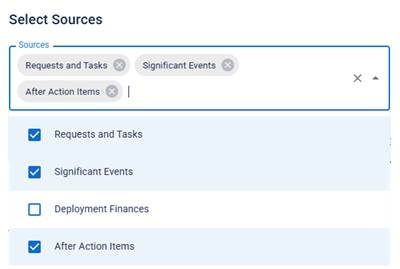
Click the Add Sources button. The Select Sources dialog opens.
-
Click the dropdown icon
 .
. -
Select the sources that you want to add.
-
After selecting the sources you want to add, click anywhere in the white area of the dialog box to close the menu, and then click Save.
-
-
To delete a source, click the
 icon on the right side of its row, and then click OK in the Delete Source confirmation dialog.
 -
To export the chats associated with the topic to a CSV file, click the Export Chats button.
-
To change the activation status, click the Activate/Deactivate button.
When the topic is activated, the Deactivate button appears; when deactivated, the Activate button appears.
-
To edit the topic name or description:
-
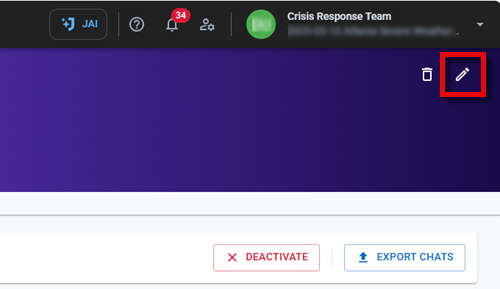
Click the edit icon in the upper-right corner of the screen. The Edit Topic dialog opens.
-
Edit the Topic Name and/or Description as needed, and then click Save.
-
-
To delete the topic, click the delete icon
 in the upper-right corner of the screen, and then click OK in the Delete Topic confirmation dialog.
-
-
For information on adding and editing topic quick prompts, see Configure Topic Quick Prompts.
-