Import Spreadsheet Data to a Board
You can also Import Parent and Child Tables in the Board Data Manager.
To import spreadsheet data to a board
-
In the main menu, click the workflows icon
 . The Workflows page opens.
 -
On the Boards tab, locate the board you want to work with and click its name.
-
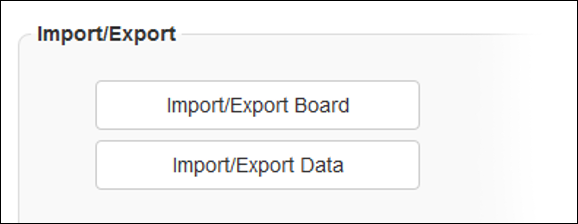
In the Import/Export section, click Import/Export Data.
-
Make sure Type is set to Excel.
-
Click Browse or Choose File.
-
Locate, select, and open the file containing the data you want to import.
-
If appropriate, in the Import Profile field, select the appropriate profile. See Create an Import Profile for details.
-
Click Import. If you used an import profile, proceed to step 15.
-
If appropriate, select the Automatically Create Missing List Items checkbox.
-
From Table Name, select the appropriate table.
-
If appropriate, select a field from the Unique Field list.
-
Map the fields, as appropriate.
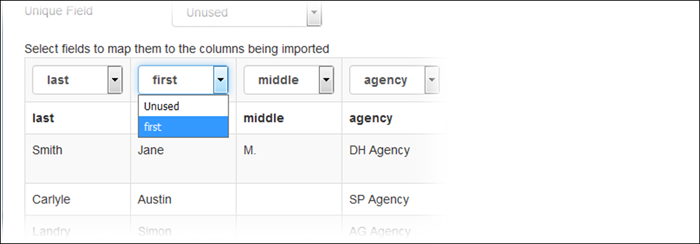
If importing latitude and longitude data into a feature field, select the (featurefieldname).latitude and (featurefieldname).longitude options to ensure this data is converted to the feature field format WebEOC Nexus requires. Examples: location.latitude, location.longitude
-
If you are importing from multiple worksheets to multiple tables, repeat steps 11 – 13 for each table (tab).
-
Click Preview.
-
In the preview page, click Import.
If there are records with errors, they appear in the preview page. You can resolve them or proceed with the import. If you proceed, only valid records are imported.
-
Click Return.