Initiate Alerts From Within WebEOC Nexus
To initiate an alert, you must have a Rave Alert enabled board. See Enable the Rave Alert Extension in a WebEOC Nexus Board for more information.
For a user to initiate a Rave Alert notification, the user account name between WebEOC Nexus and Rave Alert must match. WebEOC Nexus users without an identically named account in Rave Alert will encounter an error if they attempt to initiate a Rave Alert notification.
When generating an alert, you are given the option of using either a template or an ad hoc format to facilitate the alert creation process.
-
Template-based Alerts: Select the desired alert template from the list provided. From there, you are sent to Rave Alert to finalize the alert sending process.
-
Alerts: Generate a short and long message from the board in WebEOC Nexus. From there, you are sent to Rave Alert to finalize the sending process.
To initiate an alert from WebEOC Nexus
-
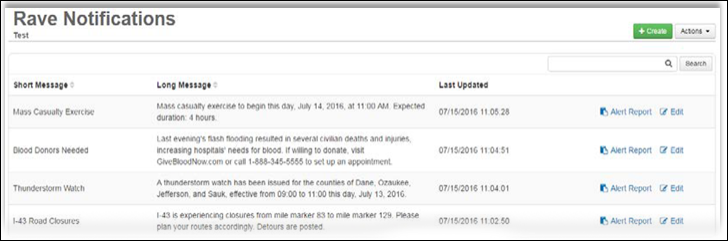
In the User view, open your Rave-enabled board.
-
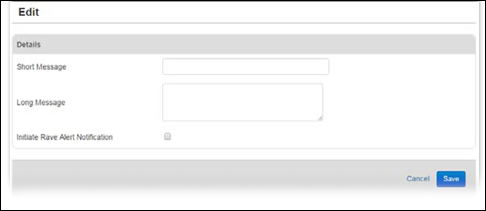
Click Create. The Edit page opens.
-
For Short Message, give the alert a brief name or title that describes the subject of the alert. The character limit is 160.
-
For Long Message, enter the full message in detail. The character limit is 10,000.
-
Select Initiate Rave Alert Notification to begin the alert sending process.
-
Click Save. A message opens on the page, indicating Rave Alert is being launched. The Launch Rave Alert page opens in a new tab.
-
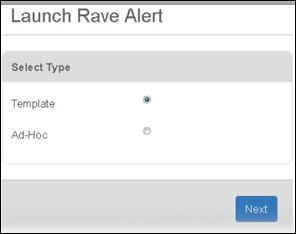
In the Select Type section, select either Template or Ad-Hoc, and then click Next.
-
If you selected:
-
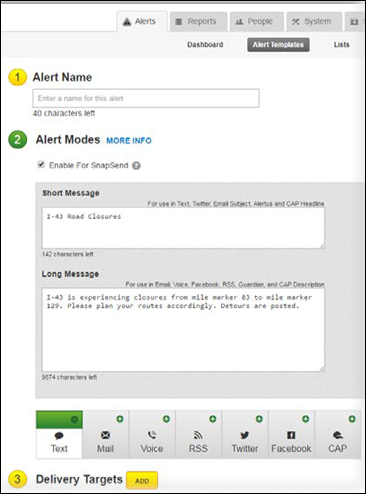
Template select the template most appropriate for this message and then click Next. The Alerts tab is opened in the Rave Alert application.
-
Ad-Hoc the text you entered for Short Message and Long Message appear in their respective fields.
-
-
From this page, finish configuring the alert. As applicable, give the alert a name, select the type or types of alerts to send (Text, Mail, Voice, and so forth), and add delivery recipients (targets).
-
Click Continue. When the Confirm Alert Before Sending window opens, click Send This Alert.
-
When the Alert Sent window opens, review the details and either save the alert as a template or close the window.
Once an alert is sent, you can monitor the progress of the alert from either the Alert Templates or Dashboard page.