Manage Preconfigured Locations
Once you've created a preconfigured location, you now have the ability to:
-
View and edit the preconfigured location's details.
-
Delete a preconfigured location.
To view preconfigured location details
Existing preconfigured locations are displayed on the map.
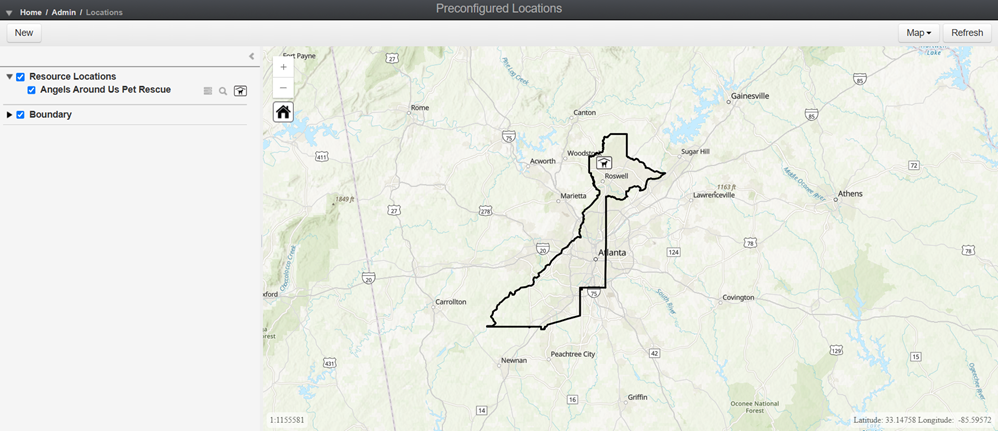
Click on the magnifying glass icon  in the left menu to zoom in on any of the existing preconfigured locations on the map.
For more information on how to use map tools and map view options in the action bar, see Using the Operations View Map and Using the Operations View Map Tools.
Not all options in the Operations View map pages will apply to the map view in the Preconfigured Locations module.
To edit a preconfigured location
-
Locate the preconfigured location that you would like to edit in the left menu. On that row, click the actions icon
 , then select Edit from the menu. The location details open in edit mode.
 -
Edit the fields as needed. For more information about these fields, see Add Preconfigured Locations.
-
Click Save.
To delete a preconfigured location
-
Locate the preconfigured location that you would like to delete. On that row, click the actions icon
, then select Delete from the menu. A confirmation window opens. -
Confirm this preconfigured location should be deleted.
This operation cannot be reversed.
Related Concepts