Add an Area of Concern
You can add an Area of Concern AOC A mapped area containing structures relevant to a selected Crisis Track incident. An AOC can be drawn manually or created by uploading a Shapefile or GeoJSON file.C) by manually drawing it, uploading a shapefile, or uploading a GeoJSON file.
You can use an Area of Concern to add preconfigured tasks A reusable task prepared in Administrative Functions that can later be added and assigned during an incident.. See Assign a Preconfigured Task to an Incident. If you want to add a resource location An important structure, address, or location marked on Crisis Track maps, such as a shelter or emergency resource site. that can be reused for other incidents Crisis Track allows you to track damage for several events through the Incidents feature. You can create a new incident, edit incidents, and deactivate or delete old incidents. Each incident keeps the data separate. Information such as equipment, employees, and structures are listed across all incidents., instead use the Locations module.
To draw an Area of Concern
-
On the upper left, click Add and select Area of Concern.
-
Enter a Name and Description.
-
On the map, locate the structures relevant to the selected incident.
-
Click Draw and choose a shape to draw an AOC with.
If you need to precisely exclude certain structures, use the Polygon or Freehand Polygon options.
-
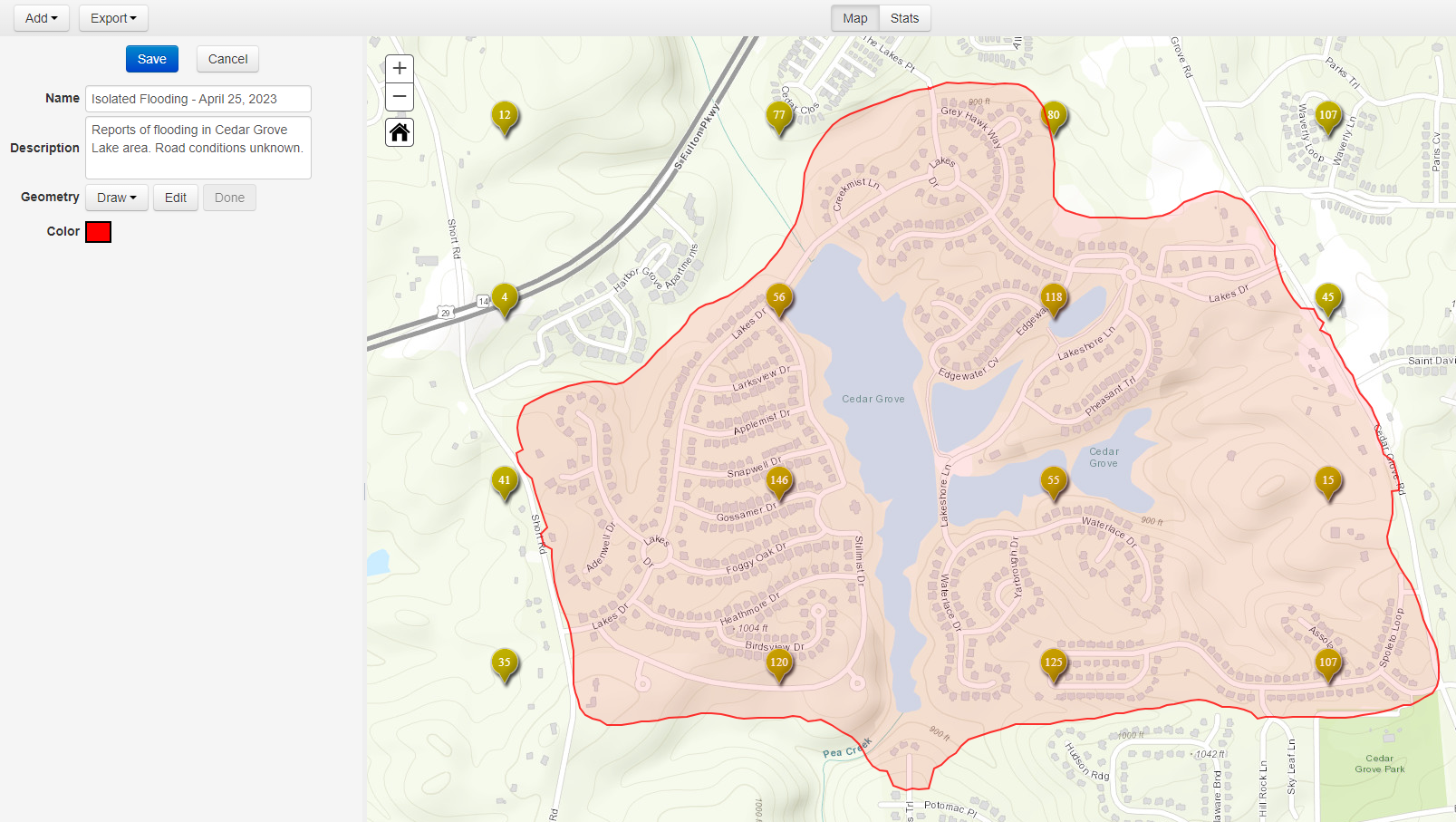
On the map, draw a shape for the AOC containing all relevant structures.
-
To adjust the shape, click Edit. Click and drag the circles on the edge of the shape to reshape the AOC.
-
For Color, click the color sample to adjust the shape's color.
-
Click Save.
To generate an Area of Concern from a map layer
Instead of drawing an AOC by hand, you can generate one directly from a polygon feature on a map layer. For example, if a layer shows the outline of a flood or fire, Crisis Track uses that shape to create the AOC for you.
-
Add the external layer you want to use as a source. See Manage Map Layers for details. The layer must be a Feature Layer, WFS Layer, or Map Image Layer with sub-layers.
-
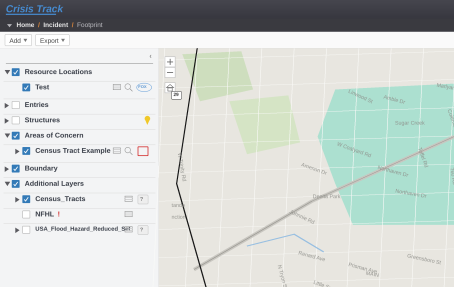
In the left pane, under Additional Layers, select the layer, and then click the Query this layer icon.
-
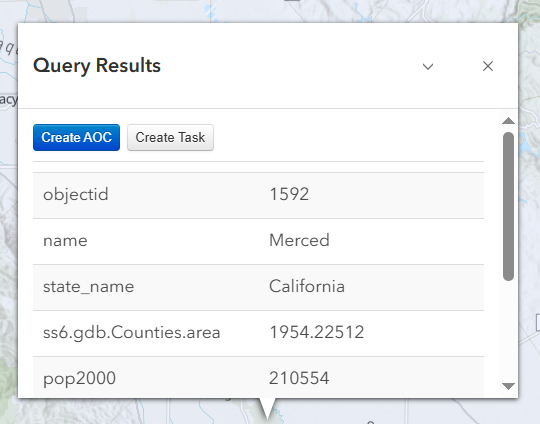
Select the polygon shape on the layer that you want to use as the AOC boundary. The Query Results window displays.
-
Click Create AOC.
-
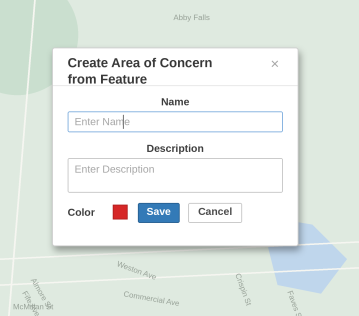
In the Create Area of Concern from Feature window, enter a Name and Description, and set a Color for the AOC.
-
Click Save. Crisis Track creates the AOC using the exact geometry of the layer feature you selected.
Only polygon features support generating an AOC this way. Clicking a polyline feature shows an option to create a Task, but not an AOC. Clicking a point feature doesn't support creating either.
To upload an Area of Concern file
-
On the upper left, click Add and select either:
-
Upload AOC Shapefile or
-
Upload AOC GeoJSON.
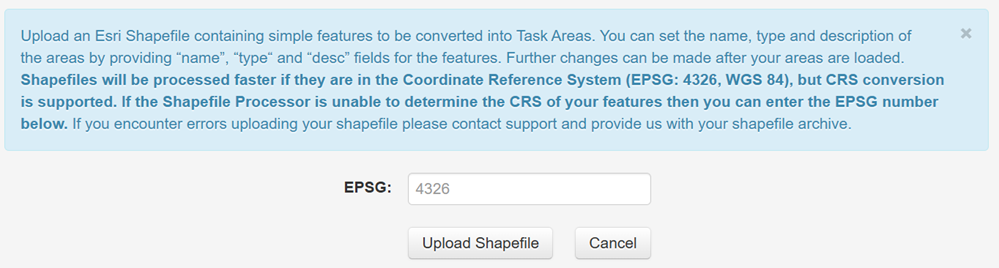
The ESRI or GeoJSON upload screen displays.
-
-
Click Upload Shapefile or Upload File (for GeoJSON files) then select the file from the file browser window.
If the shapefile or GeoJSON processor is unable to determine the Coordinate Reference System (CRS) of your file, you can enter the EPSG number manually instead.
A new area of concern is created with the boundary defined by the uploaded shapefile or GeoJSON file.
Importing a polygon shape that contains too many vertices can cause the map, including map layer interaction, to become unresponsive.