
The Auto Update Fields component is used to automatically update an existing field with an associated value when a record is updated. For example, you may want to automatically update a record with the current date and time each time the record is updated.
The Auto Update Fields component is supported in the Input view.
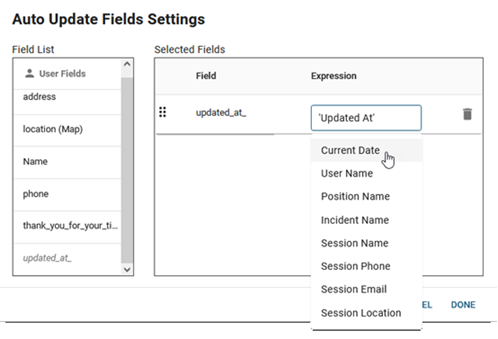
DesignStudio provides a suggested list of Auto Update information that you can insert in a record. The following suggestions are available:
-
Current Date
-
User Name
-
Position Name
-
Incident Name
-
Session Name
-
Session Phone
-
Session Email
-
Session Location
You can also enter valid SQL expressions.
To add the Auto Update Fields feature
-
In your board, in Design mode, open the Input view.
-
Drag and drop the component you want to use with this feature.
-
In the appearing settings window, in the Label field, enter a name for the field, and then click Done. In the following example, Updated at: is entered for the Date/Time component field name.
-
Click Save
 to save the record.
You must save the record before you define the Auto Update Fields settings. The Save button is located above the canvas.
-
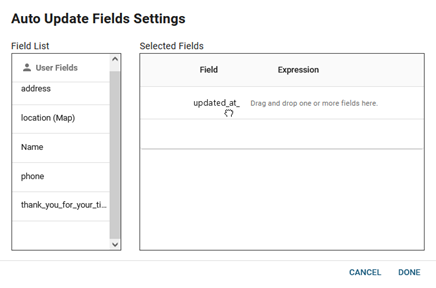
On the right, under Toolbox, click the Auto Update Fields component. The Auto Update Fields Settings window opens.
-
From the Field List, drag the field or fields that you inserted to the Selected Fields list. In this example, the field name is Updated at:.
-
For each field that you dropped in the Selected Fields list, in the field line, click the Expression field and select the appropriate SQL expression from the list.
-
The Field label must match what you entered as the Label when you dropped the component on the canvas (steps 2 and 3).
-
The Expression must be related to the component type. For example, you cannot drop a Phone component and select a Date expression.
-
You can alternately enter a valid SQL expression within single quotes.
-
-
Click Done.
-
Click Save
. -
On the upper right, open the List view that you are using for this board instance, and add the new field(s) to the List view. See Create a List View.
-
Click Save
. -
Publish the board to the WebEOC instance. See Publish a Board.