Miscellaneous Options
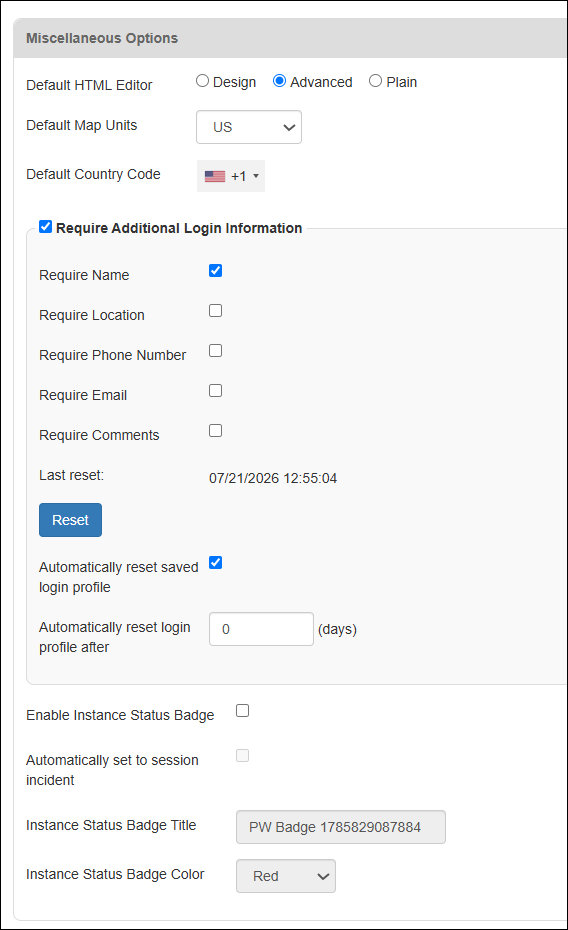
Located on the General tab of the System Settings page, this section contains settings for login profiles, instance status badge A configurable label that identifies the current system environment, such as Training or Test, across multiple instances. configuration, and more.
Default HTML Editor
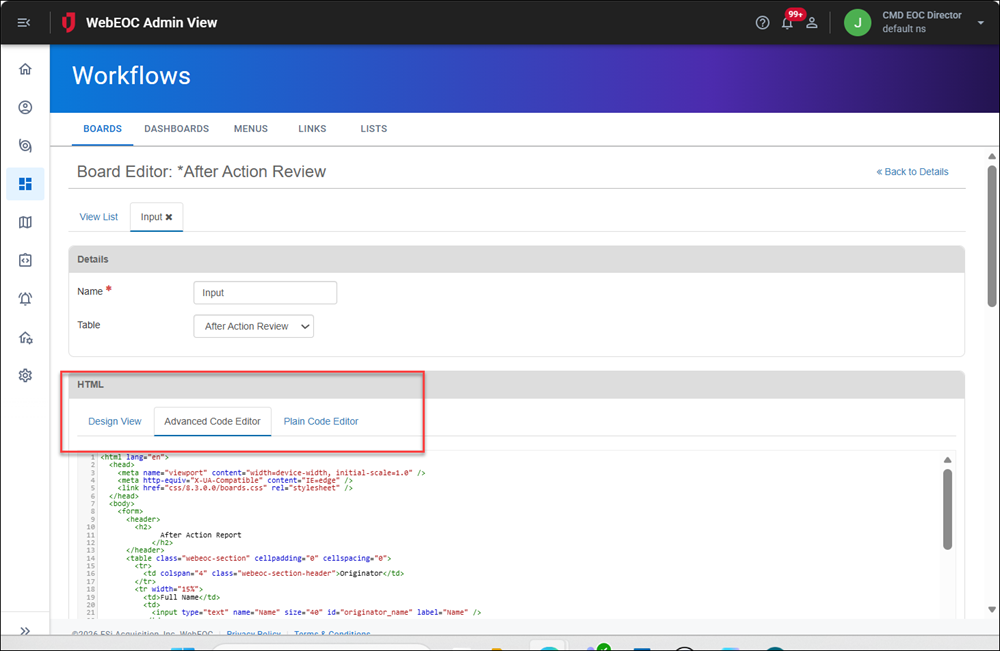
By default, WebEOC Nexus is set to use the Design HTML Editor. Other options included the Advanced HTML Editor, which offers syntax highlighting and auto-completion, and the Plain Text Editor. Administrators can set the default for all HTML editing to any of these three editors.
You access these editors when working in the Board Editor.
Default Map Units
The type of units used on maps by default throughout the platform.
Options are:
-
US
-
Metric
-
Imperial
-
Nautical
-
Degrees
Default Country Code
The country code that is used on phone numbers throughout the platform.
Require Additional Login Information
If the Require Additional Login Information checkbox is selected, you can set which login information must be stored for each user. Users are required to provide this information during the login process.
The Please confirm your information to proceed dialog displays when a user logs in if:
-
The user has no stored additional information. This could occur when the user first logs in, or if the information was never submitted.
-
An admin has selected the Require Additional Login Information checkbox when it was not previously selected.
-
An admin has cleared the user's stored additional information in the fields. In this case, when the user logs in, WebEOC Nexus treats this login as if it were the user's first login.
-
An Administrator clicked the Reset button, forcing users to re-enter their additional information on the Please confirm your information to proceed dialog during login. A timestamp indicating the last time an Administrator clicked this button also displays. When the Administrator clicks Reset, a confirmation dialog displays, explaining that this action will prompt all users to update all required additional information again.
-
The user reset their saved login info. See Reset Saved Login Info for details.
Automatically Reset Saved Login Profile
This does not affect a user's position or incident selection.
If your users must confirm their saved login information, you can automate the process. You can use a few settings to reset all saved login information after a certain number of days. After these days have passed, all users must enter the required login information during the login process.
To automatically reset saved login profile information
-
In the main menu, click the system settings icon
 . The System Settings page opens.
 -
On the General tab, in the Miscellaneous Options section, select the Automatically reset saved login profile checkbox.
-
Enter the number of days to reset the profile in the Automatically reset login profile after N days field.
-
Scroll down and click Save in the bottom right.