Use Process Permission Routing Using Drop-down Menus
Once configured, process permissions A setting that grants an organizational group access to a process flow's views. help declutter the WebEOC Nexus interface by only displaying data that is relevant to the current position. For example, drop-down menus can be populated with users who belong to the same position as the current position or positions from specific jurisdictions. By limiting the selections, user errors are reduced and the result is an improved and streamlined user experience.
For example, you could create a process permission to restrict selections in an Assigned To list on the Request/Task board’s Input view by section, so that users can only assign tasks to other users from their section.
To set up this type of process permission, you could:
-
Create an organizational group for each section.
-
Create a process permission called PP – Request – Assigned to Groups.
-
Assign this process permission to each section organizational group
A cluster of positions that, with process permissions, defines the structure for process flow.. -
Access the Request/Task board.
-
On the Edit Boards page, go to the Input View for the Request/Task board.
-
In the HTML section, on the Design View tab, click in the Assigned to field.
Above the form, note the assigned_to field is listed in Name field.
-
In the List dropdown, select the process permission PP – Request – Assigned to Groups.
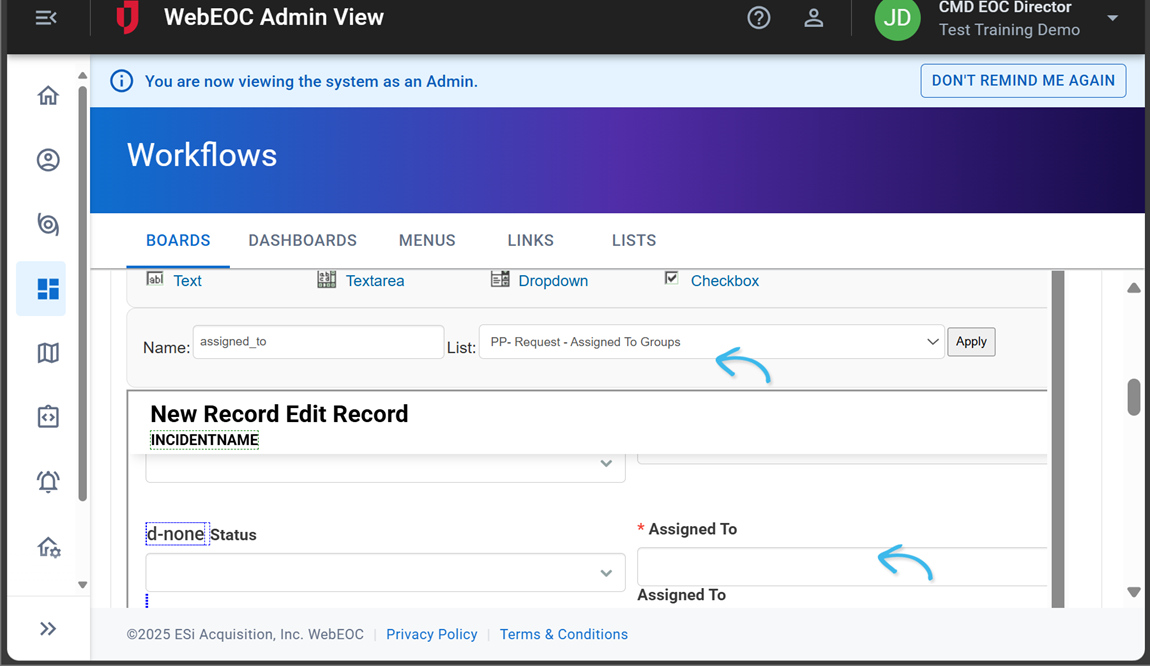
Once saved, when a user accesses the Request/Task board, only other users from their section will be available for selection in the Assigned To drop down menu.