Stop Sharing a Board
You can stop sharing a board at any time by removing it from the networks it has been published to. When you stop sharing, you maintain access to the shared board, and a local version of it is downloaded and retained by all organizations in the network. Everyone can continue to work with the board, adding and editing data.
You can re-share the board with a network at any time by following the steps in Share a Board with Selected Networks. If you choose to reshare the board at a later date, a new copy of the board is shared with the network and it exists side-by-side with any previous boards of the same name.
The JX chat feature is a convenient way to notify other organizations in the network that you have stopped sharing a board with them. For information on using chat, see Manage Chat Topics.
-
In the main menu, click the workflows icon
 . The Workflows page opens. The Boards tab opens with the Local Boards filter selected by default.
 -
Click the name of the board that you want to stop sharing. The Edit Board page opens.
-
In the JX area, click Publish. The Publish Board page opens.
-
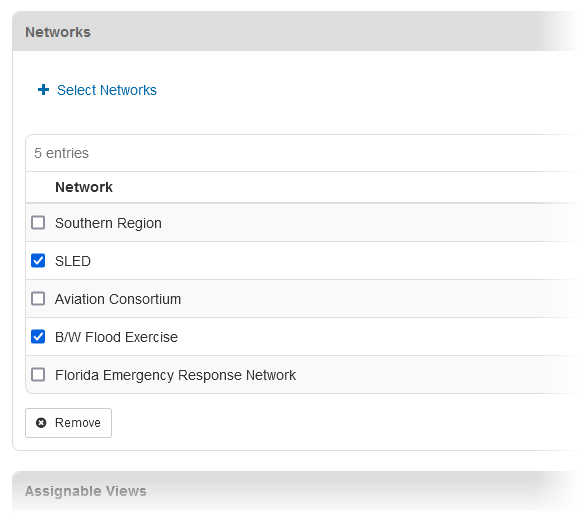
In the Networks area, select the networks that you want to stop sharing the board with.
-
Click Remove.
-
On the lower-right side of the page, click Share. The Edit Board page opens.
-
Click Save.