Share a Board
With board sharing enabled through , you can publish a local board to a network to share it with the organizations within the network. However, you cannot share boards that you are subscribed to or do not own. When sharing a board, you must choose whether to include its existing data; regardless of your choice, once an organization subscribes to a shared board, all future board data is shared. If you share an incident-dependent board, you must also share the associated incident to ensure the organization can access the board's data. For information on incident sharing, see Share an Incident.
If you publish a board to multiple networks, the data you create is sent to all networks. However, the data you receive is only shared within the network that shared the data. For this reason, we recommend grouping all organizations you want to share the board with into a single network.
Once a board has been published, it cannot be unpublished; however, you can stop sharing the board with networks by following the steps in Stop Sharing a Board with a Network.
The JX chat feature is a convenient way to notify the other organizations in a network that you have shared a board with them. For information on using chat, see Manage Chat Topics.
To share a board with one or more networks
-
In the main menu, click the workflows icon
 . The Workflows page opens. The Boards tab opens with the Local Boards filter selected by default.
 -
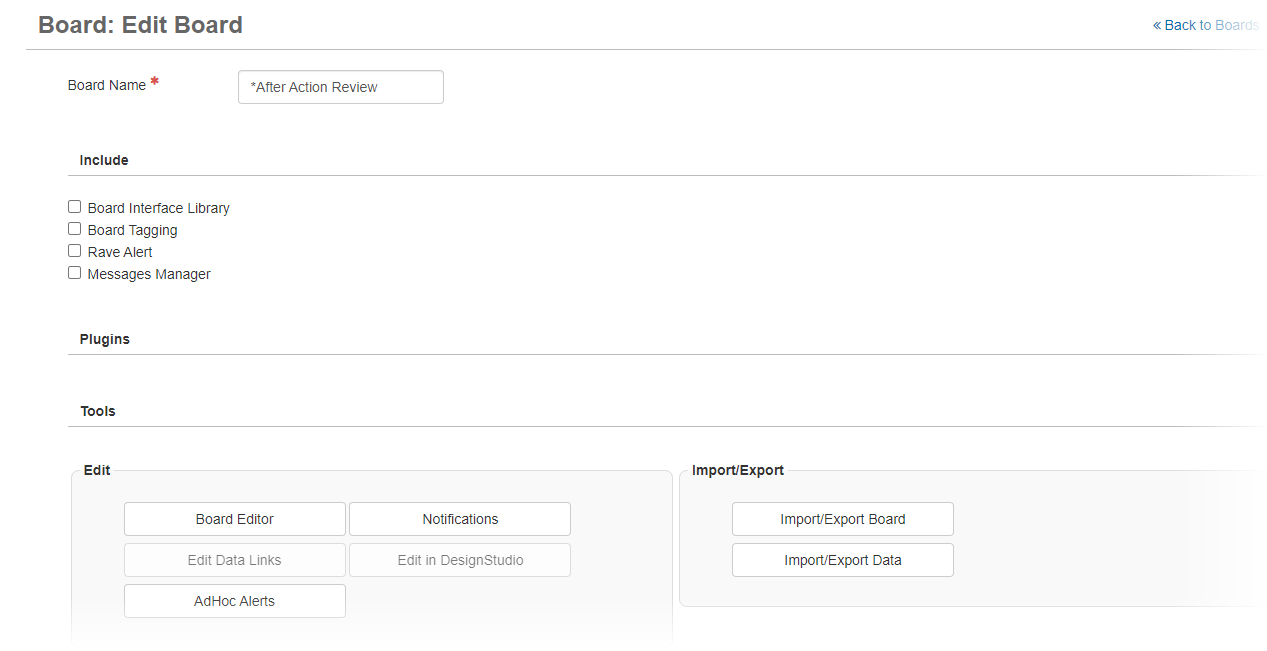
Click the name of the board that you want to publish. The Edit Board page opens.
-
In the JX area, click Publish. The Publish Board page opens.
-
In the Networks area, click Select Networks. The Select Networks dialog opens.
-
Select the networks that you want to share the board with, and then click Save.
If you select multiple networks, keep in mind that while the data you add to the board is shared across the networks, the data generated by subscribers is shared only within their respective networks.
-
In the Assignable Views area, select the views that you want subscribers to be able to assign and access.
-
In the Data area, choose whether to share existing board data.
Your choice is permanent; this setting cannot be modified.
-
Click Share. The Edit Board page opens.
-
Click Save.
If you shared an incident-dependent board, you must also share the associated incident to ensure the organization can access the board's data. For more information, see Share an Incident.
For information on subscribing to a board that has been shared with you, refer to Subscribe to a Shared Board in the WebEOC Nexus User Help Center.